



When trying to access your Outlook account, you may encounter the “set of folders cannot be opened” error. This can block access to your emails, contacts, calendar, and other mail items. The complete error message may appear as:
Cannot start Microsoft Outlook. Cannot open the Outlook window. The set of folders cannot be opened. The operation failed.
It usually occurs when there is a problem with the Outlook data file (.pst). However, various other factors can also lead to this error. In this post, we will discuss the major causes of this Outlook error and provide solutions to fix it.
Table of contents
Reasons for the Outlook Cannot Open Set of Folders Error
Outlook may fail to open the set of folders due to the following reasons:
- Corrupted Outlook data file (PST)
- Damaged Outlook profile
- Corrupted Navigation Pane settings
- Faulty or conflicting COM add-ins
- Antivirus or other third-party software interference
- Internet connectivity issues
Methods to Fix Outlook Cannot Open Set of Folders Error
Here we have mentioned the most effective methods to fix the error “The set of folders cannot be opened” in Outlook.
1. Start Outlook in Safe Mode and Disable Add-ins
Third-party add-ins in Outlook help improve your application’s performance. Sometimes, these add-ins, if faulty or incompatible, can interfere with the synchronization or other functionalities, causing errors and issues. You can open your application in Safe Mode to check if an add-in is the reason for this error. Here’s how:
- Press Windows + R.
- Type outlook.exe /safe.
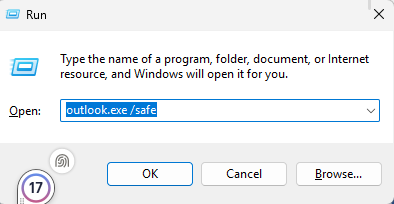
- Press the Enter key.
If your Outlook works well in this mode, it means an add-in is the reason for this issue. You can fix the issue by finding and disabling the faulty add-in. Here’s how:
- Choose File > Options. Click Add-ins in the upper left corner of the Outlook Options window.
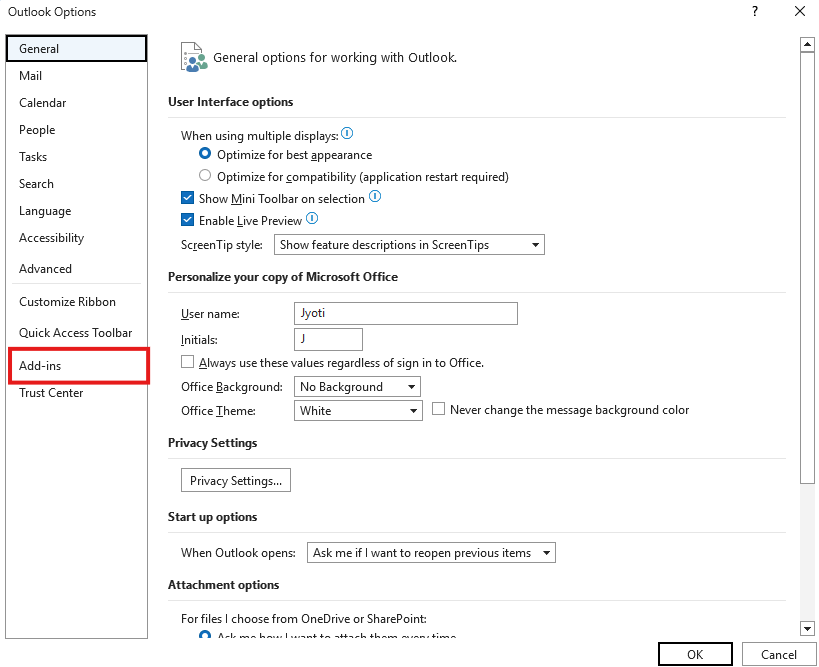
- Select COM Add-ins. Click Go.
- Now, a list of all add-ins will be displayed on your screen.
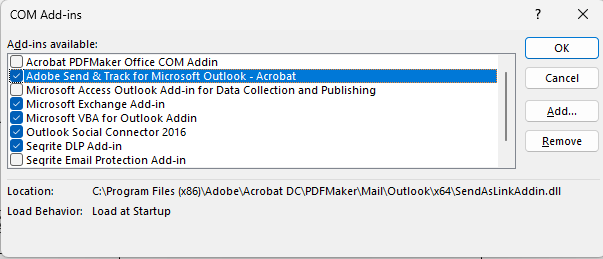
- Uncheck all listed add-ins to disable them.
- Click OK to save the changes.
- Relaunch Outlook normally.
- Enable the add-ins one-by-one and restart Outlook to identify the specific add-in causing the error.
- Once identified, permanently remove the problematic add-in.
2. Reset the Navigation Pane
The Navigation Pane in Outlook is the narrow vertical bar on the left side that allows you to switch between Mail, Calendar, Contacts, and other modules in Outlook. If its settings become corrupted, your email client may fail to open and display the error. You can fix this issue by resetting the Navigation Pane. Here’s how:
- Close the Outlook application completely.
- Open the Run utility (press Windows + R).
- Type Outlook.exe /resetnavpane.
- Then, click OK.
3. Create a New Outlook Profile
Your Outlook profile stores your email account settings, data file information, and other Outlook preferences. If the profile becomes corrupted, Outlook may fail to load the required settings and display the error “Cannot start Microsoft Outlook. The set of folders cannot be opened.” You can fix this issue by creating a new profile. Follow the steps below:
- Open Control Panel.
- Click on Mail (Microsoft Outlook).
- Click on Show Profiles.
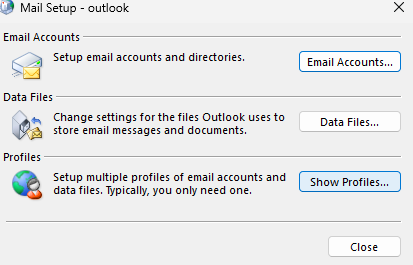
- Click Add.
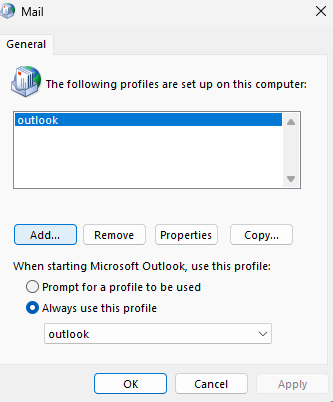
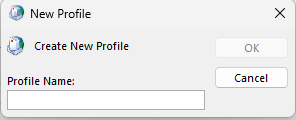
- Type a name for your new profile (e.g., “Work,” “Personal,” or “Project”). Click OK.
- Follow the on-screen instructions to complete the setup and then click Finish.
- Go back to the Mail window. Select Always use this profile and choose the newly created profile.
- Click Apply and then click OK.
You can also create a new Outlook profile using the Profile Picker. Press and hold the Shift key while opening Outlook to access it. Read the Microsoft Document for complete details.
4. Repair your PST File
If your PST file is corrupted, it may prevent Outlook from opening and display the error message “Outlook cannot open set of folders”. You can use Microsoft’s ScanPST (Inbox Repair Tool) to repair the file. ScanPST checks the PST file for corruption and fixes minor issues, which may resolve the error. Here’s how to use the tool:
- Close the Outlook application.
- Find the ScanPST tool on your system.

- Double-click to open the tool. Click on Browse.
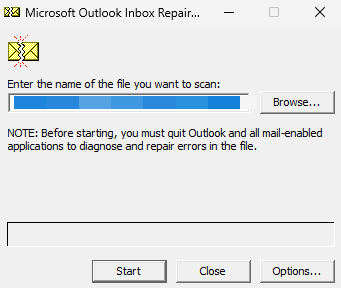
- Select the PST file and click on Start. It will start scanning the file.
- After completing the scan, the tool will display the errors. Now, click on Repair.
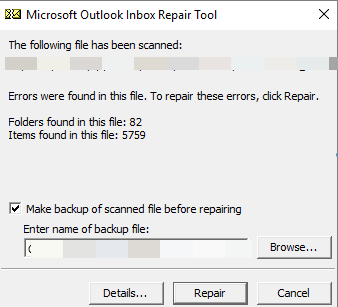
- Wait for the repair process to complete.
If ScanPST fails to repair the PST file, it means it has severe corruption issues that are beyond its repair capabilities. In such a case, you can look for alternative PST repair solutions.
You can repair your PST file online for free by using free Online PST Repair by Stellar. It accurately repairs PST files of up to 500 MB for free with complete integrity. With its Premium version, you can repair a 5 GB PST file. It is completely safe and secure, and doesn’t require installation of Outlook or any other tool.
For repairing unlimited files without any size limitations, you can opt for Stellar Repair for Outlook. This tool can effectively repair PST files and restore all the mailbox items to a new PST file. It ensures complete data integrity and maintains the original folder structure and hierarchy during the repair process. You can also preview recoverable items after repair. This tool can also split or compact the repaired PST if it is large, while saving it.
Conclusion
The error “Outlook cannot open set of folders” can prevent you from accessing your mailbox items. This error occurs due to a corrupt Outlook data file, a damaged Outlook profile, and several other reasons. You can resolve the error by following the methods discussed in this article. However, if the issue is caused by severe PST file corruption, then you can rely on an advanced Outlook PST repair tool such as Stellar Repair for Outlook. The tool can efficiently repair severely corrupted PST files, irrespective of the size.