
A video may seem gone when the system stops showing it after deletion. Wondershare video recovery uses clear tools that scan storage and find deleted files. The steps remain simple, helping users follow the process without stress or confusion. Each step clearly explains the process and shows progress as the scan continues. This recovery solution scans each storage block and identifies readable video fragments. The tool also displays previews so users can confirm files before choosing a restore action. Its guided steps keep the work easy for all users. These features support strong permanently deleted video recovery on many common devices.
Key Takeaways
- Wondershare video recovery helps users restore permanently deleted videos on Windows 10 through deep scanning and recovery tools.
- It rebuilds fragmented video files, enabling users to preview content before restoring.
- Key features include repair capability for corrupted videos, AI-powered scan optimization, and support for various formats and devices.
- Real-life scenarios illustrate how Recoverit recovers deleted videos from cameras, formatted drives, and corrupted files.
- The article provides a step-by-step guide for using Recoverit to successfully recover permanently deleted videos.
Table of contents
- Part 1. Inside Wondershare Video Recovery: How It Recovers Deleted Videos on Windows 10
- Part 2. Real-Life Video Loss Scenarios Fixed with Wondershare Video Recovery
- Scenario 1. Deleted Camera or Phone Clips
- Scenario 2. Formatted SD Card or USB Drive
- Scenario 3. Corrupted Video After Sudden Shutdown
- Scenario 4. Emptied Recycle Bin on Windows 10 Lead to Permanently Deleted Videos
- Scenario 5. External Hard Drive or NAS Issues
- Scenario 6. Drone and Action‑Cam Failures Can Lead to Permanently Deleted Videos
- Part 3. Restore Permanently Deleted Videos Quickly: Step-by-Step Wondershare Video Recovery Guide
- Conclusion
Part 1. Inside Wondershare Video Recovery: How It Recovers Deleted Videos on Windows 10
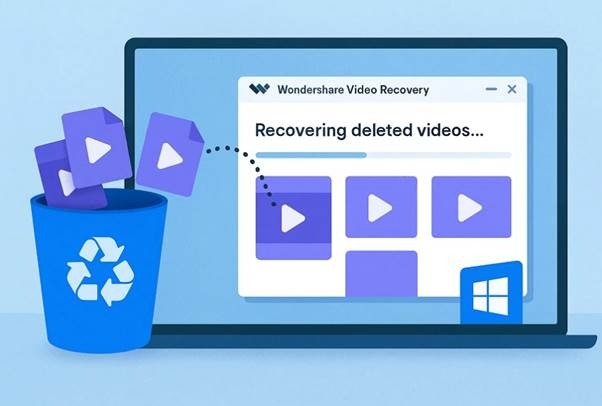
Wondershare Recoverit helps recover videos on Windows 10 using deep disk scans. When videos are deleted, the file list disappears, but the data often stays on the disk. Recoverit then scans the drive directly to find lost video parts. Its Quick and deep scans find scattered video pieces and rebuild them into playable files. This process helps users recover permanently deleted videos Windows 10, preview results, and save them safely.
What Makes Wondershare Video Recovery Stand Out: Key Features
Once you know how video recovery works, you can see why Recoverit is different. The key features below explain how Recoverit handles serious video loss, not just simple deletion.
| Aspect | What Wondershare Offers | Why It Stands Out |
| Video Fragment Handling | Uses a patented engine to find and merge scattered parts of large video files. | Restores HD, 4K, and long recordings that basic tools often fail to rebuild. |
| Repair Capability | Includes built-in repair for corrupted or unplayable video formats like MP4 and MOV. | Fixes videos that recover but cannot play without extra repair software. |
| AI-Powered Workflow | Applies AI to analyze devices, detect loss patterns, and guide scanning. | Improves scan speed and accuracy in complex video loss cases. |
| Format and Device Support | Supports many video formats across cameras, cards, drones, and drives. | One tool works across most recording devices and storage types. |
| User Experience | Provides a simple interface with quick scans, deep scans, and previews. | Makes advanced video recovery easier for both beginners and professionals. |
| System and Disk Safeguards | Offers bootable recovery and disk image scanning in selected editions. | Protects unstable drives by reducing direct read stress during recovery. |
Part 2. Real-Life Video Loss Scenarios Fixed with Wondershare Video Recovery
Videos can disappear in many ways, and each situation affects storage devices differently. These real-world cases show how Recoverit handles complex video recovery situations. The following scenarios explain how the software finds, rebuilds, and restores lost video files:
Scenario 1. Deleted Camera or Phone Clips
Videos deleted from cameras, drones, or phones may disappear from galleries and trash folders. Recoverit scans the device directly and reads raw storage sectors safely. The software accurately detects video file signatures such as MP4 and MOV. Fragmented recordings are reconstructed and restored to a secure location on the computer.
Scenario 2. Formatted SD Card or USB Drive
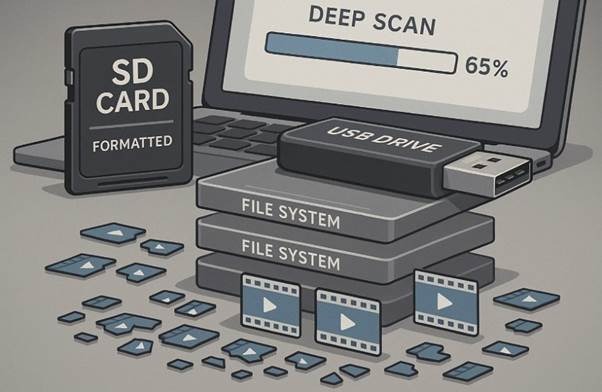
Quick formatting removes file structures, but original video data often remains stored on the device. The software performs a deep scan beneath the newly created file system layers. During this scan, hidden video fragments are located and reassembled into complete recordings. This approach works especially well for DSLR, action camera, and event footage.
Scenario 3. Corrupted Video After Sudden Shutdown
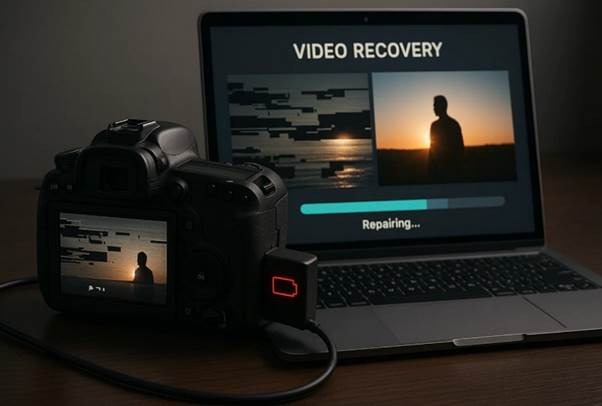
Power loss or sudden disconnection can interrupt saving and leave videos incomplete or unplayable. Recoverit recovers the damaged video data directly from the affected storage device. It’s built-in repair engine then fixes broken headers and internal file structure. When needed, Advanced Repair uses a healthy sample file to restore proper playback.
Scenario 4. Emptied Recycle Bin on Windows 10 Lead to Permanently Deleted Videos
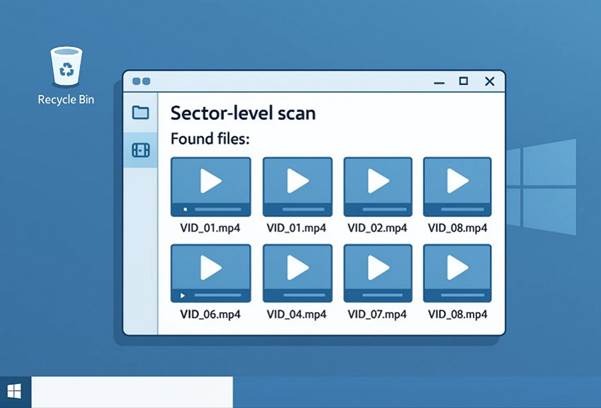
Emptying the Recycle Bin clears file references, but the actual disk data often remains. The tool performs a sector-level scan across the system drive. Missing videos are then identified, organized, and made available for preview. This process allows users to recover permanently deleted videos even after the bin is emptied.
Scenario 5. External Hard Drive or NAS Issues
Accidental deletion or file system errors can make videos inaccessible on external storage devices. Recoverit analyzes external hard drives and logical volumes to locate hidden video data. Large project files and proxy videos are restored through advanced deep analysis techniques. Some editions let users scan a disk image instead of the original drive for safety.

Scenario 6. Drone and Action‑Cam Failures Can Lead to Permanently Deleted Videos
Drone flights and action cameras often lose power suddenly while videos are still recording. This interruption leaves video data incomplete or scattered across the memory card. Recoverit detects camera-specific video structures and extracts missing video streams. The software then rebuilds and repairs the footage so it plays again.

Part 3. Restore Permanently Deleted Videos Quickly: Step-by-Step Wondershare Video Recovery Guide
With the basics clear, let’s dive into the step-by-step guide below to recover permanently deleted videos:
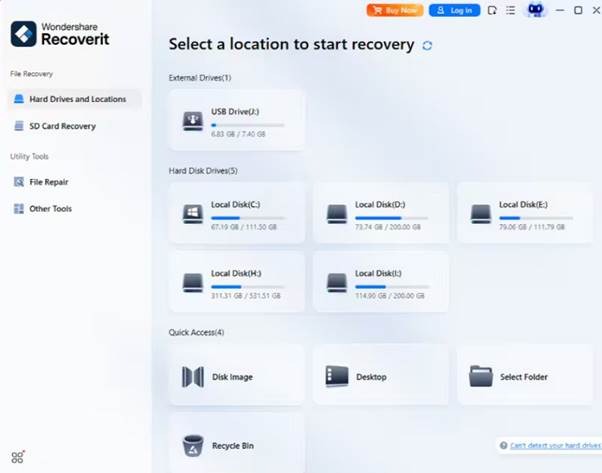
Step 1. Choose the Storage Location to Scan for Permanently Deleted Videos
Upon launching Recoverit, move toward the “Hard Drives and Locations” section. From the list shown, select the exact drive or storage volume where the video files were deleted.
Step 2. Scan the Selected Drive for Permanently Deleted Videos
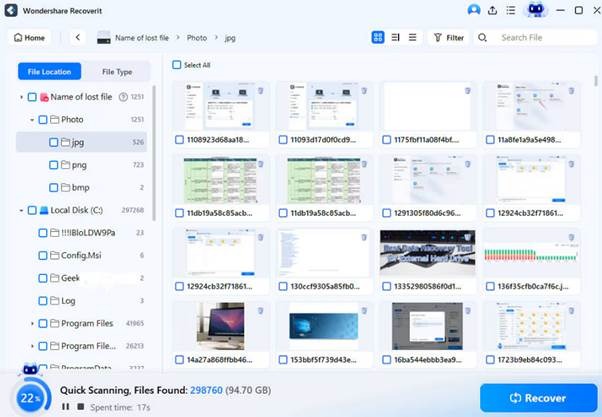
After selecting the target storage, start the scan to examine all sectors that have recoverable video data. Once scanning completes, recovered video files appear in the “File Location” tab.
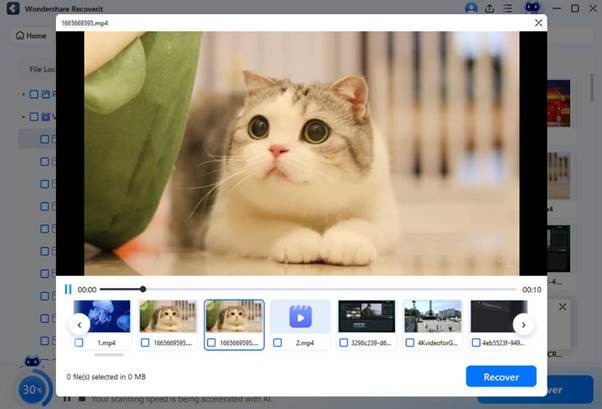
Step 3: Preview and Restore the Required Video Files to Find Your Permanently Deleted Videos
When the scan results are available, preview each recovered video to confirm proper playback. Then, select the clips you want to keep, click “Recover,” and save them to your device.
Conclusion
To conclude, recovering deleted videos becomes easier with the correct recovery process. This article explained how Wondershare scans storage, rebuilds video parts, previews results, and restores files. It also covered key features, real loss scenarios, and a clear step-by-step guide. For users looking to recover permanently deleted videos on Windows 10, Recoverit offers a practical solution.