


Tutorials, reviews, and presenter videos often require multiple video and audio sources. A creator may capture their screen, camera, microphone, and computer system audio together. Basic recording setups can merge these sources into one file after recording ends.
Once merged, changing camera placement or balancing separate audio tracks becomes challenging. Wondershare Filmora 16 keeps recorded sources separate through its Multi-Source Recording feature instead. This guide explains how separate source recording gives creators more control during editing.
Key Takeaways
- Wondershare Filmora 16’s multi-source recording feature allows capturing multiple audio and video inputs separately.
- Separate sources enable easier editing, giving creators control over camera placement, audio balance, and visual arrangement post-capture.
- Filmora’s recording setup includes options for capturing screen, camera, microphone, and system audio in a single workflow.
- Multi-source recording benefits educators, reviewers, and course creators by enhancing flexibility during post-production editing.
- Overall, multi-source recording reduces pressure during the initial capture by keeping individual sources editable afterwards.
Table of contents
Part 1. What Is Multi-Source Recording?
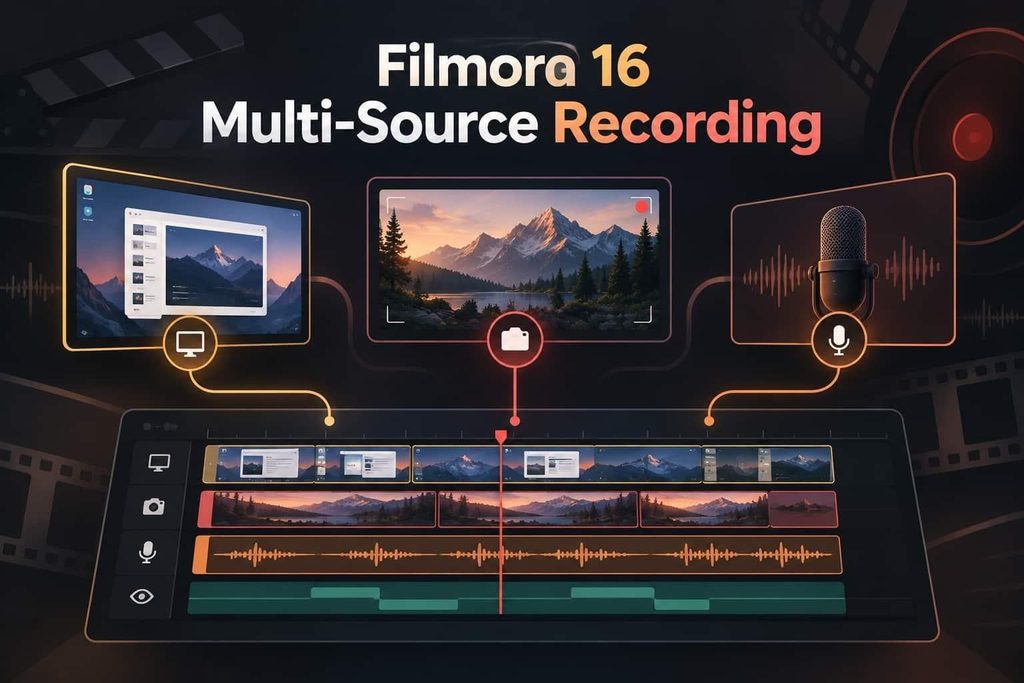
Multi-Source Recording in Wondershare Filmora 16 captures several inputs during the recording session. Multiple screens, camera, microphone, and system audio can be captured together in one workflow. Filmora keeps captured sources separate instead of merging them into one finished recording.
This separation lets each recorded source remain available for changes after capture ends. Captured material then moves into Filmora, where creators can continue editing each source. Here are the 3 ways to open Filmora’s recorder before starting your session:
- Startup Window: Open Filmora > Select “Screen Recorder” from the startup window.
- File Menu: Open Filmora > Go to “File” > “Record Media” > “Record PC Screen.”
- Media Panel: Open Filmora > Select “Media” > “Record” > “Record PC Screen.”
What You Can Capture in a Single Session
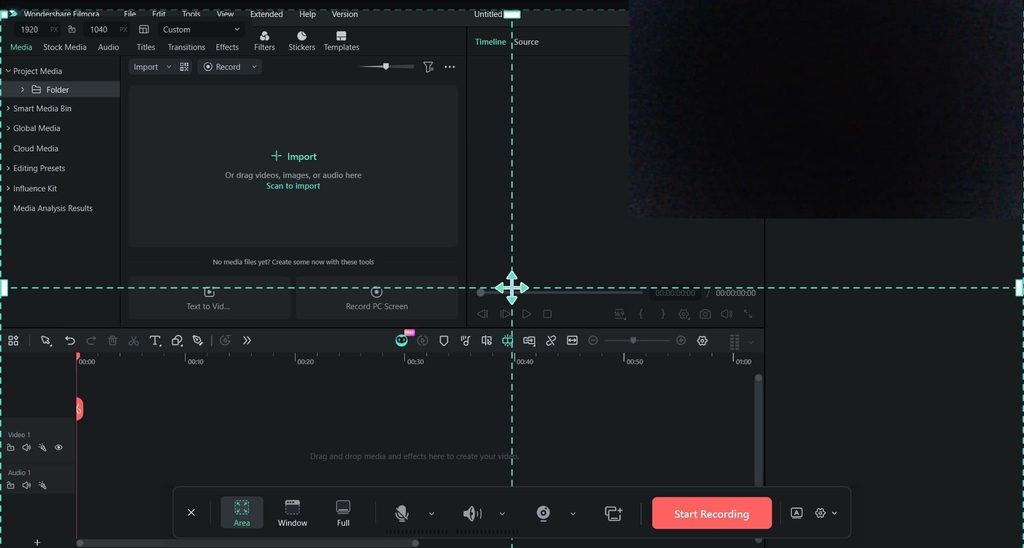
Filmora 16 lets creators choose the visual and audio inputs needed before recording starts. Screen capture also provides 3 modes for deciding which part of the display appears:
| Source | What It Captures | How It Is Set |
| Screen | A selected area, application window, or full display | Choose Area, Full, or Window |
| Camera | Video from a connected camera for the presenter view | Turn on “Camera” and select the connected device |
| Microphone | Voice or other sound from a connected microphone | Turn on “Microphone” and select the input device |
| System Audio | Sound played by the computer during the recording | Turn on “System Audio” for the recording session |
Note: System audio arrives as a single source covering whatever the machine is playing. It is not a list of applications to choose between, so plan around that rather than discovering it mid-project.
Recording Settings and Controls
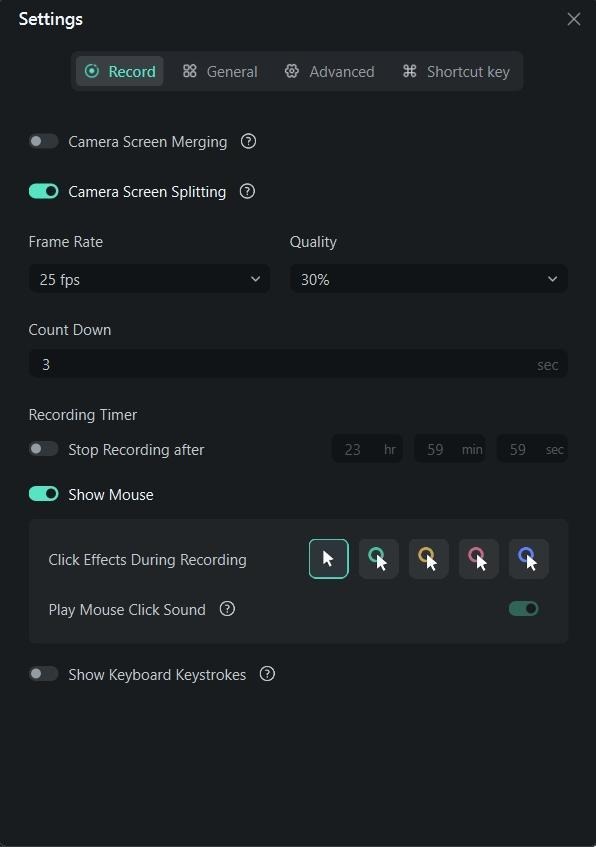
Before recording starts, Filmora lets users choose “Area,” “Full,” or “Window” capture mode. Camera settings cover the display style and resolution, while recorder settings control frame rate and recording quality. Users can also set a countdown before capture begins and enable mouse effects for clearer cursor visibility during screen demonstrations.
Some controls remain available after recording begins. The annotation toolbar provides drawing, highlighting, text, and shape tools for marking information on screen during capture. Users can also place markers with the “M” key by default and change that command under the “Shortcut Key” settings.
Part 2. Why Separate Sources Matter
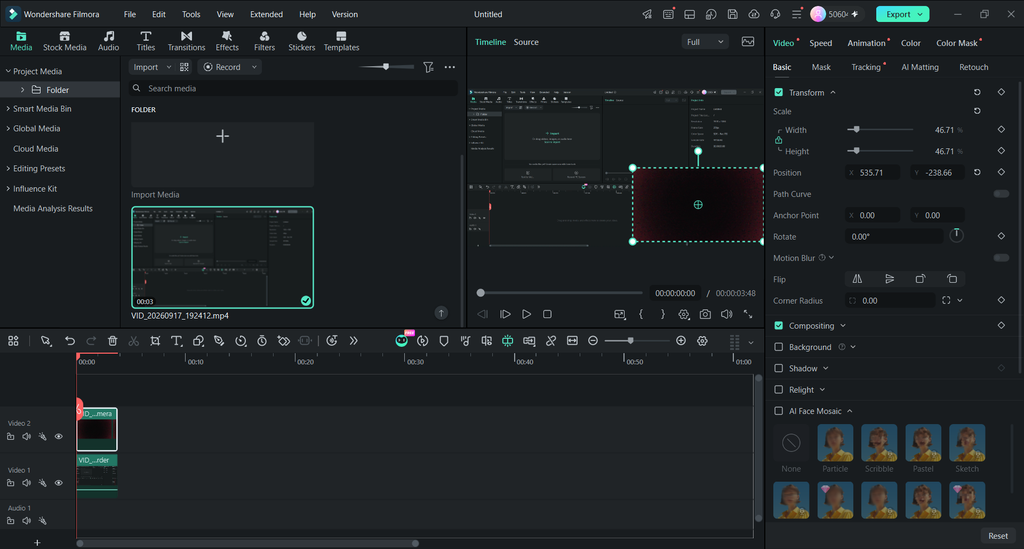
Separate recording sources give creators more control once captured footage enters the editing stage. The Filmora video editor keeps source-based changes open instead of locking them during capture. Look at the table below to see which recording choices stay fixed and which remain editable afterward:
| Set During Recording | Still Editable After Recording |
| Screen area selected for capture | Camera position within the finished frame |
| Camera included in the recording | Camera size alongside the recorded screen |
| Screen and camera captured as separate visuals | Layout and arrangement of those recorded visuals |
| Microphone and system audio captured for the session | Balance between microphone and system audio |
| Sources selected before recording begins | Which recorded source appears or is heard when |
Where Separate Sources Make a Difference
Separate sources bring benefits when screen content and presenter footage compete for attention. Tutorial and education videos can emphasize screen content while keeping presenters visible when needed. Product demos can position camera footage away from controls, menus, and important details.
Reviews can shift visual focus between presenter commentary and screen content as needed. Presenter-based videos can resize camera footage when screen information requires more viewing space. Microphone and system audio can support better balance between narration and computer sound.
Note: Source separation cannot restore screen, camera, or audio content that was never captured. Content outside the selected screen area remains unavailable after the recording session ends. A disabled camera leaves no presenter footage for repositioning during the editing stage.
Part 3. Multi-Source Recording on Mac
Filmora brings Multi-Source Recording into its Mac video editing workflow , connecting capture with post-production in the same application. Below are the common Mac workflows where separate sources support changes after recording:
- Educators: Teachers can record slides and camera footage during one session. They can resize presenter footage around important lesson content afterward.
- Reviewers: Reviewers can capture products onscreen while recording their camera reactions. Both visuals remain available for placement changes during post-production editing.
- Course Creators: Creators can record screen demonstrations alongside presenter footage for courses. They can rearrange both sources across different lesson sections afterward.
- Presenters: Presenters can capture microphone and system audio within one session. They can adjust both audio levels during the editing process.
Note: There are 2 recorder features that are limited to Windows at this time. The built-in teleprompter is unavailable on macOS, while Game Recording is also documented for Windows. These differences do not affect multi-source recording, since captured sources remain separate for editing.
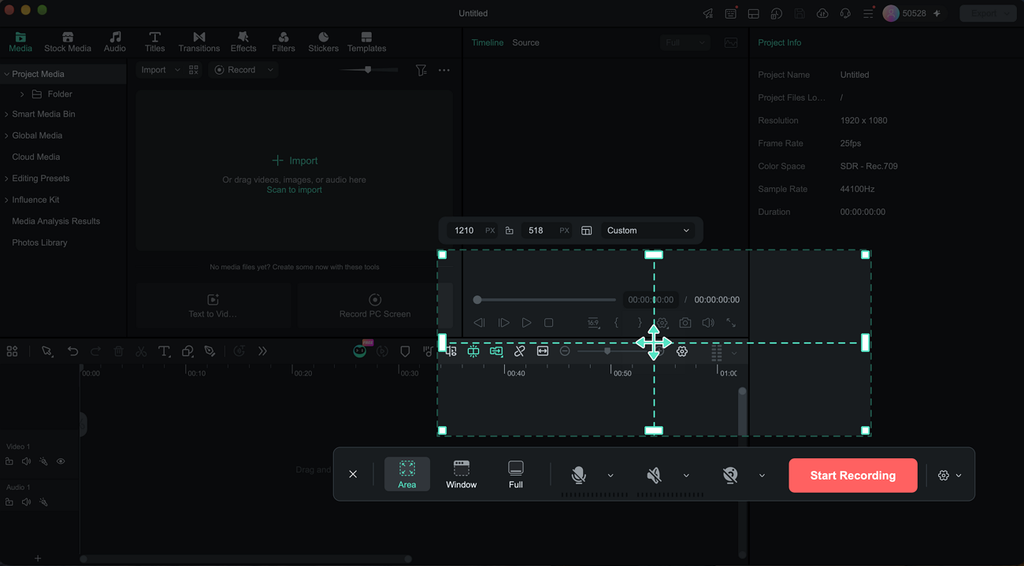
Once recording ends, captured material moves into Filmora for continued editing and arrangement. Mac creators can refine recorded sources without rebuilding their entire recording setup afterward. This connection keeps capture and post-production within the same broader editing workflow.
Read Next
A few related pieces worth your time:
- The Role of Weather Data in Training Accurate Machine Learning Models
- Dexlift ETH Volume Bot: The 2026 Breakdown for Serious Ethereum Developers
- Modern Engraving Technology Is Changing Product Design
Conclusion
Filmora 16 Multi-Source Recording keeps screen, camera, and audio sources separate afterward. Creators can resize camera footage, change layouts, and balance recorded audio after capture. Separate sources reduce pressure to finalize every production choice during the recording. Post-production changes become easier because individual sources remain available for further editing.