


Generating an image is often only the first step in a commercial creative workflow. A product visual may need a cleaner background, a wider composition, sharper details, or a small correction before it is ready for an advertisement. Using a separate application for every adjustment can quickly make the process inefficient.
Renoise AI approaches this problem as a multi-model creative platform. It combines ten image models with asset storage, a visual Canvas, image editing, and upscaling tools. For product-ad teams, the main benefit is not simply having more models. It is being able to generate, revise, organize, and prepare an image for delivery in one connected environment.
Table of contents
- Choosing an Image Model in Renoise
- A Practical Image Workflow
- Enhance Image: Improve Quality Without Changing the Layout
- Expand Image: Create New Space Around a Visual
- Remove Object: Clean Up Distractions
- Repaint Image: Change One Area Without Starting Over
- Using the AI Watermark Remover Responsibly
- Workflow Strengths and Limitations
- Final Thoughts
- FAQ
Choosing an Image Model in Renoise
Renoise AI currently includes GPT Image 2, Seedream 5.0 Pro and Lite, Midjourney V8.1 and V7, Nano Banana Pro, Nano Banana 2 and 2 Lite, and Grok Imagine Image variants.
This flexibility helps a team avoid forcing one model to handle every stage. A campaign concept can begin with one model, move to another for refinement, and remain available in the same asset library throughout the project.
A Practical Image Workflow
The first image Generation should be treated as a concept, not necessarily a final asset. Product labels, small text, edges, reflections, and geometry should be checked closely. Once the strongest version is selected, Renoise’s editing tools can address specific problems without requiring the entire concept to be regenerated.
Enhance Image: Improve Quality Without Changing the Layout
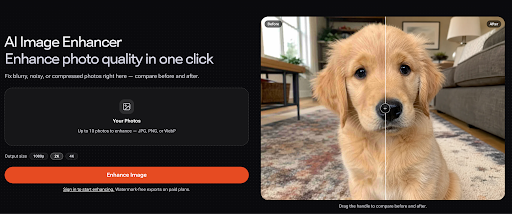
Enhance Image is intended for photographs that are soft, noisy, compressed, or poorly balanced. It can sharpen edges, reduce visible noise, clean up JPEG artifacts, and improve contrast while keeping the same general subject and composition.
This process is generative rather than a pixel-faithful filter. The model infers missing detail from the surrounding image, which means small textures or lettering may change. Teams should compare the enhanced result with the original at full size, especially when packaging or branded text is visible.
Expand Image: Create New Space Around a Visual
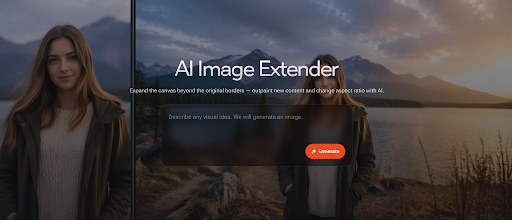
Expand Image uses outpainting to extend content beyond the original borders. This is useful when a square product image needs to become a wide website banner or when a vertical social asset needs additional space for copy.
The creator selects a new canvas area and describes what should appear outside the original frame. The model then generates the missing surroundings. Simple backgrounds, open landscapes, studio surfaces, and gradual lighting transitions generally provide clearer context than intricate patterns.
Remove Object: Clean Up Distractions
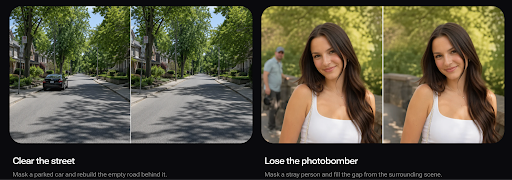
Object removal is useful for eliminating unwanted props, people, signs, reflections, or background clutter. The creator marks the object and asks the model to rebuild the area using the surrounding scene.
This is generative inpainting, not a conventional cutout. Clean backgrounds are usually easier to reconstruct than overlapping objects or detailed textures. If a removed item crosses a product edge, the result may need another pass or a more precise mask.
Repaint Image: Change One Area Without Starting Over
Repaint Image provides more targeted control. A creator can mask part of an image and describe the replacement, such as changing a surface material, adjusting a background element, adding a prop, or correcting part of a composition.
GPT Image 2 is useful for precise, instruction-heavy changes, while Nano Banana Pro can work well for photoreal surfaces, lighting, and broader visual transformations. Results still vary, so the untouched parts and the transition around the edited area should be reviewed before publication.
Using the AI Watermark Remover Responsibly
Later in the workflow, Renoise also provides an AI watermark remover process for images the user owns or is licensed to edit. It should not be used to strip ownership marks from stock libraries, photographers, or other third-party copyrighted work.
The process does not recover the exact pixels hidden beneath a watermark. Instead, the user masks the marked region, and an image model rebuilds it from surrounding context. Busy textures or text-heavy areas may therefore show visible differences. For original work, the cleaner option is to generate the image in Renoise and export it without a Renoise watermark on a paid plan.
Workflow Strengths and Limitations
Renoise’s main strength is continuity. Image Generation, uploaded references, edited versions, and expanded formats can remain connected inside one project. This is useful when a campaign requires several sizes or multiple versions of the same product concept.
Its limitations are equally important. Renoise has no free plan or registration credits, and generative editing can change details that were meant to remain untouched. Canvas offers the most complete workflow on desktop web, while mobile image editing has a more limited interface.
Final Thoughts
Renoise is most useful when image generation and editing are treated as one process. Its multi-model selection supports concept development, while Enhance Image, Expand Image, Remove Object, Repaint Image, and upscaling help prepare the chosen visual for practical campaign use.
FAQ
Can Renoise generate and edit images in the same project?
Yes. Users can generate images, store references, make targeted changes, expand compositions, remove objects, enhance quality, and upscale selected results within the Renoise workflow.
What is the difference between enhancing and upscaling an image?
Enhancement rebuilds perceived detail and reduces blur or noise. Upscaling increases resolution. Both processes can infer new details, so results should be reviewed.
Does object removal preserve the original background perfectly?
Not always. The model rebuilds the masked area from context rather than recovering exact hidden pixels. Complex overlaps and textures may require additional attempts.
Can any watermark be removed?
No. Watermark-related editing should only be performed on images the user owns or is licensed to modify. Third-party ownership marks should not be removed.