


ChatGPT locked chats arrived on October 20, 2026, at a time when 32% of US adults say they have used an AI chatbot for health information in the past year, and 77% say they worry about the privacy of medical details they hand to these tools (Source: KFF Tracking Poll on Health Information and Trust 2026). People are telling chatbots things they would not say out loud. Now there is a way to hide some of those conversations behind a PIN.
The feature does one job well. It keeps a chosen conversation out of sight when someone else is looking at your screen. It does not encrypt anything, it does not change what OpenAI keeps, and it hides one rule that can wipe out every locked conversation you have. You need to know all three before you lock your first chat.
Key Takeaways
- Locked chats hide conversations behind a 4-digit PIN or Face ID.
- Locking changes visibility only. Retention, training, and encryption stay the same.
- Resetting a forgotten PIN permanently deletes every locked chat and its files.
- Locked chats keep their own memory, walled off from regular chats.
- Enterprise and Edu compliance logs still include locked conversations.
What ChatGPT Locked Chats Actually Do
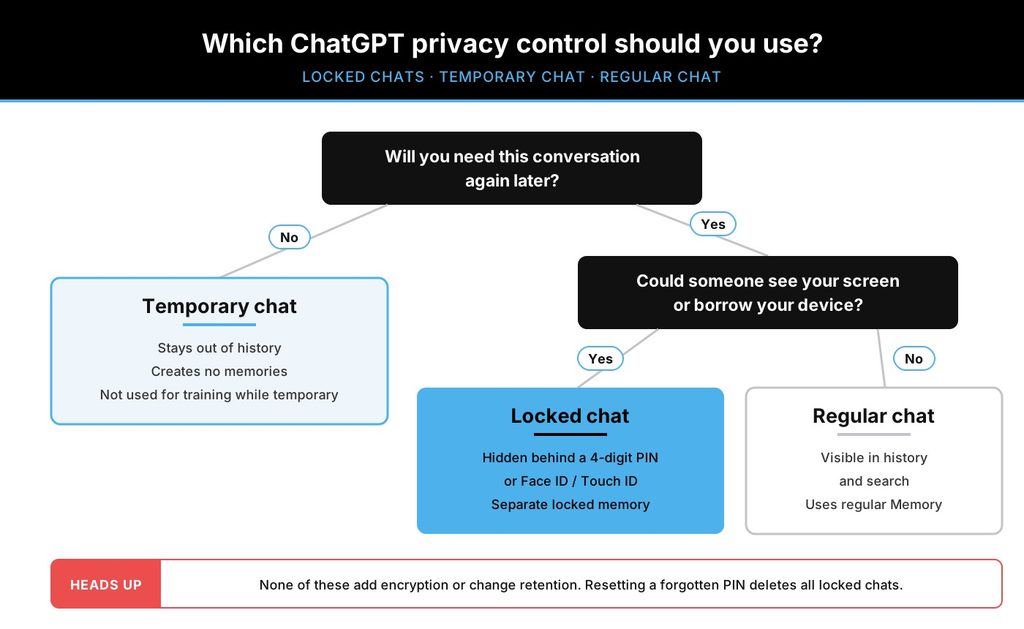
A locked chat stays in your account but disappears from three places: your regular chat history, your pinned chats, and regular conversation search. It moves to a dedicated area under Projects > Locked chats. The sidebar may still show the Locked chats project itself, but the titles inside stay hidden until you authenticate.
Think of it as a screen lock for a handful of conversations. Not a safe.
The use case OpenAI describes in its locked chats help article is ordinary. You hand your phone to a friend to show them a recipe, or you share your screen in a meeting, and you do not want the conversation about your medical results or a surprise party sitting in the sidebar.
Availability is broad. Locked chats work on ChatGPT Free, Go, Plus, Pro, Business, Enterprise, and Edu, on the web, in the iOS and Android apps, and in the new ChatGPT desktop app for macOS and Windows. Two exceptions matter. ChatGPT for Healthcare does not support the feature, and Codex conversations (cloud or local) and local Work conversations cannot be locked. Voice works inside locked chats on the web and mobile, but not in the desktop app.
The rollout is gradual. If you open a chat’s more options menu (•••) and see no Lock chat option, the feature has not reached your account yet.
How to Lock Chats in ChatGPT
You can lock a conversation you already have or start a fresh one inside the locked area. The first time, you have to lock an existing chat.
Lock an existing conversation
- Open the more options menu (•••) on the chat.
- Select Lock chat.
- Select Lock chat again to confirm.
- Create a 4-digit PIN when prompted, or enter the one you already set.
The chat’s title and content then leave your regular history and search. Search results can take a little while to update.
Start a new locked chat
Once the locked area exists, go to Projects > Locked chats, enter your PIN or use device authentication, and type a message. That conversation is saved straight into locked chats and never touches your regular history.
Turn on Face ID, Touch ID, or device unlock
On iOS, switch on Use Face ID or Use Touch ID in the Account PIN settings. On Android, choose Use device unlock when prompted. It is set per device, and your account PIN still works everywhere.
One detail catches people out. Other devices where ChatGPT is already open can keep showing the chat title until their conversation list refreshes, and on iOS the previously loaded content may stay visible until the app reloads. Locked on your laptop does not instantly mean hidden on your iPad. Check your other open devices before you share a screen.
How to Open, Relock, and Permanently Unlock a Chat
Opening a locked chat does not unlock it. Go to Projects > Locked chats, authenticate, and pick the conversation. You get temporary access, and the titles may appear in the sidebar while that access lasts.
How long access lasts depends on where you are.
On the web and desktop, access belongs to the browser tab or app window where you entered the PIN. It ends when you refresh the page, close the tab, or step away from that tab or window for a while. A new tab asks for the PIN again. Here is the part to remember before a meeting: opening a regular chat in the same tab does not end access. Your locked titles can still be sitting in the sidebar. Hit Lock now before you share.
On iOS and Android, access ends after one minute away from a locked chat or the locked area, or after one minute with the app in the background. Signing out or switching accounts also ends it.
To return a chat to normal for good, open it, select the more options menu (•••), choose Unlock chat (or Unlock on iOS), and confirm. A few things happen next:
- The chat goes back to regular history, not to the project it came from.
- Files that were saved to Space become visible there again.
- The full conversation may feed regular Memory, if your settings allow it.
- Memories created while the chat was locked do not move over automatically.
While a chat is locked, you cannot archive, pin, move, or share it. You also cannot search across all your locked chats at once, so give them clear titles. On iOS you can use Find to search within a single open chat.
The PIN Reset Trap: Change vs Reset
Most launch coverage skipped this part. It can cost you months of conversations.
OpenAI gives you two very different PIN actions, both under Settings > Security and login > Account PIN.
Changing your PIN keeps everything. You enter your current PIN, then create a new one. Your locked chats stay put. The catch: you need the current PIN to do this, even if you open locked chats with Face ID every day.
Resetting your PIN deletes everything protected by the old one. That means every locked chat, any memory stored only inside locked chats, and every file protected only by that PIN, including files uploaded before or after the chat was locked. It cannot be undone. OpenAI Support cannot recover it. A workspace administrator cannot reset your PIN or unlock your chats either.
Forgetting the PIN does not delete anything by itself. Only the reset does. So if you mistype a few times and ChatGPT temporarily blocks access, wait out the retry period rather than reaching for reset.
The realistic risk looks like this. You set a PIN in October, use Face ID for months, and never type the four digits again. Then you get a new phone. Store the PIN in your password manager the day you create it.
Also note that the PIN belongs to your OpenAI account, not to a workspace. If you use separate personal and work accounts, each one has its own PIN.
Memory, Files, and Shared Links Inside Locked Chats
Memory
When Memory is on, locked chats can still draw on your regular Memory. New details you share after locking are remembered only for use in other locked chats, and they do not leak into regular conversations. What ChatGPT remembered before you locked a chat stays in regular Memory, though. Locking is not a way to make ChatGPT forget. If your organization switches Memory off for the workspace, locked chats neither use nor create memories.
Files
Files uploaded or created inside a chat are protected once it is locked, including files added later. You can open them only within that chat. They stay hidden from Space and its search, and from other chats, other locked chats included. Files you brought in from elsewhere in Space stay where they were and are not protected. Files from connected sources keep their original access rules.
Shared links and projects
Locking a chat that already has a shared link does not kill the link. Anything already shared stays visible to whoever has the URL. New messages simply stop being added. If you want that content gone, delete the link separately. Chats created from someone else’s shared link cannot be locked at all.
Locking a chat that lives in a project pulls it out of the project. It stops using that project’s instructions, files, and memory, and it will not return there if you unlock it later.
ChatGPT Locked Chats vs Temporary Chat
The two features solve opposite problems. Temporary chat is for a conversation you never want saved. A locked chat is for one you want to keep and return to.
| Regular chat | Temporary chat | Locked chat | |
|---|---|---|---|
| Saved to your account | Yes | No, stays out of history | Yes |
| Visible in history and search | Yes | No | No, PIN required |
| Used to improve models | Follows your setting | No, while it stays temporary | Follows your setting |
| Creates memories | Yes, if Memory is on | No | Yes, in a separate locked memory |
| Best for | Everyday work | One-off sensitive questions | Ongoing private threads |
You cannot lock a temporary chat while it is temporary. Saving it converts it into a regular chat that follows your normal personalization and training settings.
Several other chat types cannot be locked either: archived chats, group chats, chats from the earlier Health experience, chats created from a shared link, chats with scheduled tasks, chats with meeting recordings, chats tied to background tasks, and chats whose responses are saved as project sources. If a chat has a scheduled task, delete the task first, paused ones included. Scheduled tasks cannot run from inside a locked chat.
What ChatGPT Locked Chats Don’t Protect
OpenAI is unusually direct about the limits, and the list is longer than the feature list. Locking a chat does not:
- add end-to-end encryption or create a separate encrypted vault
- change how long OpenAI retains the conversation under its chat retention policies
- change your Improve the model for everyone setting
- remove anything ChatGPT remembered before you locked it
- override workspace policies, safety requirements, or legal and compliance obligations
For work accounts, the last point carries weight. Admins cannot disable locked chats, cannot unlock them, and cannot reset your PIN. But in ChatGPT Enterprise and Edu workspaces, locked chats still appear in the conversation message logs available through the OpenAI Compliance Platform. Your manager scrolling past your laptop will not see them. Your company’s compliance tooling can.
A few smaller points round it out. Anyone who opens a locked chat can still copy what is in it. If your account shows ads, they can appear in locked chats too. On Android, screenshots of locked chats may come out blank because the app hides protected content.
The simplest way to frame it: if your worry is the person next to you, locked chats help. If your worry is a data breach, a legal request, or how your data travels between jurisdictions, they do nothing. That second category is a policy problem, and it gets harder once you look at how cross-border generative AI exposes privacy gaps between regulators.
A Practical ChatGPT Privacy Setup
Locked chats work best as one layer among several.
Start with training. If you do not want your conversations used to improve OpenAI’s models, turn off Improve the model for everyone in your data settings.
Use temporary chat for the one-off questions you would rather not keep, like a symptom you are researching at 2 a.m. Use a locked chat for the threads you will come back to, like an ongoing conversation about a job search you have not told your employer about.
Then clean up what already exists. Review your saved memories and delete the ones you would not want resurfacing. Check your shared links, since a locked chat’s old link keeps working. Save your PIN somewhere safe.
At work, follow your company’s AI policy first. Personal accounts on work devices are where most accidental exposure happens, which is why many teams are adding AI security platforms for enterprise data rather than relying on per-chat settings. For the personal side of your toolkit, these privacy-first tech tools cover the gaps ChatGPT cannot. And if you want ChatGPT to need less personal detail in the first place, sharper ChatGPT prompts usually get you there.
Conclusion
ChatGPT locked chats solve a real, everyday problem: sensitive conversations sitting in plain view on a shared screen or a borrowed phone. Locking one takes three taps, the memory separation is thoughtful, and the auto-relock on mobile is quick enough to trust.
Treat the feature for what it is, though. It controls who sees your chats on your devices, not what happens to them on OpenAI’s servers. Pair it with the training toggle and temporary chat, keep your PIN in a password manager, and never hit reset unless you are ready to lose every locked conversation you have.
Read Next
If you want to get more out of ChatGPT without the usual frustrations, start with these:
- Common ChatGPT Problems and How to Fix Them: Expert Tips for Better Results
- AI Chatbot Conversations Archive: Using Chat Logs for Improving Chatbot Performance
- Can ChatGPT Content Be Identified? Tools, Tests, and Real Findings
Frequently Asked Questions
ChatGPT locked chats are conversations you hide from your regular history, pinned chats, and search behind a 4-digit account PIN or device authentication such as Face ID. They stay saved in your account under Projects > Locked chats. Locking changes where a chat appears and how you open it, not how OpenAI stores it.
ChatGPT locked chats are not end-to-end encrypted and do not sit in a separate encrypted vault. OpenAI states that locking does not change retention or your model-training setting. The lock controls access on your devices only.
Forgetting your ChatGPT locked chats PIN deletes nothing on its own. Resetting it does: a reset permanently erases all locked chats, memories stored only within them, and files protected by the old PIN.
OpenAI Support cannot recover that content, so wait out any lockout instead of resetting if you might still remember the PIN.
ChatGPT locked chats are saved conversations you can return to, protected by a PIN. Temporary chat keeps a conversation out of history, does not create memories, and is not used to improve models while it stays temporary. Use temporary chat for one-off questions and locked chats for ongoing private threads.
ChatGPT locked chats in Enterprise and Edu workspaces are still included in conversation logs available through the OpenAI Compliance Platform. Admins cannot unlock your chats, reset your PIN, or turn the feature off.
Authorized compliance tools can still reach eligible workspace data under your organization’s policies.