


A creator returns from a shoot with a tight deadline, only to spend hours reviewing footage, correcting captions, and switching between editing apps. These repetitive tasks leave little time for storytelling. This guide explores how Wondershare Filmora 16 simplifies media review, video editing, and caption cleanup through AI-powered tools. Editors can reduce manual work while maintaining creative control from raw footage to final export.
Key Takeaways
- Wondershare Filmora 16 simplifies video editing by using AI to address common workflow bottlenecks.
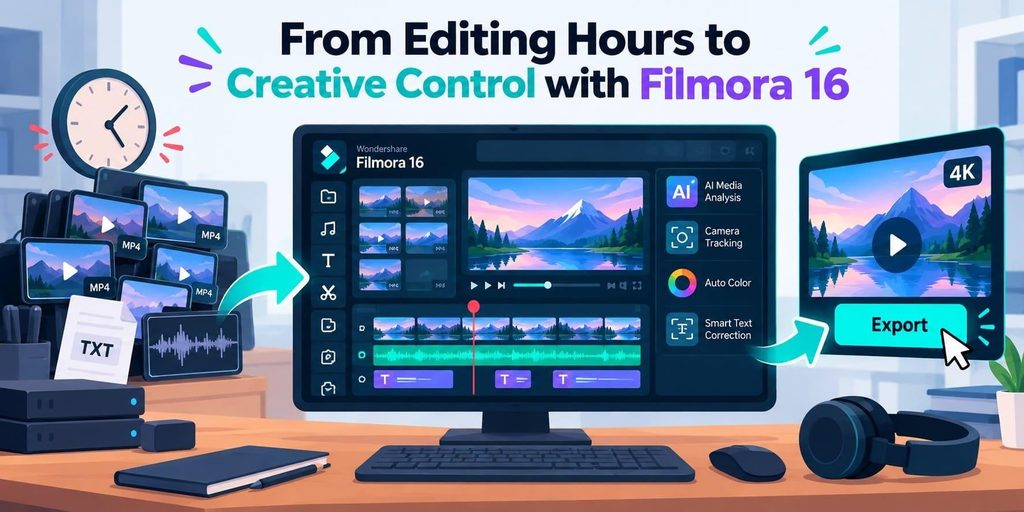
- The software features AI Media Analysis, Camera Tracking, Auto Color, and Smart Text Correction to enhance efficiency.
- While AI tools automate tasks, editors must retain control over creative decisions like shot selection and timing.
- An integrated workflow in Filmora 16 reduces the need for multiple applications, saving time and improving quality.
- By streamlining repetitive tasks, Filmora 16 allows creators to focus more on storytelling and visual quality.
Table of contents
Part 1. Workflow Bottleneck Audit
Editing delays often come from a few repetitive tasks rather than the entire workflow. These 5 common bottlenecks can consume hours before the final video is ready:
| Bottleneck | Where the Time Goes |
| Media Review | Watching long recordings just to identify useful footage. Large folders of unreviewed clips make the process even slower. |
| Rough Selection | Scrubbing through similar takes repeatedly to compare shots and choose the best option. |
| Repetitive Reframing | Manually adjusting the crop whenever a moving presenter leaves the frame. A two-minute walk-and-talk can require 30 keyframes. |
| Subtitle Cleanup | Correcting transcription errors, such as changing “Shivon” back to “Siobhan.” A 20-minute interview may contain hundreds of caption lines. |
| Routine Image Fixes | Repeatedly correcting dark or faded footage and copying similar color adjustments across multiple clips. |
These tasks rarely change the video’s message, yet they consume valuable editing time. Identifying which tasks need creative judgment helps determine where automation can reduce manual effort.
Note: Spending 5 minutes brightening each of 50 clips adds up to 4 hours and 10 minutes of editing work.
Part 2. Filmora 16 as the Practical Workflow Example
Filmora 16 combines AI-assisted and automated tools that can help address these five workflow bottlenecks. The four features below support footage review, subject reframing, initial color correction, and caption review, while leaving final editing decisions to the creator.
- AI Media Analysis for Review and Selection
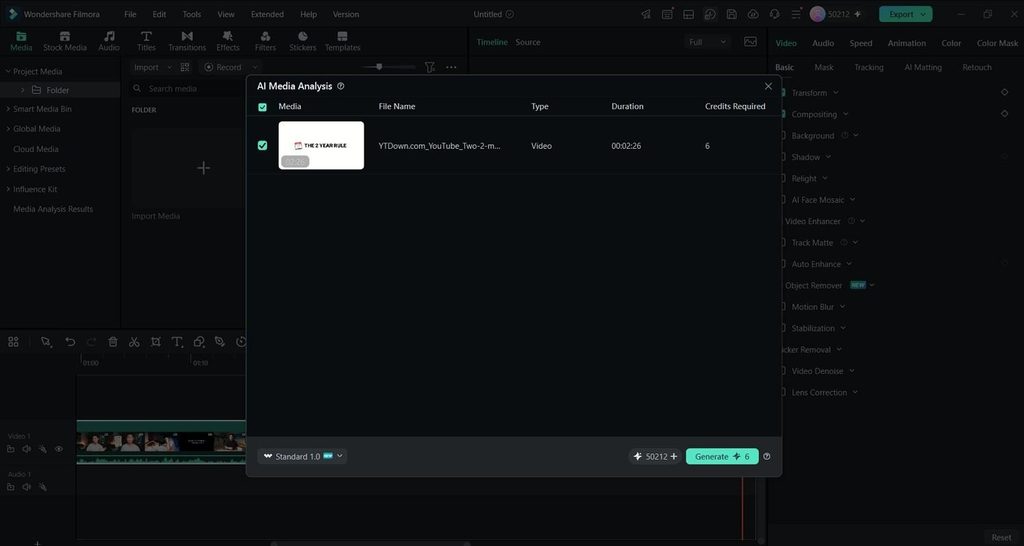
AI Media Analysis examines supported videos and images, generating descriptions and keywords to identify their content. Smart Media Bins help organize the results, making it easier to find relevant footage. Instead of watching every clip, editors can search for specific content and locate useful moments faster.
- Camera Tracking for Moving Subjects
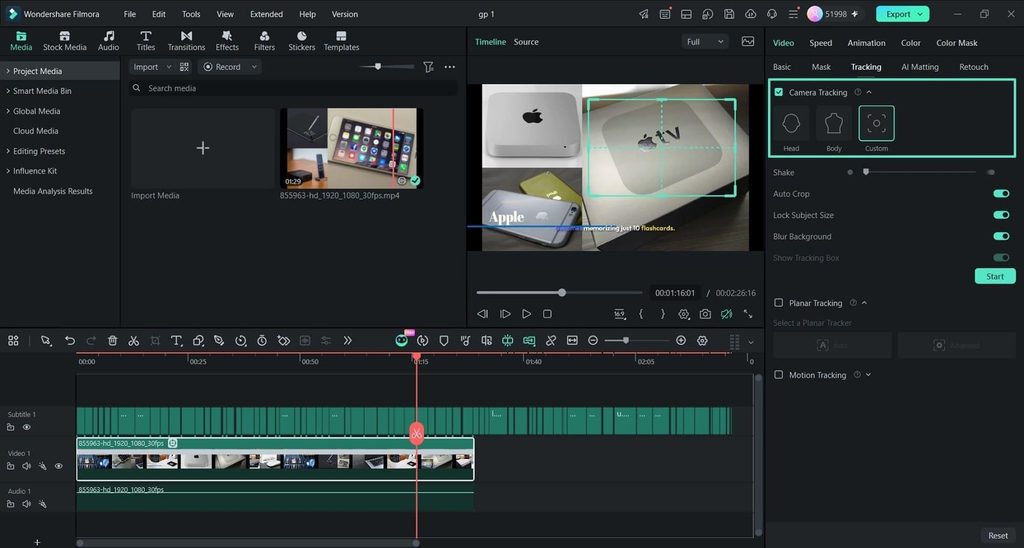
Camera Tracking follows a person’s head, body, or custom target, such as a pet or product, to keep the subject centered. This reduces repetitive manual reframing, especially in moving shots. Editors can still split, trim, or retrack clips when adjustments are needed.
- Auto Color for Routine Image Fixes
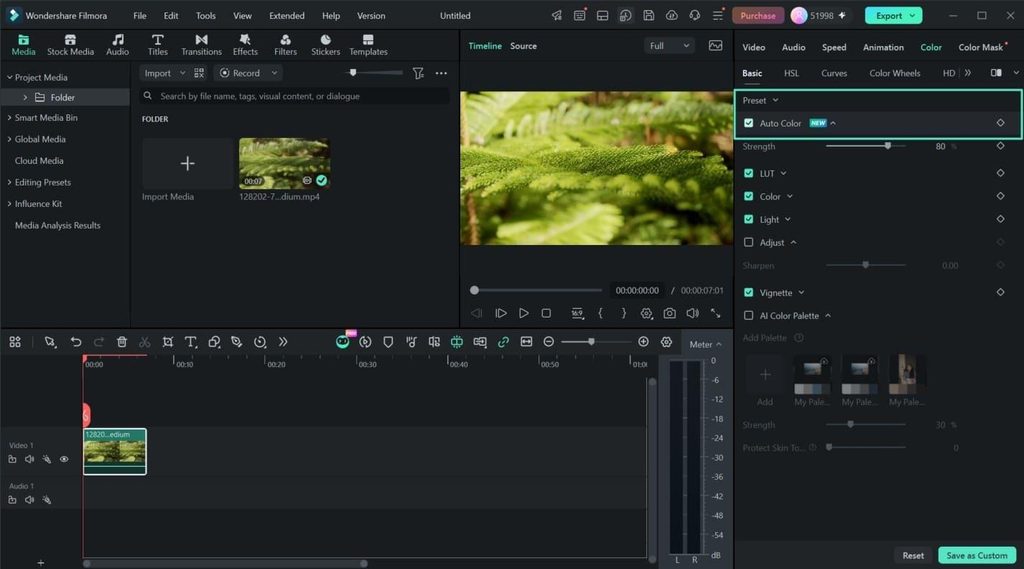
Auto Color helps brighten dark footage and improve faded colors with one click. Editors can adjust the effect’s intensity and use keyframes to change its strength throughout a shot. Final color adjustments remain under manual control, ensuring the footage matches the intended visual style.
- Smart Text Correction for Subtitle Cleanup
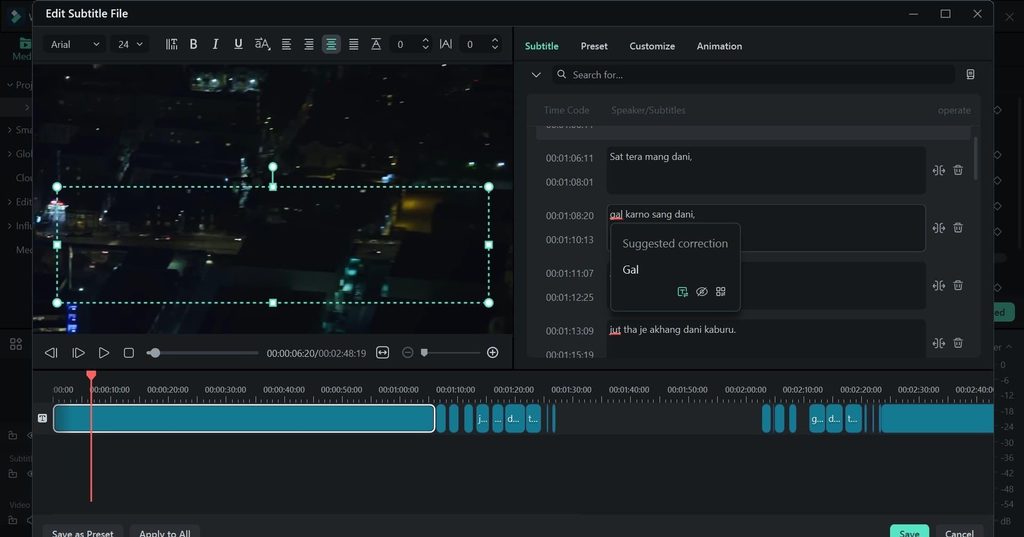
Smart Text Correction works alongside Filmora’s Speech to Text feature, accessible by right-clicking a timeline clip. It identifies potentially incorrect transcriptions and suggests corrections, helping editors catch misheard product names or technical terms. Each suggestion can be reviewed before finalizing the captions.
Note: AI Media Analysis displays the required credits before generation. Check the credit count before processing a large batch of footage.
Part 3. Keep the Expert Decisions Manual
AI tools can handle repetitive editing tasks, but the final creative decisions still require human judgment. These 5 areas benefit most from direct editorial control:
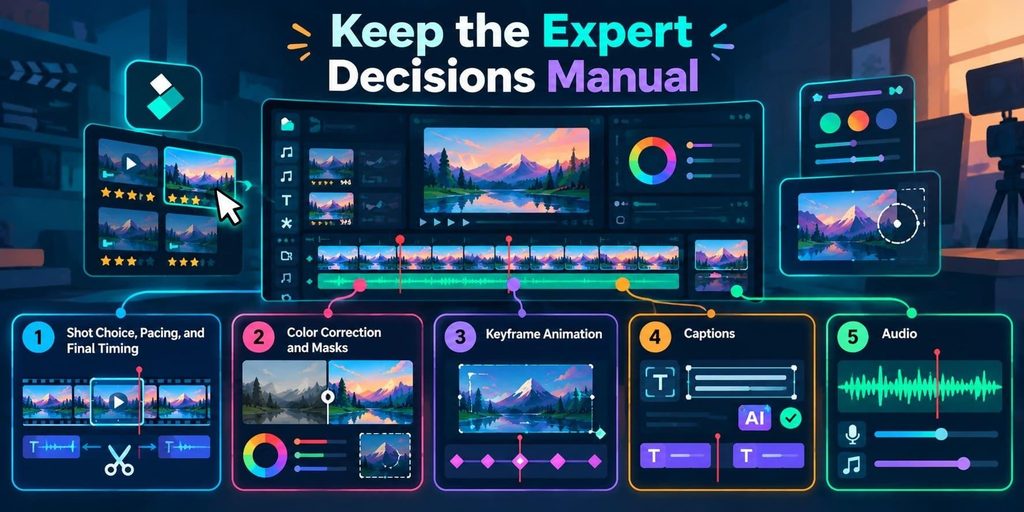
- Shot Choice, Pacing, and Final Timing: AI ratings help identify promising takes, but editors decide which shots fit the story. Even an extra half-second on a reaction shot can determine whether a joke lands.
- Color Correction and Masks: Auto Color can brighten a gray afternoon shot, but matching a client’s brand red requires more precise adjustments. Filmora’s white balance, curves, HSL, and color wheels provide manual control. Color Mask helps isolate adjustments to specific areas, such as a face.
- Keyframe Animation: Camera Tracking keeps subjects centered, while manual keyframes create intentional movements, such as a slow push-in during an emotional answer. Filmora supports keyframing for position, scale, opacity, color, and audio volume.
- Captions: Smart Text Correction may flag an unusual product name or catchphrase even when the transcription is accurate. Editors must verify the wording, adjust line breaks, and decide which phrases deserve emphasis.
- Audio: AI cleanup can improve noisy recordings, but editors still choose the music and balance its volume. A quiet confession, for example, needs careful background music levels to preserve its emotional impact.
These decisions shape how viewers experience the finished video. A slightly delayed subtitle may go unnoticed, but poorly timed dialogue or an awkward reaction can weaken an important moment.
Note: To create movement, position the playhead and add a keyframe in Filmora’s properties panel. For smoother motion, explore Motion Blur under “Video” > “Basic.”
Part 4. A Simple Before/After Video Editing Workflow
An integrated editing workflow reduces the need to move footage between different applications. The table below compares 6 stages of editing the same interview video using separate tools and Filmora 16:
| Stage | Fragmented Multi-Tool Process | Connected Filmora 16 Workflow |
| Footage Preparation | Clips are reviewed individually, with notes stored in a separate document. | AI Media Analysis generates descriptions and ratings within the media library. |
| Selection | Editors compare takes by repeatedly scrubbing through footage or relying on memory. | AI ratings and suggestions help identify promising clips for review. |
| Reframing | Moving subjects require repeated manual keyframe adjustments. | Camera Tracking follows subjects, leaving manual keyframes for intentional movements. |
| Image Fixes | Clips are corrected individually, sometimes using separate color editing software. | Auto Color provides initial adjustments, while manual color tools refine the final look. |
| Captions | Transcripts are generated in one application and corrected in another. | Speech-to-Text and Smart Text Correction support caption creation and cleanup within Filmora. |
| Export | Footage may require multiple exports and imports between applications. | Editors export directly from the finished timeline, with additional formats available when needed. |
Reducing unnecessary transfers between applications saves rendering time and avoids repeated quality checks. Test this workflow using footage from your latest project to see where Filmora can reduce manual work.
After organizing and tracking clips, refine the visual style with color correction. Then use keyframe animation to create intentional camera movements and maintain creative control over the final edit.
Read Next
A few related pieces worth your time:
- Galaxy Watch Sleep Apnea Feature Gets Hourly AI Insights
- Overview of Crypto30x: Is It Legit or a Scam?
- Everything You Need to Know About FinTech Application Development
Conclusion for Video Editing
Filmora 16 helps reduce repetitive editing work through AI-assisted footage analysis, automated reframing, initial color correction, and smarter caption review. This gives creators more time to focus on storytelling, pacing, and visual quality. Choosing the right opening shot, refining colors, and timing important moments still require human judgment. With Filmora, editors can streamline their workflow while keeping creative control over the finished video.