


OST – stands for Offline Storage Table – is an Outlook data file that stores a synchronized offline copy of your mailbox data from the mail server. When you set up your Outlook with an Exchange, Microsoft 365, or IMAP account, this data file is created automatically. This file allows you to access your mailbox data and do the changes (draft/send emails or delete items), even when you’re offline. Any changes done, when offline, are synchronized once the connectivity is restored.
Sometimes, you face a situation where your OST file fails to open. This can affect your workflow and productivity as you will not be able to access your emails, contacts, calendars, and other mailbox items. This might happen due to varied reasons. In this article, we will find out the reasons behind the OST file is not opening issue and provide the solutions to resolve the issue and access the emails.
Key Takeaways
- OST files may fail to open due to issues like a corrupted Outlook profile or inaccessible files.
- To fix the OST file not opening issue, check folder permissions, disable problematic add-ins, or create a new Outlook profile.
- If necessary, you can recreate the OST file to resolve any inconsistencies that prevent opening.
- For inaccessible OST files, use an advanced emails OST to PST converter tool to convert the file and access your emails.
- Addressing these issues helps restore functionality and access to emails and other mailbox items.
Table of contents
Common Reasons why your OST File is not Opening
An OST file may fail to open due to one of the following reasons:
- Corrupted Outlook profile
- Inaccessible OST file
- OST file is no longer associated with its original Outlook profile
- Faulty or incompatible add-ins interfering with Outlook functionality
- Synchronization issues with the mail server
Methods to Fix OST File Not Opening Issue
Below we have mentioned the methods that can help you to fix OST file not opening issue.
1. Check Email Folder Permissions
If your user account doesn’t have the required permissions such as modify, read and write for the folder in which the OST file is stored, then Outlook may fail to open the file. You can check and assign the folder permissions. Here’s how to do so:
- Go to the folder where your OST file is located.
Note: If you don’t know the location, right-click on your account name in Outlook and select Open File Location.
- Right-click the folder. Click Properties.
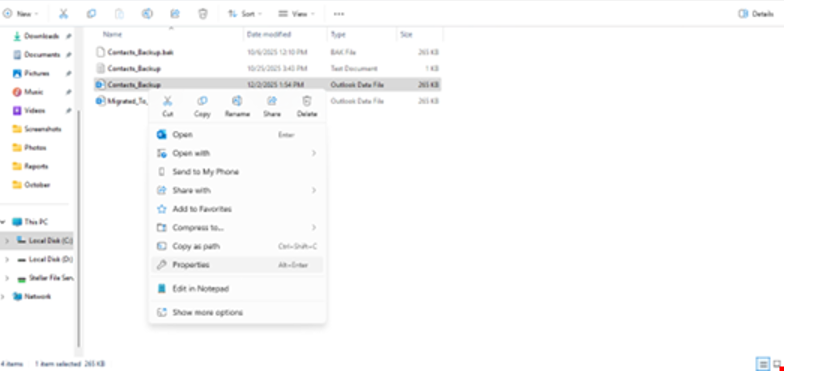
- Go to the Security Tab. Check if all the required permissions – Read, Write, Modify, or Read & Execute – are assigned.
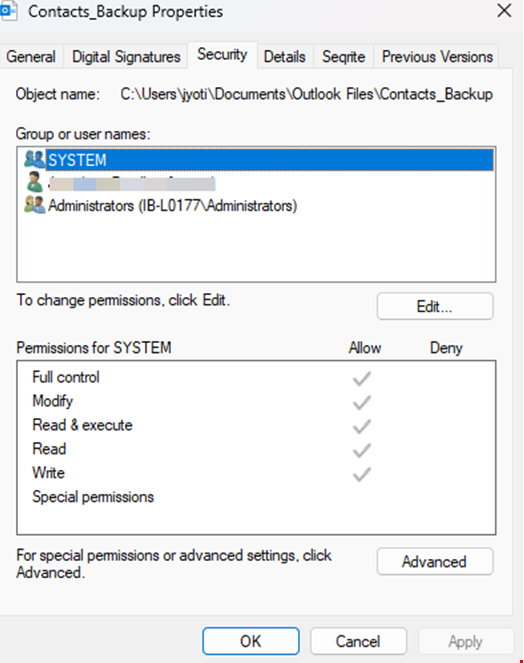
- Click Edit, if any permission is not assigned.
- Choose your user account and then assign the required permissions.
- Click Apply > OK.
Open your email client and check if you can access the OST file.
2. Disable Problematic Add-ins
If any third-party add-ins in your Outlook are not compatible, they can cause random issues or errors. You can check if this issue is caused by any such add-ins. To do this, open Outlook in Safe Mode.
If your Outlook opens in Safe Mode, it means an add-in was causing the OST file not opening problem. You can simply disable the add–in to fix the issue. Here’s how:
- In Outlook, click File. Select Options.
- Click Add-ins in the left panel.
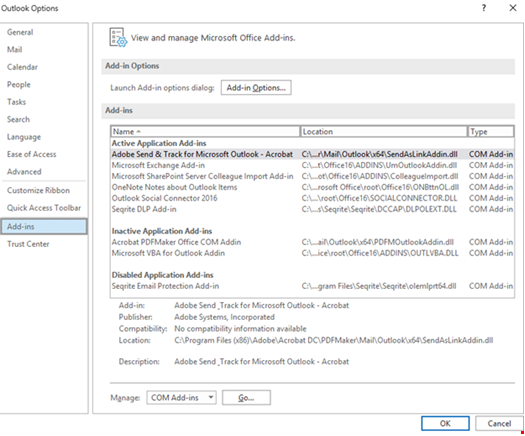
- From the dropdown, select COM Add-ins. Click Go.
- A list of all the installed Outlook add-ins will display.
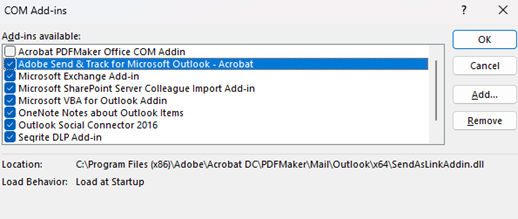
- Uncheck all add-ins to disable them. Click OK.
- Restart Outlook.
To find the problematic add-in, enable an add-in at a time and then restart Outlook. Repeat this process until the error appears.
Once you find the faulty add-in, remove it permanently.
3. Create a New Emails Outlook Profile
A damaged or corrupted Outlook profile might be one of the reasons the OST file cannot be opened. In such a case, you can create a new Outlook profile and replace it with the old one. Follow the instructions below:
Note: Ensure Outlook is closed before proceeding.
- Open Control Panel. Click on Mail.
- Select Show Profiles. Click Add.
- Enter a name for your new profile (e.g., Outlook-New). Click OK.
- Enter your account details, such as Your Name, Email Address, and Password.
- Follow the instructions to complete the process.
- Select Always use this profile option to set the new profile as the default one. Click OK.
- Start Microsoft Outlook.
Wait for the new profile to synchronize with the mail server. When done, you can remove your old/corrupted profile.
4. Recreate the OST File
If your OST file is damaged or has inconsistencies, it may prevent Outlook from opening. In this situation, you can recreate the OST file. Here’s how:
- Close your Outlook.
- Go to the OST file location.
- Find and rename the OST file. This will create a backup of the file.
- Restart Outlook.
This will create a new OST file and download all your mailbox items from the server.
Use an Advanced Emails OST to PST Converter Tool
If your OST file is disconnected from the mail server, then the methods mentioned above may not work. In such a case, you will need to convert your OST file to PST to access your emails and other items. If your file is small (<500 MB), you can use free OST to PST converter by Stellar to convert it to PST. This is an Online service provided by Stellar – a reputable data recovery organization. With the help of this, you can convert your data file without installing any software. For converting larger files (up to 5 GB), you can upgrade to its Premium version.
Alternatively, you can use Stellar Converter for OST – a desktop-based OST to PST converter tool that can convert OST to PST without any file size limitations. This tool offers several other features, such as:
- Converts orphaned, inaccessible, and encrypted OST files to PST and various other formats – MSG, EML, RTF, HTML, and PDF.
- Extracts all mail items from the file, including emails, attachments, calendars, contacts, tasks, notes, and journals
- Offers preview of all the mailbox data after conversion.
- Auto locates and lists OST files of IMAP, Exchange, or Microsoft 365 account configured in Outlook.
- Provides option to search for specific emails or mail items for selective conversion.
- Supports Outlook 2021, 2019, 2016, and previous versions.
Conclusion
If your OST file fails to open, then you’re not able to send/receive emails or even access your mail items. There might be various reasons why the OST file is not opening. You can fix the issue by following the solutions mentioned in this article. In case your OST becomes inaccessible, then you can use the Online OST to PST converter by Stellar to convert it to PST format. You can import this PST into any Outlook profile to access the mail items.