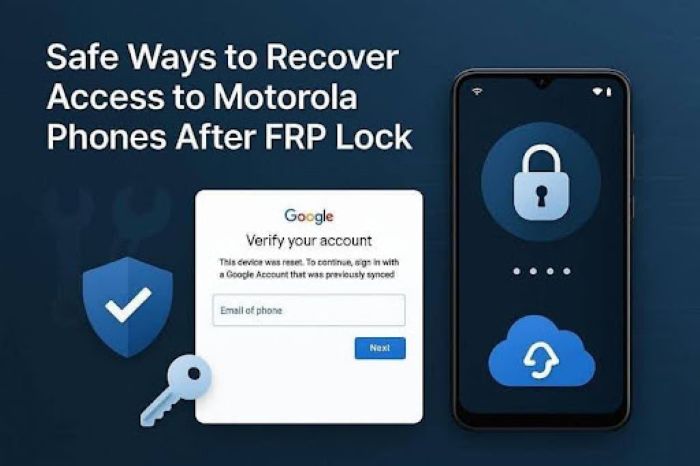
If you have reset the Motorola phone and got stuck on the “Verify your account” interface, you might feel confused while trying to bypass FRP. This is basically the FRP lock, a security feature designed to prevent unauthorized access. Given this, many users wonder how to bypass it and whether tricks still work on modern Moto phones. To answer that, this guide explains the reality of FRP tricks and how tools like Dr.Fone – Screen Unlock (Android) can help you bypass FRP safely.
Many Motorola users search for quick solutions to bypass FRP, but not every method is safe or effective on the latest devices. Understanding the right approach can save time and help you avoid unnecessary complications during the unlock process.
Key Takeaways
- Resetting a Motorola phone can lock it with FRP, requiring account verification to access.
- Traditional FRP tricks no longer work on modern Moto devices due to enhanced security.
- Dr.Fone – Screen Unlock (Android) is a reliable tool for FRP bypass, supporting many brands and ensuring data security.
- To bypass FRP, users can follow a three-step process using the Dr.Fone tool, which includes accessing the tool, selecting the device type, and installing necessary drivers.
- Always charge your device, use a stable USB cable, and verify ownership before attempting to bypass FRP.
Table of contents
- Part 1. What is FRP Lock on Motorola Phones?
- Part 2. Do FRP Tricks Really Work on Modern Motorola Phones?
- Part 3. Why Use Dr.Fone – Screen Unlock (Android) for FRP Bypass?
- Part 4. Method to Bypass FRP Using Dr.Fone- Screen Unlock (Android) to Bypass FRP
- Part 5. Before You Bypass FRP: Key Safety and Setup Tips
- Conclusion
Part 1. What is FRP Lock on Motorola Phones?
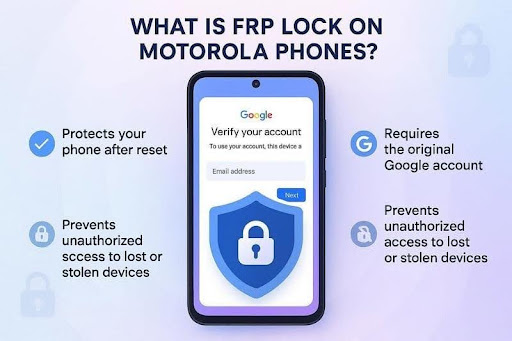
The Factory Reset Protection feature on a Motorola phone safeguards your device following a reset. If you reset your phone without deleting the connected Google Account, it will automatically lock your phone and will ask for the same account information when setting up. This is accomplished to avoid unauthorized individuals using lost or stolen phones and makes it difficult to bypass FRP without proper verification.
Part 2. Do FRP Tricks Really Work on Modern Motorola Phones?
Note that the Moto FRP tricks that you find online no longer work on modern versions because the security system has become much stronger with new updates. Older methods like using hidden settings, emergency dialer codes, APK installations, or bypass apps usually fail at this time. So, due to the tighter Google verification and patch updates, tools like Wondershare Dr.Fone come with a Screen Unlock tool as the reliable choice to remove FRP lock and bypass FRP efficiently.
Part 3. Why Use Dr.Fone – Screen Unlock (Android) for FRP Bypass?
For FRP bypass, Dr.Fone – Screen Unlock (Android) is the recommended choice because it supports 19 major brands, including phones and tablets. Since the tool laid the foundation for removing FRP on Android 16 Samsung devices, you can use it on the Samsung Galaxy S26 Series and all Samsung Snapdragon devices. Most of all, it supports all the US models and chipsets, and requires no skills.
Furthermore, it completely removes the previous owner’s account or a forgotten Google account from the device. To do so, it shows proper alerts and asks for codes to ensure the real owner is removing the Moto’s FRP lock. Overall, the process guarantees 100% data security and can be done in 3 simple steps to bypass FRP successfully.
Part 4. Method to Bypass FRP Using Dr.Fone- Screen Unlock (Android) to Bypass FRP
So, if you’re wondering how to use this Motorola FRP tool, this section provides a detailed guide below:
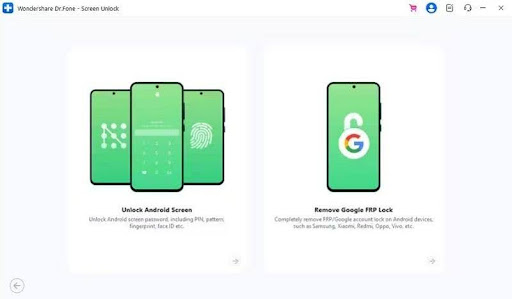
Step 1. Access the Screen Unlock Tool for Motorola
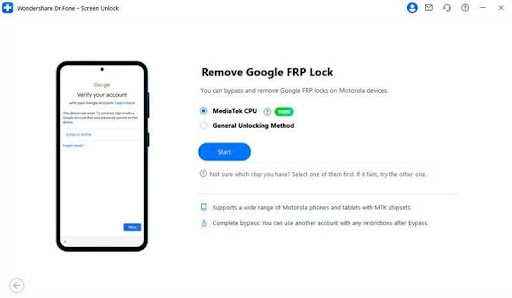
For Motorola Phones with MTK Chips, select “Remove Google FRP Lock” in the Screen Unlock tool for “Android.”
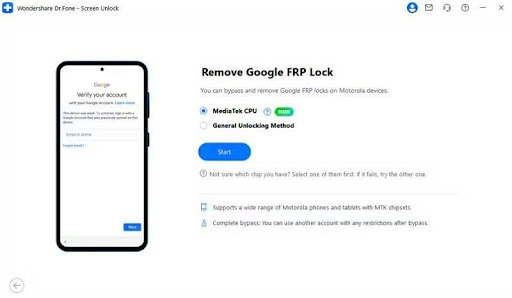
Step 2. Use MediaTek GPU Method to Remove FRP
Choose the “Motorola” phone from the list, and pick the “MediaTek GPU” from the given options to tap “Start.”
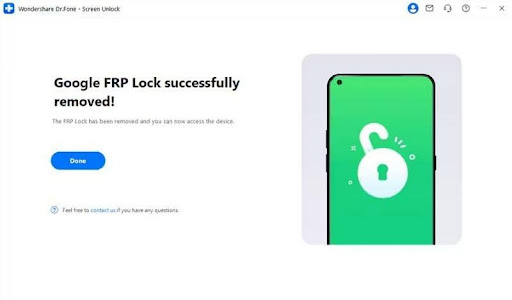
Step 3. Install the Drivers to Bypass Moto FRP Lock
When the phone is detected, the tool will start installing drivers, disconnect the phone, and power it off as it ends. Reconnect it after 30 seconds, as the tool removes the FRP lock after some time, and pick the “Done” button to conclude.
Part 5. Before You Bypass FRP: Key Safety and Setup Tips
When using the FRP tools like Wondershare Dr.Fone, follow the simple tips mentioned below:
| Safety & Setup Tip | Why It Matters |
| Charge Your Motorola Phone | Keeps the device from shutting down during the FRP bypass process. |
| Use a Stable USB Cable | Prevents connection drops and transfer errors during phone unlock. |
| Verify Device Ownership | FRP bypass should only be used on phones you legally own or manage. |
| Follow Instructions Carefully | Wrong steps may restart the lock or interrupt the bypass procedure. |
| Back Up Important Data First | Some FRP methods may permanently erase existing files, settings, or applications. |
Conclusion
Today’s Motorola phones employ more robust FRP and Google verification mechanisms, so there are no FRP hacks available to easily bypass FRP. Thus, this guide explained how to unlock this lock using the Dr.Fone – Screen Unlock (Android) tool on various Moto devices like Moto E6 Plus / Moto E6S (202), making it easier to bypass FRP securely.