Tripo 3D is a tool that converts images into 3D models within a few seconds. Modern production teams require speed and consistency in production. Automation reduces repetitive modeling tasks and improves overall efficiency. AI-driven generation reduces the need for manual mesh construction and texture creation. Tripo 3D supports asset production, quality improvement, and a modeling workflow. This guide explains automated HD modeling and how it supports faster creation of professional content.
Key Takeaways
- Tripo 3D quickly converts images into high-detail 3D models using AI-driven automation.
- It automates complex workflows, generating organized geometry and realistic textures from uploaded photos.
- Key features include AI Complete Mode, automated topology creation, and rapid processing pipelines.
- The platform supports flexible export formats for various applications like gaming, AR, and VR.
- Tripo 3D enhances modeling efficiency and consistency across production pipelines, meeting modern content creation needs.
Table of contents
- Understanding AI-Powered HD Modeling in Tripo 3D
- Core Components Behind Fast Image-to-3D Conversion
- Key Features That Accelerate HD Modeling Workflow
- Steps to Fast HD modeling workflow with Image to 3D AI complete automation
- Optimizing Modeling Workflow Efficiency Through Automated Controls
- Maintaining Geometry Quality During Automated Modeling Workflow Generation
- Integration Possibilities for Generated HD Assets
- Conclusion
Understanding AI-Powered HD Modeling in Tripo 3D
High-detail 3D models with correct proportions and detailed textures are generated. Tripo 3D uses advanced AI technology to create models from uploaded photos. It is a platform that interprets visual data and reconstructs depth, structure, and surface details. AI Complete automation reduces reliance on traditional modeling steps and simplifies complex workflows. Generated models feature organized geometry that can be refined when needed. The process improves consistency while maintaining alignment with source imagery. Tripo 3D allows creators to build professional assets without extensive manual modeling work.
Core Components Behind Fast Image-to-3D Conversion
The foundation of efficient modeling lies in visual analysis and reconstruction systems. Tripo 3D examines image structure, object boundaries, proportions, and depth indicators. Advanced algorithms reconstruct shapes while preserving key visual features. Surface interpretation enables texture placement and material representation. Automated topology generation creates cleaner meshes for editing and production workflows. High-fidelity input alignment improves structural accuracy between source images and generated assets. This integrated pipeline enables AI 3d model generator to produce detailed models efficiently while maintaining consistency.

Key Features That Accelerate HD Modeling Workflow
Tripo 3D has a number of features that make the production time shorter and the quality of the assets better. Automation, structured geometry creation, and texture generation are all part of the platform. Key capabilities include:
- AI Complete Mode: Automates modeling decisions without manual input.
- HD Model Engine: Produces high-quality geometry with improved structural accuracy.
- Automated Topology Creation: Generates organized meshes for editing workflows.
- Smart Texture Assignment: Applies textures during model generation.
- Rapid Processing Pipeline: Reduces waiting time during model creation.
- Flexible Model Versions: Offers a balance between speed and quality.
These features enable creators to work more effectively and consistently from concept images to usable assets.
Steps to Fast HD modeling workflow with Image to 3D AI complete automation
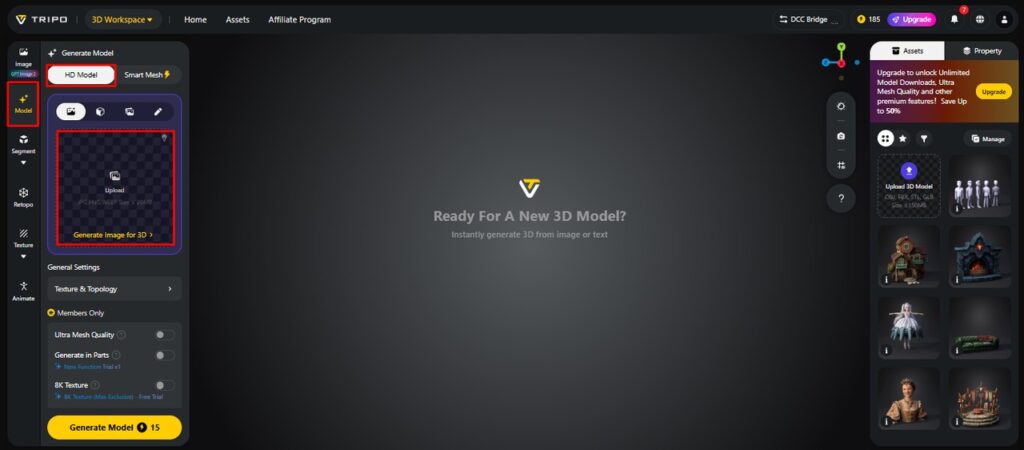
Step 1: Access the HD workspace and import your image
- First access Tripo 3D and sign up. Then open the “Model” tab from the vertical left menu bar.
- Under the menu, choose “HD Model”.
- Drag and drop an image for upload. You can also select a file from a specific location on your device through the “Upload” tab.
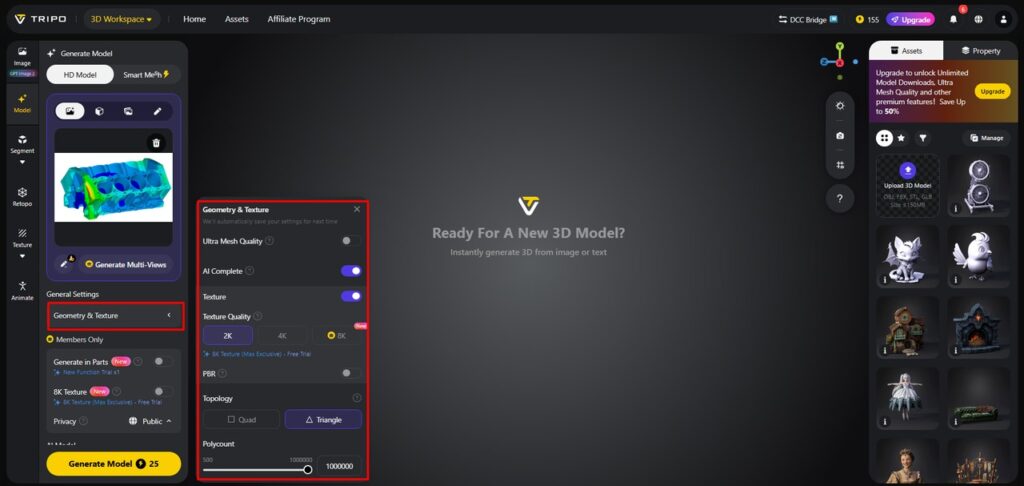
Step 2: Activate AI automation and start generation
- Under the “General settings” tab, either let the system handle everything automatically by enabling “AI complete”, or switch on texture and choose a custom “Texture Quality” such as 2K, 4K, or 8K.
- Turn on “PBR” to achieve accurate material reflective properties.
- For improved topology characteristics, select either “Quad” or “Triangle” topology.
- Set a custom polycount according to your needs.
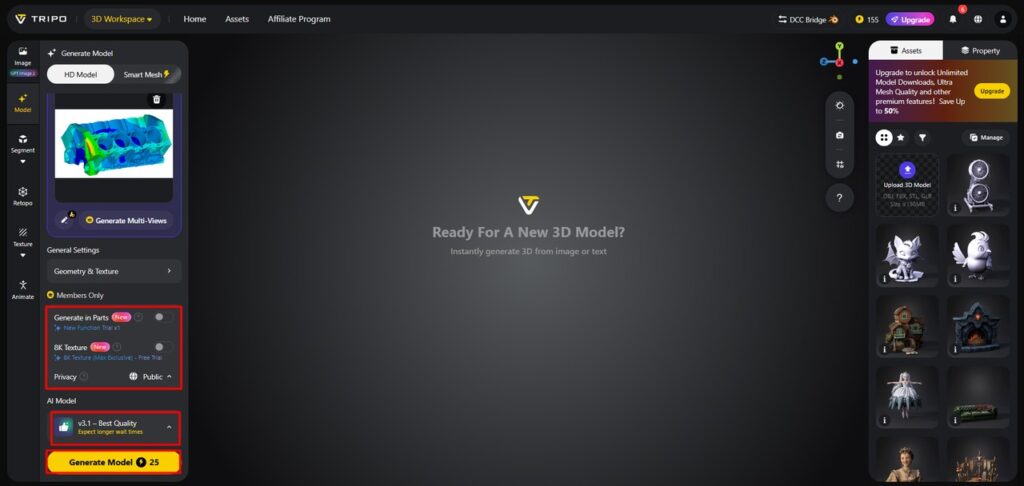
- Select a model from the list, including v3.1 best quality, v3.0 fast and balanced, or v2.5 legacy.
- If you are a member, access “Generate in Parts”, “8K Texture”, and “Privacy” options.
- Click “Generate Model” to begin the process.
Step 3: Review and export the final HD asset
- Tripo 3D lets you inspect the model in different styles. Available options include “Solid View”, “Cartoon Style”, “Sketch Style”, “Hologram Style”, and “Unlit”. You can also “Refine” the design through the bottom menu.
- Adjust the “Environment Settings” and camera controls through “Reset Camera”.
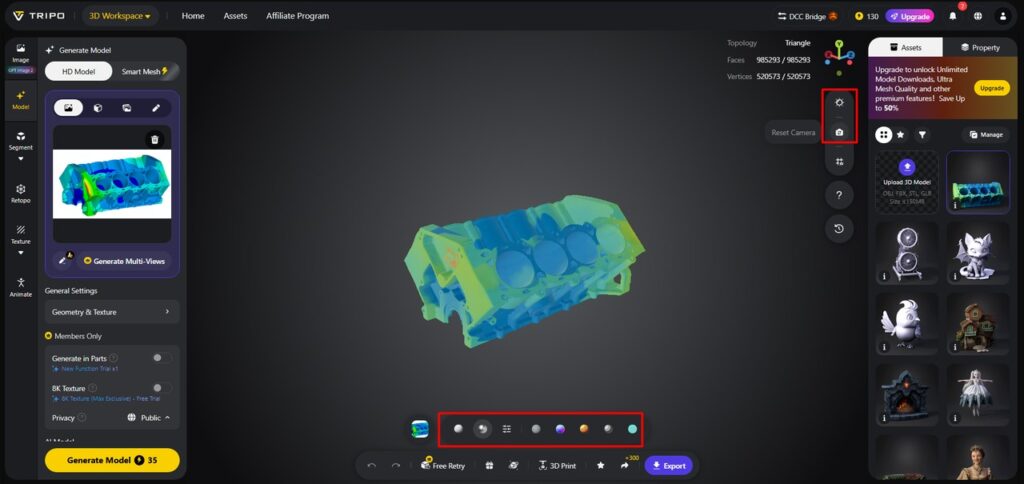
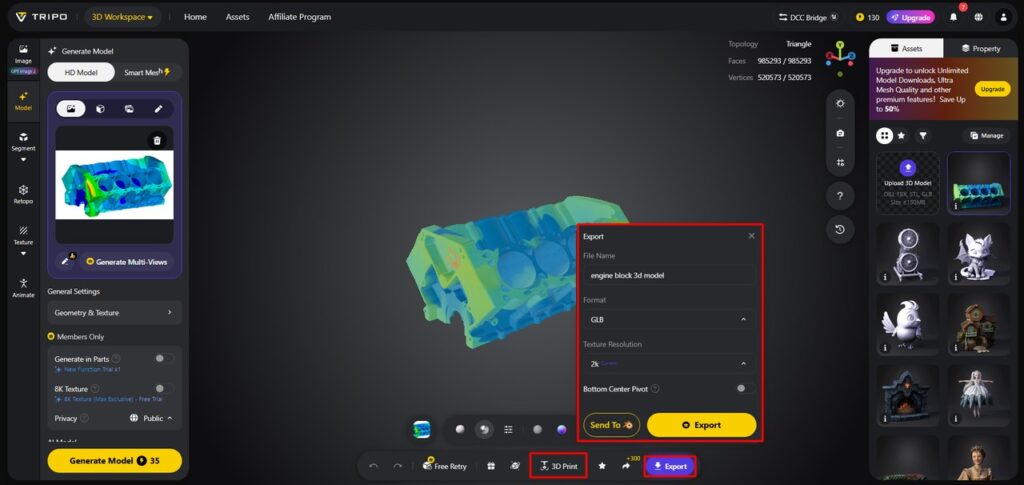
- If required, print the design or share it directly using “3D Print”.
- Finally, open the “Export” tab from the bottom menu. Select the resolution, format, and filename, then click “Export” again to save the model to your local device.
Optimizing Modeling Workflow Efficiency Through Automated Controls
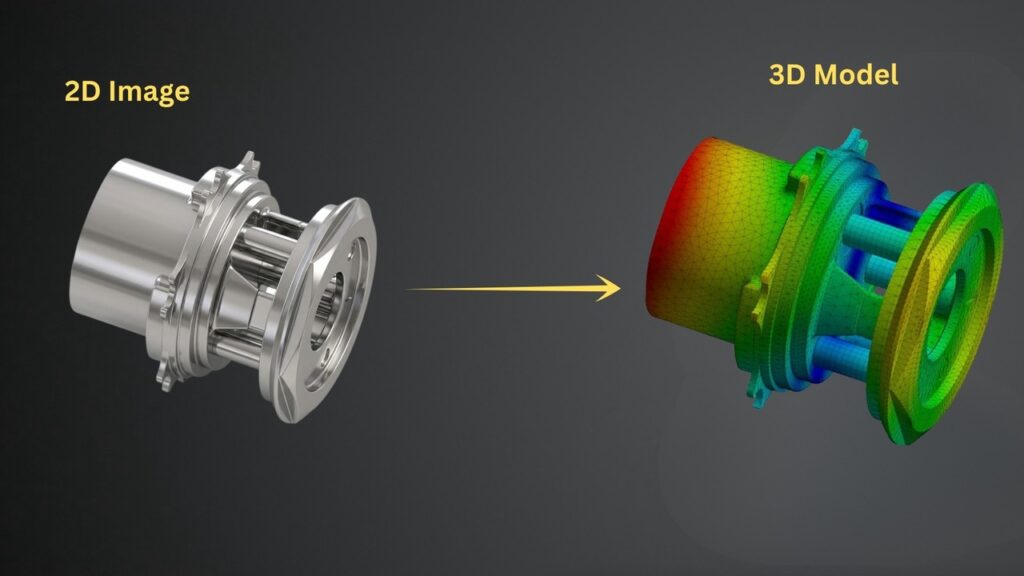
Efficient workflows depend on selecting settings that match project requirements. Tripo 3D provides multiple generation versions for different production needs. Version v3.1 focuses on higher detail and accuracy. Version v3.0 offers a balance between speed and quality. Legacy versions support compatibility with older pipelines. Polycount settings affect performance, file size, and editing flexibility. Lower polycounts suit real-time use, while higher values support detailed visualization. Automated controls reduce setup time and simplify repeated image to 3d model asset creation.
Maintaining Geometry Quality During Automated Modeling Workflow Generation
High-quality geometry is required for editing, animation, and downstream production workflows. Tripo 3D generates structured meshes with defined topology and geometry flow. The consistent surface structure supports stability during editing. Simple mesh layouts reduce rigging and animation setup issues. Organized topology allows refinement without added complexity. Geometric consistency also supports export across different software platforms. Production-oriented assets integrate more smoothly into pipelines depending on input quality and settings.
Integration Possibilities for Generated HD Assets
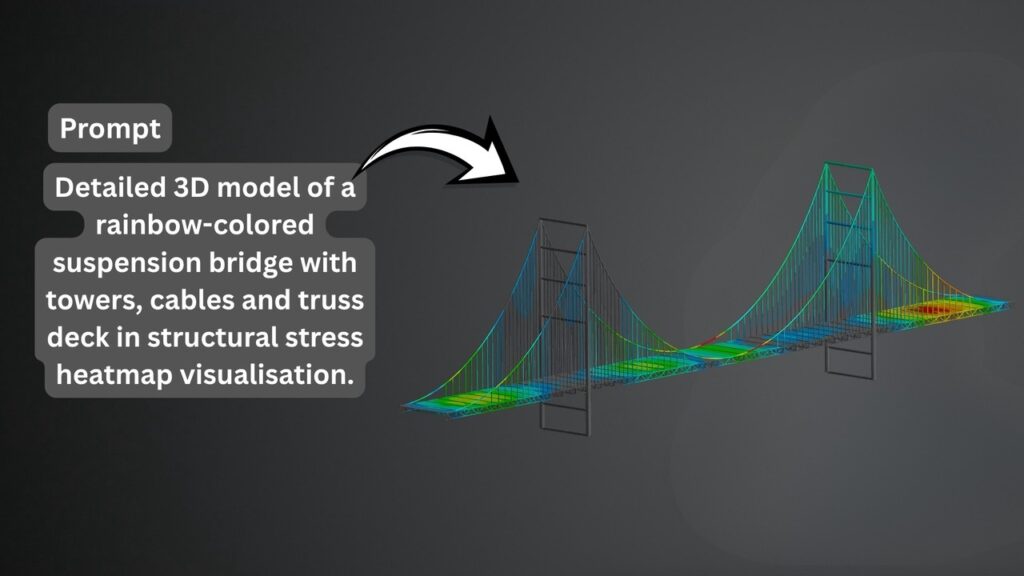
HD assets can be used across multiple creative and technical workflows. Game developers can apply models in environments, props, and interactive elements. Structured geometry supports animation workflows including rigging and movement. Optimized assets are suitable for AR and VR applications. Realistic models can be used for product visualization, marketing, and presentations. Tripo 3D supports multiple export formats for compatibility with industry-standard software. The text to 3d model and image-to-3D workflows can also be combined in broader production pipelines. This flexibility supports scalable asset creation across teams.
Conclusion
Tripo 3D provides a simple way to generate HD models from images while producing editable assets for different workflows. Automation helps maintain consistency across modeling tasks, depending on input quality and settings. AI Complete automation reduces manual effort and improves efficiency in asset creation. Structured geometry, texture detail, and flexible export options support production workflows. The platform enables efficient asset creation for modern content production needs. It supports faster generation, automated processing, and more consistent modeling results.