
Connect Power BI to Salesforce is one of the most common requirements for modern analytics teams. Salesforce stores core business data, while Power BI is used to model, analyze, and visualize it.
At a basic level, integration is easy. At scale, it becomes a problem.
Many teams start with native options but quickly run into performance issues, API limits, and data modeling complexity. This is where the need for a Power BI Salesforce connector designed for production use becomes clear.
This article focuses on Salesforce Power BI integration, explains why native approaches break down, and reviews a solution built specifically to solve these challenges.
Key Takeaways
- Connecting Power BI to Salesforce is essential for analytics teams to analyze and visualize business data.
- Native integration methods provide a basic connection but struggle with performance, API limits, and increasing data complexity.
- Metrica Power BI Connector for Salesforce offers a more robust solution, improving data access and management across multiple datasets.
- This connector avoids the 2,000-row limit and allows for full historical data extraction, enhancing reporting capability.
- Using Metrica simplifies the process of connecting Power BI to Salesforce while ensuring scalable and efficient analytics.
Table of contents
- Salesforce Power BI Integration: Requirements and Constraints
- How to Connect Salesforce to Power BI: Native Options
- Power BI Salesforce Limitations in Native Integration
- Metrica Power BI Connector for Salesforce: A Different Approach
- Key Capabilities of the Metrica Salesforce Power BI Connector
- 1. No 2,000-Row Limitation and Full Data Extraction Control
- 2. Multiple and Independent Data Sources for Different Use Cases
- 3. Structured Data Selection with Relationship Visibility (ERD)
- 4. Incremental Refresh for Large and Growing Datasets
- 5. Access Control Based on Native Salesforce Permissions
- 6. Token-Based Access for Controlled Data Export
- 7. Support for Standard and Custom Salesforce Data
- 8. Data Source Sharing Across Teams
- 9. Data Source History and Change Tracking
- 10. Export History and Monitoring
- How to Connect Power BI to Salesforce Using Metrica
- Conclusion
Salesforce Power BI Integration: Requirements and Constraints
When evaluating Power BI and Salesforce integration, the focus should go beyond establishing a connection. The setup must support growing data volumes, repeated refresh cycles, shared reporting logic, and stable performance over time.
In practice, four requirements define whether the integration will hold at scale.
- Reliable access to Salesforce data requires a connection that remains stable as queries become more complex and refresh frequency increases.
- Scalable data pipelines require the ability to handle larger datasets without constant rework or excessive load on Salesforce APIs.
- Consistent datasets across reports require shared definitions of fields, filters, and relationships instead of rebuilding logic in each Power BI file.
- Performance for real business usage requires predictable refresh times and dashboards that remain responsive as usage expands across teams.
These requirements become critical in scenarios such as:
- pipeline and revenue reporting across Leads, Accounts, Contacts, and Opportunities
- analytics based on multiple related Salesforce objects
- reporting that combines Salesforce data with ERP, finance, support, or marketing systems
Constraints start to appear at this stage. A basic native Power BI connectors may support simple Salesforce reporting, but it becomes difficult to maintain when data volume grows, relationships become more complex, datasets need to be reused, and refresh performance must remain consistent.
How to Connect Salesforce to Power BI: Native Options
Connecting Salesforce to Power BI typically follows two standard approaches.
Power BI Salesforce Object Connector
This is the most common method to connect Salesforce to Power BI.
How it works:
- Connect directly to Salesforce objects via API
- Select tables such as Leads, Accounts, Opportunities
Where it works well:
- Small datasets
- Simple dashboards
Limitations:
- Heavy reliance on Salesforce API performance
- Complex queries fail or slow down
- No reusable data layer
- Difficult to manage relationships at scale
Power BI Salesforce Reports Connector
Another approach relies on using Salesforce reports as the data source for Power BI.
Advantages:
- Easy for business users
- Uses existing Salesforce report logic
Critical limitation:
- Power BI Salesforce report 2000 limit per query
This makes it unsuitable for serious analytics.
Power BI Salesforce Limitations in Native Integration
When teams rely only on native Power BI Salesforce connectors, they face recurring issues.
Salesforce Reports Have a 2,000-Row Limit
The Salesforce Reports connector is limited to 2,000 rows per report, which makes it restrictive for larger dashboards and broader analysis.
Query Complexity Can Cause Errors
Microsoft notes that Salesforce queries can fail when too many fields are selected or when filter conditions become too complex. This makes wider and more detailed reporting harder to maintain through native connectors.
Refresh Reliability Depends on Salesforce API Conditions
Native Power BI Salesforce connectors depend directly on Salesforce API access, supported API versions, and concurrent API usage. As a result, refresh stability can be affected by API limits, authentication settings, and other processes using the same Salesforce account.
Setup and Maintenance Require Extra Attention
There are also some important practical constraints, such as unsupported Lightning URLs, session settings that can block integration, and the need to keep the connector aligned with supported Salesforce API versions.
This is why many teams start searching for the best Salesforce Power BI connector instead of relying on built-in options.
Metrica Power BI Connector for Salesforce: A Different Approach
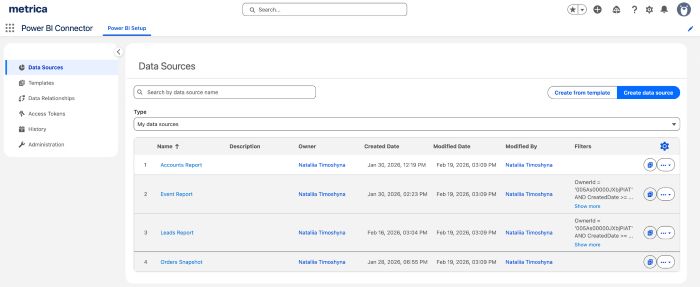
The Metrica Power BI Connector for Salesforce is a Salesforce AppExchange app designed to address the limitations of native Salesforce Power BI integration. It changes how teams connect Power BI to Salesforce by moving data selection and export setup into Salesforce instead of handling everything separately inside Power BI.
Core principle
Instead of building each dataset directly in Power BI, Metrica Power BI Connector for Salesforce lets teams create a data source in Salesforce first. In that data source, they can:
- select Salesforce objects
- choose fields
- apply filters
- preserve object relationships
- save a reusable dataset for reporting
Power BI then works with that defined data source rather than relying only on direct native queries to Salesforce.
This is different from standard Power BI Salesforce intregration workflows, where dataset logic is often rebuilt separately in each report.
Why this matters
This approach helps solve several limitations of native Power BI Salesforce connectors.
- It avoids the 2,000-row limit of the Salesforce Reports connector.
- It is better suited for larger datasets and repeated refresh scenarios.
- It reduces the need to recreate the same data setup across multiple Power BI files.
- It gives teams more control over what data is exported and how it is structured.
- It stays aligned with Salesforce permissions, so access follows existing visibility rules.
As a result, Salesforce Power BI integration becomes easier to scale, easier to govern, and easier to maintain over time.
Key Capabilities of the Metrica Salesforce Power BI Connector
1. No 2,000-Row Limitation and Full Data Extraction Control
Metrica Power BI Connector for Salesforce is not constrained by the 2,000-row limit. Data is defined and exported at the object level, allowing teams to work with larger datasets and full historical data.
2. Multiple and Independent Data Sources for Different Use Cases
Each data source in Metrica Power BI Connector for Salesforce is a separate dataset configuration with its own objects, fields, filters, and structure. Teams can create as many data sources as needed for different dashboards, departments, or analytical scenarios.
3. Structured Data Selection with Relationship Visibility (ERD)
Metrica Power BI Connector for Salesforce provides an Entity Relationship Diagram (ERD) view and data preview before export. This allows teams to understand how objects are connected and validate the dataset structure before using it in Power BI.
This reduces trial-and-error compared to native connectors, where structure is often validated only after loading data.
4. Incremental Refresh for Large and Growing Datasets
Metrica Power BI Connector for Salesforce supports incremental refresh in Power BI, allowing updates to focus only on new or modified records. This is important for large datasets where full refreshes become slow and inefficient over time.
5. Access Control Based on Native Salesforce Permissions
Metrica Power BI Connector for Salesforce does not introduce a separate permission system. It respects existing Salesforce roles and field-level security, so users can only export data they already have access to.
This avoids creating parallel access logic for analytics and keeps governance consistent.
6. Token-Based Access for Controlled Data Export
Data export is managed through access tokens. Tokens can be generated, revoked, and configured with expiration, giving teams control over how Power BI connects to Salesforce data.
7. Support for Standard and Custom Salesforce Data
Metrica Power BI Connector for Salesforce supports exporting both standard and custom objects, including data from Sales Cloud, Service Cloud, Marketing-related objects, custom apps, and installed packages. This allows teams to build datasets that go beyond standard reporting structures.
8. Data Source Sharing Across Teams
Metrica Power BI Connector for Salesforce lets users share a data source with other users or groups, so the same dataset configuration can be used by more than one person. Shared users can view the configuration and use it for exports in Power BI, but they cannot modify the original data source. Because sharing gives access to the same configuration rather than creating a copy, updates made by the owner remain consistent for everyone using it.
9. Data Source History and Change Tracking
Metrica Power BI Connector for Salesforce tracks changes made to data sources, including edits to structure, filters, and sharing settings. This helps teams understand what changed, when, and by whom.
10. Export History and Monitoring
Metrica Power BI Connector for Salesforce provides export history with details such as execution status, duration, number of rows, and included tables. This gives visibility into refresh behavior and helps troubleshoot issues.
How to Connect Power BI to Salesforce Using Metrica
Connecting Salesforce to Power BI with Metrica Power BI Connector for Salesforce follows a structured process:
1. Install and configure Metrica Power BI Connector for Salesforce
Install Metrica Power BI Connector for Salesforce and complete the required setup in your Salesforce environment. This includes configuring the application and ensuring users have the appropriate Salesforce permissions.
2. Generate an access token
Before connecting Power BI, create an access token in the Metrica Power BI Connector for Salesforce app. This token is used to authenticate data export from Salesforce to Power BI and can be managed, revoked, or set to expire.
3. Create a data source
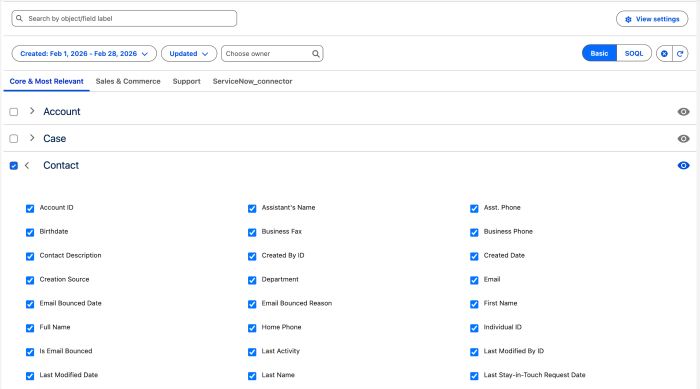
In Metrica Power BI Connector for Salesforce, create a data source that defines what data will be available in Power BI. This includes:
- selecting Salesforce objects
- choosing fields
- applying filters
- reviewing structure through data preview or ERD view
Object relationships are preserved automatically as part of this configuration.
4. Import data into Power BI
Copy the Power Query script for your data source from Metrica Power BI Connector for Salesforce, paste it into a blank query in Power BI Desktop, and authenticate with your token. Then add the required Salesforce tables as new queries and apply changes.
5. Configure incremental refresh (optional)
For larger datasets, set up incremental refresh in Power BI so only new or updated data is loaded during refresh cycles instead of reloading the full dataset.
After setup, Metrica Power BI Connector gives teams a structured way to work with Salesforce data in Power BI without the usual trade-offs of native connectors. It is, so far, one of the easiest approaches to implement because the process is straightforward inside Salesforce and Power BI, but it is also one of the more advanced ones because teams can define separate datasets for different use cases and create unlimited data sources with no system or pricing-based restrictions. That combination makes it easier to move beyond one-off dashboards and build a more scalable Salesforce Power BI reporting setup.
Conclusion
The need to connect Power BI to Salesforce is about building a reliable analytics foundation.
Native connectors provide a starting point but introduce limitations that become visible as soon as data volume and complexity grow.
A structured approach using a dedicated Salesforce Power BI connector, such as Metrica, allows teams to move from ad hoc reporting to production-ready analytics.
Instead of treating integration as a technical step, it becomes part of a controlled data architecture that supports consistent, scalable decision-making.