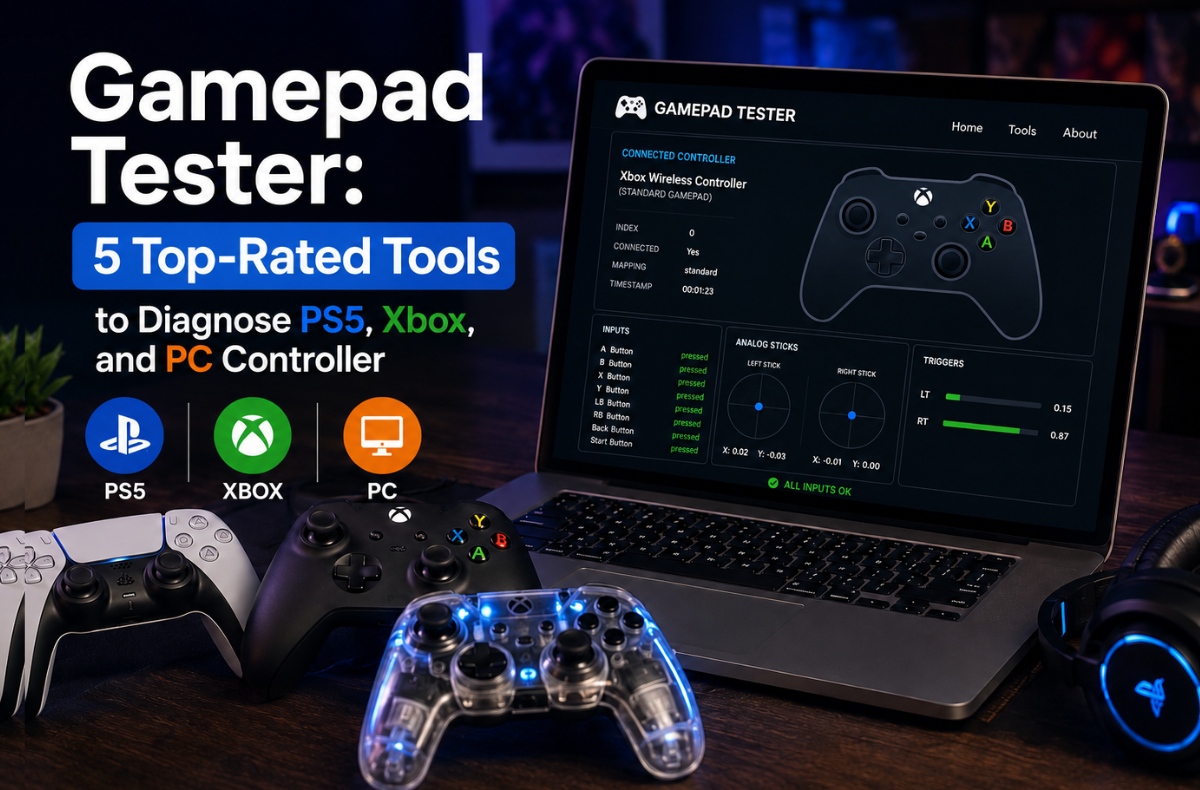
A gamepad tester is a browser-based diagnostic that reports the live state of a controller’s buttons, sticks, triggers, and vibration through the HTML5 Gamepad API. It requires no offline version and supports PS5, Xbox, and PC controllers. Because a browser cannot fully emulate gyro motion or DualSense adaptive triggers, a first-party utility such as Steam’s controller test remains the most thorough way to confirm.
Identifying the source of a controller fault is the central difficulty. Many players replace hardware that needed only recalibration. iFixit reports that the potentiometers in a standard controller stick are rated for about two million cycles, a threshold one estimate reaches in roughly four to seven months of daily play, after which accuracy can begin to slip. The wear is a design characteristic rather than a defect.
A browser test removes that uncertainty in under a minute. With the controller connected, every input is displayed on screen, so a button that misfires or a stick that registers movement at rest is evident immediately, well before a repair or replacement is warranted.
Choosing the right tool matters because most search results are interchangeable clones that do little more than echo a basic input grid. The five tools reviewed below are the ones worth trusting in 2026, matched to the exact problem each diagnoses best.
Key Takeaways
- A Gamepad Tester quickly diagnoses controller issues such as button misfires, stick drift, and latency online using the HTML5 Gamepad API.
- It features tools such as Hardwaretester.com for all-around checks, Joypad.ai for pressure-sensitive inputs, and Gamepadla.com for latency testing.
- Drift can start subtly, so regular checks with a Gamepad Tester help catch issues early, potentially saving on repairs.
- Each tool serves a specific purpose; for example, GamepadTester.uk tracks drift over time, and ControllerTest.io offers a comprehensive suite.
- Mobile apps are available for testing gamepads, but wired connections yield more accurate results than Bluetooth.
Table of Contents
What Does a Gamepad Tester Check?
A complete gamepad test covers the core of game controller diagnostics: button response, analogue stick accuracy, trigger travel, vibration, and input latency. The tester reads the live signal from the controller and displays it on screen, so the input you provide can be compared with what the system registers. Understanding what each area reveals makes every result easier to interpret.
- Buttons and D-pad: A button test confirms every press registers once and releases cleanly. Double inputs or missed presses point to a worn contact.
- Analogue sticks: A gamepad drift test shows the resting position of each stick. Any movement on screen while the stick is untouched is stick drift.
- Triggers and dead zones: Triggers should travel smoothly from 0.00 to 1.00. A controller dead zone test reveals where input stops registering near the centre.
- Vibration: A gamepad vibration test, sometimes called a gamepad rumble test, fires the rumble motors, so weak or silent feedback is easy to spot.
- Latency and polling rate: A gamepad latency tester measures the delay between a press and the response, while the polling rate shows how often the pad reports per second.
The 5 Top-Rated Online Gamepad Tester Tools
The five top-rated tools are Hardwaretester.com, Joypad.ai, Gamepadla.com, GamepadTester.uk, and ControllerTest.io. Each does one job better than the rest, so the right choice depends on the symptom. Whether you need an Xbox or PC controller tester online, all five run in the browser across PlayStation, Xbox, and PC controllers.
1. Hardwaretester.com: Best All-Round Gamepad Tester
Hardwaretester.com is the first tool most technicians open. This online gamepad tester reads every connected controller via the Gamepad API and displays button states, analogue values, and trigger pressure on a single screen. Its circularity test traces a stick’s path and exposes a worn one that no longer reaches full range. Also, it covers PlayStation, Xbox, Switch Pro, and USB or Bluetooth pads in any modern browser.
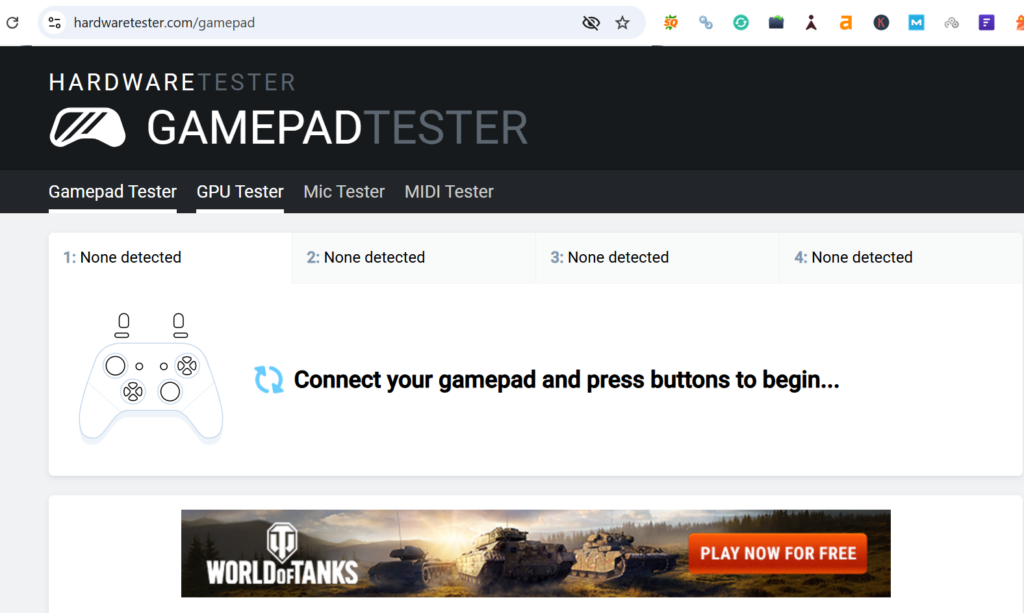
- Tests: buttons, analogue axes, triggers, vibration, and a circularity test for stick range
- Standout: the circularity trace exposes a worn stick that no longer reaches full range in every direction
- Best for: a complete first-pass controller input test in a single place
- Link: Hardwaretester.com
2. Joypad.ai: Best for Pressure-Sensitive Input Testing
Joypad.ai pairs a clean, modern interface with an instant read on every input, and it stands out for measuring pressure on triggers and sticks rather than treating them as a simple on or off. It runs entirely in the browser with no download and supports PS5, PS4, Xbox Series, Xbox One, Switch Pro, and any USB or Bluetooth pad. As a well-established tool, it sits at the top of independent trust checks.
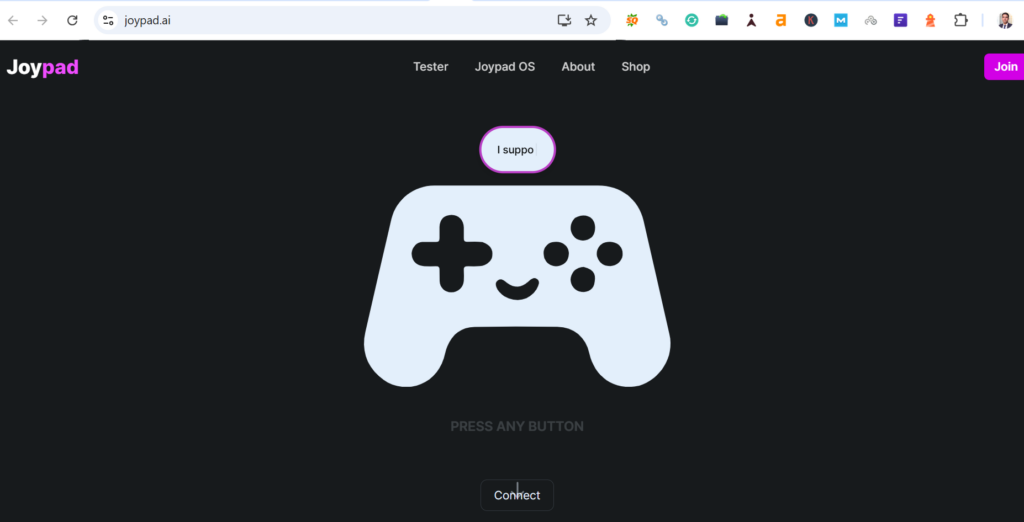
- Tests: buttons, analogue sticks, triggers, rumble, stick drift, and pressure sensitivity
- Standout: graded pressure readings on triggers and sticks, not just a pressed or released state
- Best for: checking analogue precision and pressure response on a controller
- Link: Joypad.ai
3. Gamepadla.com: Best Latency and Polling Rate Tester
Gamepadla measures how fast a controller responds, not just what it does. It is the strongest gamepad latency and polling rate tester here, reporting polling rates in hertz and input delays in milliseconds against a public database of other pads. A wired Xbox or DualSense pad should poll near 1000 Hz, so a Bluetooth link that falls to 250 Hz exposes the lag a player feels but cannot otherwise measure.
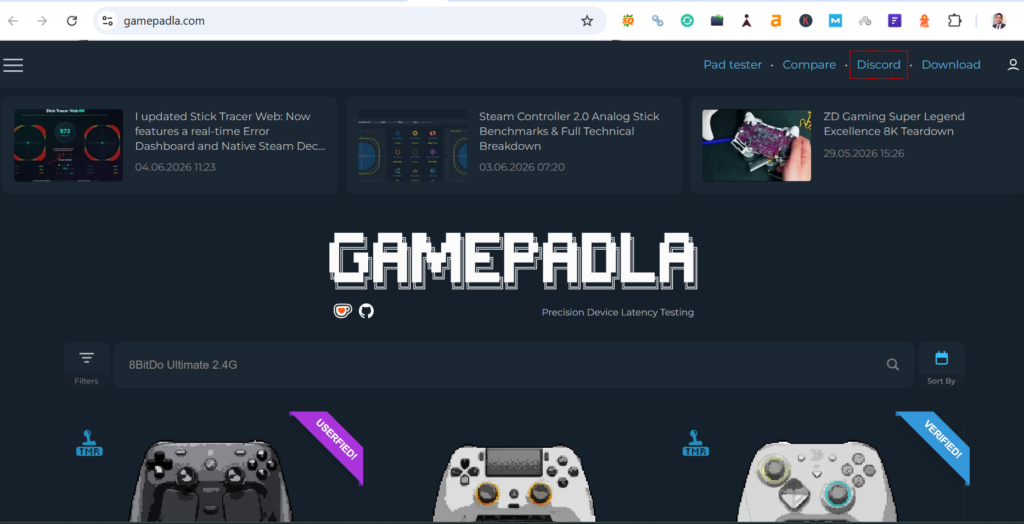
- Tests: polling rate in Hz and input latency in milliseconds
- Standout: a wired pad should poll near 1000 Hz, so a weak wireless link is exposed at once
- Best for: competitive and wireless players chasing input lag
- Link: Gamepadla.com
4. GamepadTester.UK: Best for Tracking Drift Over Time
GamepadTester.uk is built for analysis rather than a one-off glance. Alongside standard button, stick, and trigger checks, it records axis deviations and exports results as a CSV log, allowing a controller’s drift to be tracked across sessions. It runs in desktop and mobile browsers over USB or Bluetooth, including OTG connections on a phone, which makes it a flexible HTML5 gamepad tester for ongoing monitoring.
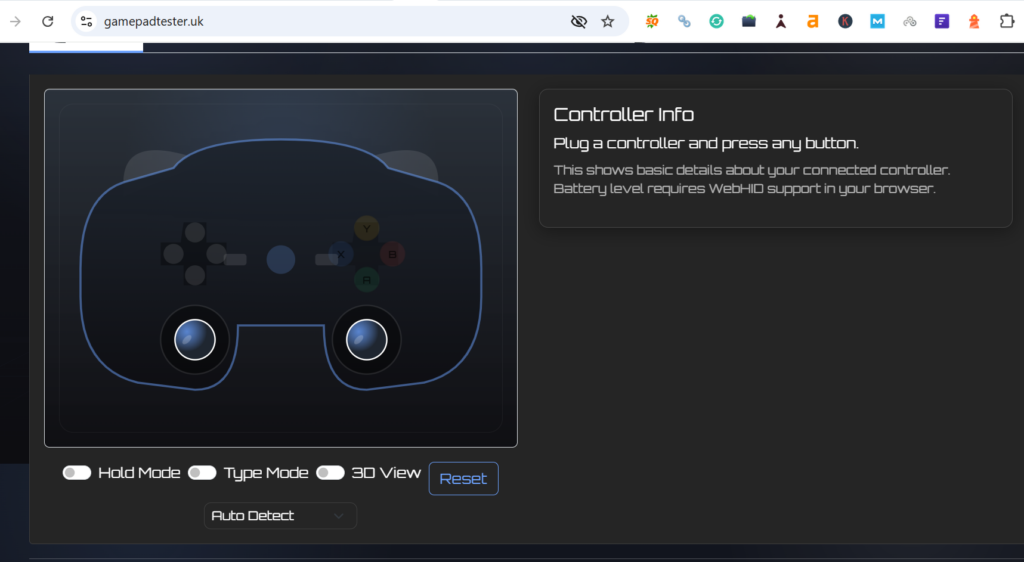
- Tests: buttons, sticks, triggers, and axis drift, with exportable CSV logs
- Standout: long-term tracking that shows how far a stick has degraded over time
- Best for: monitoring a worn controller or documenting drift before a warranty claim
- Link: GamepadTester.uk
5. ControllerTest.io: Best Modern Gamepad Tester Suite
ControllerTest.io is a comprehensive, actively maintained suite that splits each diagnostic into its own page. It covers stick drift with deadzone and circularity analysis, polling rate and latency, dual-motor vibration, and even a gyroscope test that most browser tools omit. Everything runs locally via the Gamepad API with no download required, and a companion Chrome extension offers a lightweight version. It supports Xbox, PS4, PS5, and Switch Pro pads.
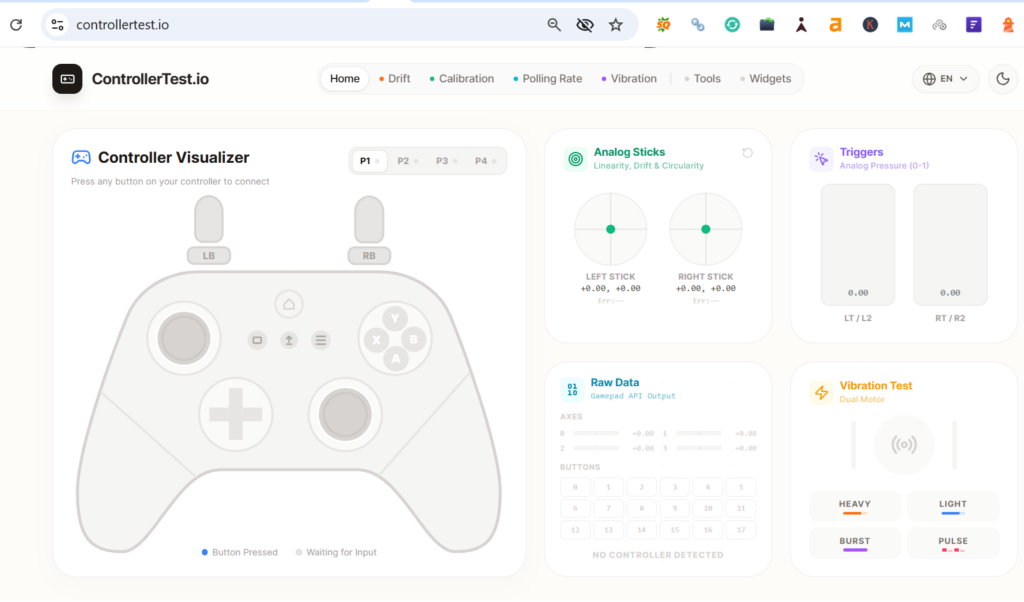
- Tests: drift, deadzone, circularity, latency, polling rate, vibration, and gyro
- Standout: dedicated tool pages plus a gyro tester gamepad check browsers usually cannot run
- Best for: a single modern hub for every check on PS5, Xbox, and PC
- Link: ControllerTest.io
Which Gamepad Tester Should You Use?
Use Hardwaretester.com for an all-round check, Joypad.ai to check pressure and analogue precision, Gamepadla.com when latency is a concern, GamepadTester.uk to track drift over time, and ControllerTest.io for a full modern suite with gyro support. The table below matches each tool to the job it does best, so the choice comes down to the symptom at hand.
| Tool | Best For | Drift Test | Vibration | Latency / Polling |
|---|---|---|---|---|
| Hardwaretester.com | All-round diagnosis | Yes (circularity) | Yes | Basic |
| Joypad.ai | Pressure-sensitive testing | Yes | Yes | No |
| Gamepadla.com | Latency and polling rate | Yes | No | Yes (detailed) |
| GamepadTester.uk | Tracking drift over time | Yes (CSV log) | No | No |
| ControllerTest.io | Modern all-in-one suite | Yes (circularity) | Yes | Yes |
One limitation applies to all browser tools. They read through the Gamepad API, so they work best in Chrome or Edge, and features like a gyro tester, gamepad motion check, or DualSense adaptive triggers may not fully register. For motion and haptics, a native option, such as Steam’s built-in controller test or the Windows “Set up USB game controllers” panel, provides the most complete reading.
Can a Controller Tester Catch Drift Early?
Yes, and that is its most valuable use. Stick drift rarely appears overnight; it begins as a tiny resting offset the eye cannot see. The tool shows that offset as a small nonzero axis value while the stick sits untouched, often around 0.02 to 0.05, long before any in-game wobble is noticeable.
Checking a new controller once a month builds a baseline, so the first sign of wear stands out immediately. Catching drift at this stage matters because a light dead-zone adjustment can hide it for months, while a stick left to worsen almost always results in a replacement module. The earlier the reading, the cheaper the fix.
How to Test a Gamepad in Your Browser
Connect the controller, open a tester in Chrome or Edge, and press any button to begin. You can run a full controller test online in under a minute, and it works the same on PS5, Xbox, and PC controllers.
Here’s how to run the test, step by step:
- Connect the controller by USB cable or pair it over Bluetooth.
- Open one of the browser tools above in Chrome or Edge.
- Press any button so the Gamepad API detects the pad.
- Work through every button, both sticks, the triggers, and the vibration test.
- Watch for drift, which is on-screen movement while a stick sits at rest, and for any input that fails to register.
Run the same test on a second controller if you have one. Comparing a suspect pad to a healthy one is the fastest way to determine whether the issue is hardware-related or game-related.
Can You Test a Controller on a Phone?
Yes. On Android, X Gamepad Tester is the top pick; on iOS, Game Controller Tester Gamepad and SensePad lead.
Mobile browsers offer limited Gamepad API support, especially on iOS, so a dedicated app is usually more reliable than a browser test on a phone or tablet. These are the highest-rated apps in 2026 across both platforms.
| App | Platform | Best For | Rating on Play Store |
|---|---|---|---|
| Game Controller Tester (Pow Games) | Android | Broad support for newer pads like the 8BitDo Ultimate, GameSir, Xbox Series, and Razer | 4.1 out of 5 |
| X Gamepad Tester | Android | Quick stick drift detection through raw X and Y values | 4.4 out of 5 |
| PS4 Controller Tester | Android | Focused testing for DualShock 4 and PS4 controllers over USB or Bluetooth | 4.2 out of 5 |
| Game Controller Tester Gamepad | iOS | Wide MFi, DualSense, Xbox Series, and Razer Kishi support, updated for iOS 18 | 4.5 out of 5 |
| SensePad | iOS | Comprehensive checks, including DualSense adaptive triggers, gyro, and haptics | 4.1 out of 5 |
Connect by USB OTG where possible. Bluetooth on mobile devices can introduce latency that distorts polling-rate readings, so a wired link provides the most accurate results.
Should You Calibrate, Repair, or Replace?
It depends on the severity of the drift: calibrate minor drift, repair a steadily worsening stick, and replace a controller that is badly worn or still under warranty. The test result points to one of these three fixes, and reading it correctly saves both money and a working controller.
- Calibrate: minor drift, where the resting value sits just above zero, often clears with a gamepad calibration tool or a slightly wider dead zone in the game or system settings.
- Repair: steady mid-range drift on an out-of-warranty pad is a strong candidate for a Hall effect stick module, which resists wear far better than the original potentiometer design.
- Replace or claim warranty: a controller still under warranty should go back to the maker, since opening it voids coverage. Severe drift on a cheap pad is rarely worth repairing.
The aim is to decide before spending, not after. A two-minute test on these gamepad tester websites can make the difference between a free calibration and an unnecessary purchase.
Conclusion
A controller fault is easy to misread, and many players replace hardware that needed only a dead zone adjustment. A minute in a trusted tool confirms whether a stick genuinely drifts, a trigger has lost its range, or a button registers double inputs. That single check determines whether the right response is calibration, repair, or replacement.
Use Hardwaretester.com or Joypad.ai for a full diagnosis; Gamepadla.com when latency is the concern; and GamepadTester.uk or ControllerTest.io for drift. Then confirm any doubtful result with Steam’s built-in test. Running the check as soon as performance changes is worthwhile because early drift is often correctable through calibration, whereas drift left for months usually requires a new stick module. This is similar to how an NVIDIA RTX 60 specs leak should be treated, where early reports and unverified claims require careful testing and cross-checking before being accepted as fact.
FAQs
The Gamepad API remains idle until it receives input, so press any button after connecting to wake it up. If nothing appears, switch to Chrome or Edge, try a different USB cable or port, and re-pair the Bluetooth connection.
No. A tester diagnoses drift but does not repair it. A calibration tool can mask minor drift by widening the dead zone, but a stick that drifts badly needs a hardware fix or a Hall effect replacement module.
Yes. A DualSense connects to a PC over USB or Bluetooth and reports through the Gamepad API. Standard buttons, sticks, and triggers register normally, though adaptive trigger resistance and advanced haptics will not fully appear in a browser.
For a complete readout, Hardwaretester.com covers buttons, sticks, triggers, and vibration, while Gamepadla.com is the most precise in terms of latency and polling rate. For gyro and adaptive triggers that browsers cannot fully read, Steam’s built-in controller test remains the most trusted cross-check.