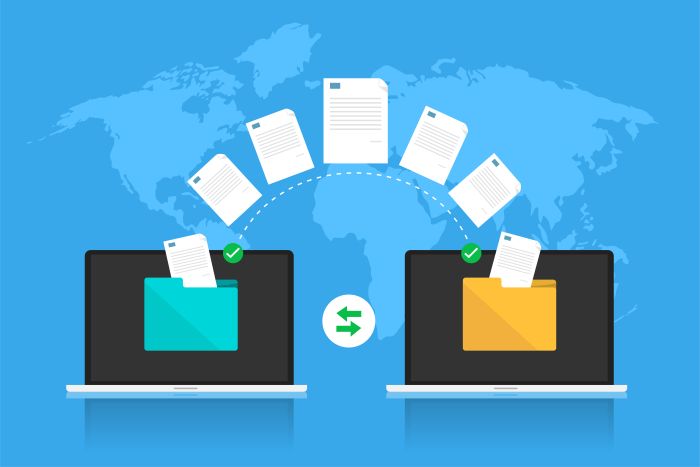
TAR files are still used in software development, server management, backups, and large file transfers. Many users need to open TAR files after downloading software packages, compressed archives, or website backups but are not always sure where to begin. These files keep many folders and documents inside one organized archive, making storage and sharing easier. This guide explains what TAR files are, why they matter, and how to manage them across Mac, Linux, and Windows.
Key Takeaways
- TAR files are useful for bundling files and preserving folder structure, commonly used in software development and backups.
- Unlike ZIP files, TAR files do not compress data by default, but may use compression formats like Gzip or Bzip2.
- Users can open TAR files using built-in tools on Mac and Linux, while Windows users can use Command Prompt or PowerShell.
- Best practices include checking archive sources and extracting files into separate folders for organization.
- Choosing the right tool depends on frequency of use; dedicated file managers can simplify management for heavy users.
Table of contents
What Is a TAR File?
A TAR file is an archive format that combines multiple files and folders into one package. TAR stands for “Tape Archive” because it was originally created for tape storage systems. Today, TAR files are commonly used for software packages, source code, website backups, and server data.
TAR files are different from ZIP files. A ZIP archive usually compresses and archives files at the same time. A standard TAR file mainly bundles files together, while compression is often added separately with formats such as Gzip, Bzip2, or XZ.
TAR archives are useful because they preserve folder structure. When users unpack an archive, the original folders and subfolders usually remain in the same order. This is especially important for developers, system administrators, and teams managing project files or backups.

Common TAR File Extensions
Before opening an archive, it helps to check the file extension.
- .tar stores files together without compression
- .tar.gz or .tgz uses Gzip compression and is common in Linux downloads
- .tar.bz2 or .tbz2 uses Bzip2 compression for software archives
- .tar.xz uses XZ compression and is often found in Linux packages
Knowing the extension helps determine the best way to open and manage the archive.
How to Open TAR Files on Mac
Mac users can often open TAR archives using built-in tools. In many cases, simply double-clicking the archive will trigger macOS Archive Utility and extract the contents automatically.
This method works for simple tasks, but it offers limited control. Users who regularly manage archives may prefer a more flexible solution.
Commander One gives Mac users an easier way to extract TAR files, browse archive contents, preview folders, and manage files without relying entirely on Terminal.
Mac users can also use Terminal commands.
For a standard TAR file:
tar -xvf filename.tarFor a compressed TAR.GZ archive:
tar -xzvf filename.tar.gzMac users who frequently handle software downloads or backups may find it faster to use a dedicated tool to open TAR files visually.
How to Open TAR Files on Linux and Windows
Linux systems support TAR natively, making it simple to manage archives from the terminal.
For a standard TAR archive:
tar -xvf archive.tarFor a TAR.GZ file:
tar -xzvf archive.tar.gzFor a TAR.BZ2 file:
tar -xjvf archive.tar.bz2Linux users often prefer command-line tools because they provide speed and flexibility when working with packages or backups.
Windows users can also open TAR files on newer versions of Windows using Command Prompt or PowerShell.
tar -xvf archive.tarFor compressed formats, many users prefer an archive utility or file manager for a simpler visual workflow. It is also a good idea to extract files into a dedicated folder to stay organized.
Best Practices for Managing TAR Archives
Always check the source before opening an archive. Files downloaded from unknown websites may contain unsafe scripts or damaged content.
It is also smart to extract archives into a separate folder so files remain organized. Some compressed TAR archives become much larger after extraction, so checking available storage space first can help avoid issues.
If possible, preview archive contents before extracting so you know exactly what is inside.
Choosing the Right Tool to Open TAR Files
The best method depends on your workflow. If you only work with archives occasionally, built-in system tools may be enough.
Users who frequently manage archives, servers, cloud storage, or project folders may benefit from a dedicated file manager that reduces errors and saves time.
For Mac users, Commander One PRO is also available through the Mac App Store for archive management, FTP access, cloud connections, and local file organization.
Conclusion
Learning how to open TAR files is simpler than it first appears once you understand the format and choose the right tool. TAR archives help keep software packages, backups, and project folders organized inside one file. Whether you use Mac, Linux, or Windows, the right workflow can help you open TAR files faster and manage archives more efficiently.