If you’re a parent or student in the New York City school system, there’s a good chance you’ve heard much buzz about SyncGrades. Although using several educational platforms one after the other can be a bit much, SyncGrades tries to make it easier. It is a very important application that not only helps the teachers with grading, but also gives the overall picture of a student’s performance and the possibilities of improvement in a single place. Whether you want to see your recent exam score or look at your days of presence documented, knowing how to step into and navigate this platform is a necessity for mastering the education competition.
This tutorial will guide you through the entire process, starting from how to create your account, how to sign in, and finally, how to utilize the application to your utmost advantage.
Key Takeaways
- SyncGrades is a crucial educational application that connects Google Classroom with official Student Information Systems, providing real-time grade access for students and parents.
- Students benefit from immediate grade insights, assignment tracking, and performance understanding, while parents can communicate directly and monitor attendance.
- To use SyncGrades, both students and parents have specific login processes, often involving school email and verification steps for privacy.
- Common issues like missing buttons and login errors can often be resolved by clearing the cache or checking permissions on the school’s end.
- SyncGrades prioritizes data security by complying with FERPA and protecting student privacy, while continually exploring enhancements for a better user experience.
Table of Contents
What is SyncGrades?
At its core, SyncGrades is a specialized software solution designed to bridge the gap between classroom activities and official school records. It is particularly popular in New York City (NYC) schools as an alternative to older, clunkier systems.
SyncGrades acts as a data bridge. It connects learning management systems, most notably Google Classroom, with the school’s official Student Information System (SIS), such as STARS in NYC. For teachers, this means no more double entry of grades. For students and parents, it means real-time transparency. Instead of waiting for a report card at the end of the term, you can see how grades impact the final average the moment a teacher updates an assignment.
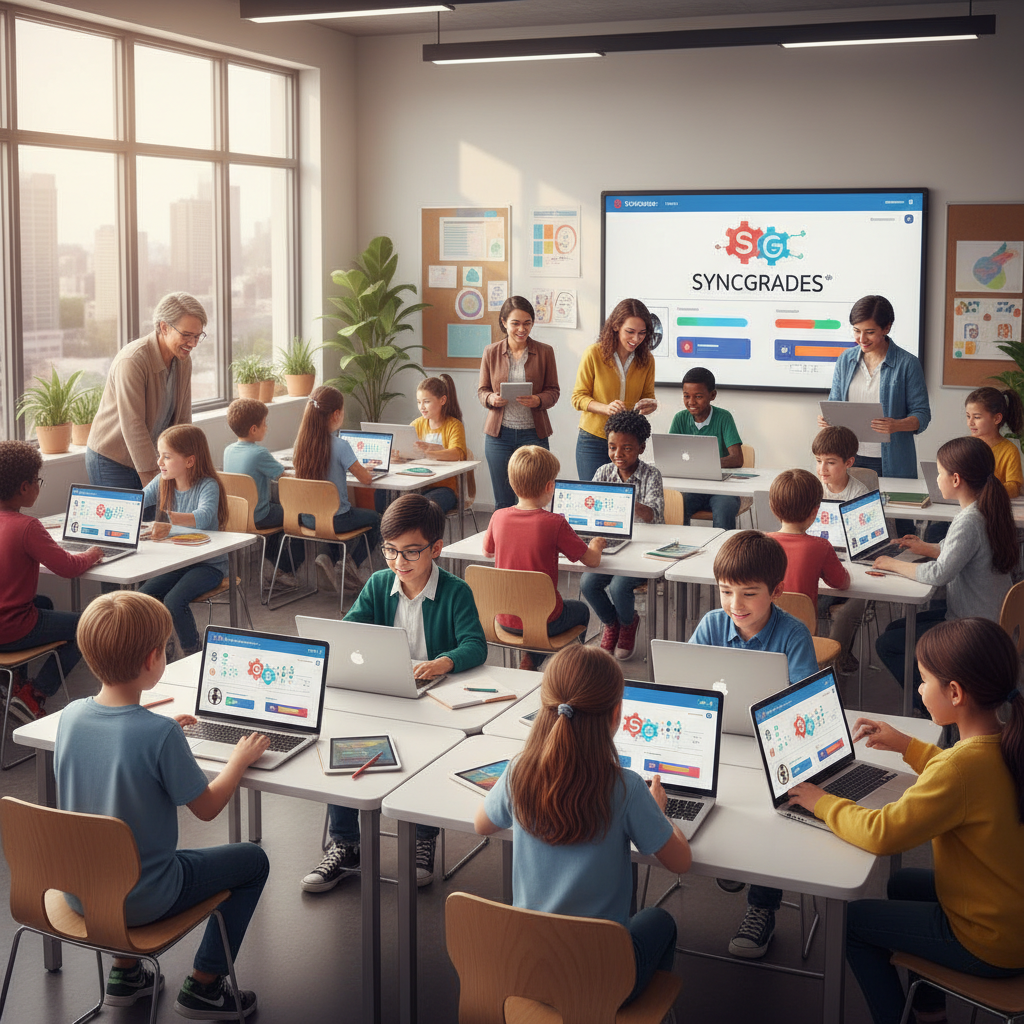
Benefits of Using SyncGrades
Why are so many schools making the switch? The platform offers distinct advantages for both students and families.
For Students
- Real-time Grade Access: No more asking “What’s my grade?” You know the exact spot you occupy in every class.
- Assignment Tracking: With SyncGrades, you can monitor what has been graded, what is missing, and when things are due.
- Performance Insight: Understand the effect of each assignment type on your overall average.
For Parents
- Direct Communication: It demystifies schoolwork. You are aware of what your child is doing.
- Grade Tracking: You’ll track your child’s grade throughout the term, so you can nip bad grades in the bud.
- Attendance Monitor: Quantifi ensures that every day counts, tracking not only grades but your child’s daily attendance.
| Feature | Student Benefit | Parent Benefit |
|---|---|---|
| Grade Syncing | Instant view of updated scores | No surprises on report cards |
| Google Classroom Link | One-stop shop for assignments | Clarity on homework load |
| Attendance Data | Track your own record | Verify the child’s school presence |
| Mobile Access | Check grades on the go | Stay informed anywhere |
SyncGrades Step-by-Step Setup Guide for Students
Getting started is usually straightforward, especially if your school uses Google Workspace for Education.
Creating an Account
Most schools pre-register students using their official school email addresses (e.g., @nycstudents.net).
- Go to the SyncGrades login page (syncgrades.com).
- Look for the “Sign in with Google” or “Login with NYCDOE” button.
- Enter your school credentials.
- Once authenticated, your dashboard should load automatically.
Linking with Google Classroom:
In many cases, the SyncGrades login to Google Classroom integration happens automatically. However, if prompted, allow permissions for SyncGrades to access your classroom data. This ensures your assignments flow correctly into the gradebook.
Navigating the Dashboard
Once you sign in, the user interface should be clean and intuitive.
- The Overview: Usually, you’ll be presented with a list of your classes and, on the right side, their respective current average.
- Drilling Down: Click on an individual class to see the percentage of assignments, tests, and participation grades.
- Feedback: If a teacher has annotated individual comments on an assignment in Google Classroom, sometimes those sync over, and you can see feedback alongside the grade.
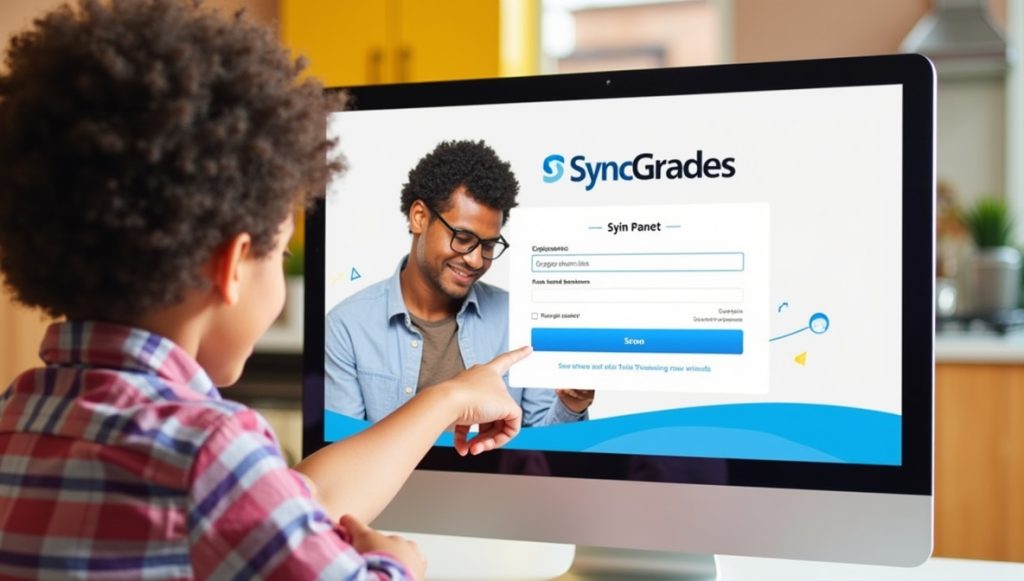
SyncGrades Step-by-Step Setup Guide for Parents
Parents often have a slightly different login process than students, as they need to verify their identity to protect student privacy.
Initial Setup
- Invitation: Usually, the school will send an email invitation to the address they have on file. If you haven’t received one, contact your school’s parent coordinator.
- Registration: Click the link in the email to set up your password.
- SyncGrades Parent Login: Visit the main site and use your email and new password to sign in.
Monitoring Progress
Once logged in, you sign in, you’ll probably have dashboards for each of your kids connected with your account.
- Notifications: Look to see if you can have alerts sent to you by email about failing grades or missing assignments.
- Attendance: Find the attendance tab and make sure they are being marked present.
- Report Cards: Most schools disseminate digital report cards using SyncGrades, so get to know the “Reports” or “Documents” tab.
SyncGrades Troubleshooting Common Issues
TSyncGrades’s educational operations aren’t perfect. Here are some common hurdles users face and how to fix them.
“Sync Grades” Button Missing
Teachers sometimes panic when the “Sync Grades” button disappears from their view in Google Classroom.
- Check Extensions: Sometimes, browser extensions block script elements on a page. Try disabling ad blockers.
- Clear Cache: Clearing your browser cache often resolves display glitches.
- Admin Access: If the button is gone, it might be a permissions issue on the school’s end.
Login Problems
Teacher and Student users should log in with NYC DOE or Google Credentials.
- Forgot Password: If you are a parent, use the “Forgot Password” link on the SyncGrades sign-in page. Students usually need to reset their email passwords through the DOE or the school IT department.
- Is SyncGrades Down? Occasionally, the server may be under maintenance. If the above doesn’t work because the site won’t load, ask a classmate or teacher whether they are experiencing a similar issue before you reset your password.
- App Issues: If the SyncGrades app is not working, delete it and re-download a fresh copy of the SyncGrades app from the iOS App Store or Google Play Store.
Data Security and Privacy with SyncGrades
Of course, safety is a concern with any educational software. https www syncgrades com is encrypted in order to protect students’ privacy.
- Compliance: The platform adheres to FERPA (Family Educational Rights and Privacy Act) and NYSED laws regarding data privacy.
- Access Control: Only authorized teachers, administrators, parents, and students can view specific data. A parent cannot see the grades of a student who isn’t their child.
- No Third-Party Sharing: SyncGrades states clearly in their privacy policy that they do not sell student data to third parties.
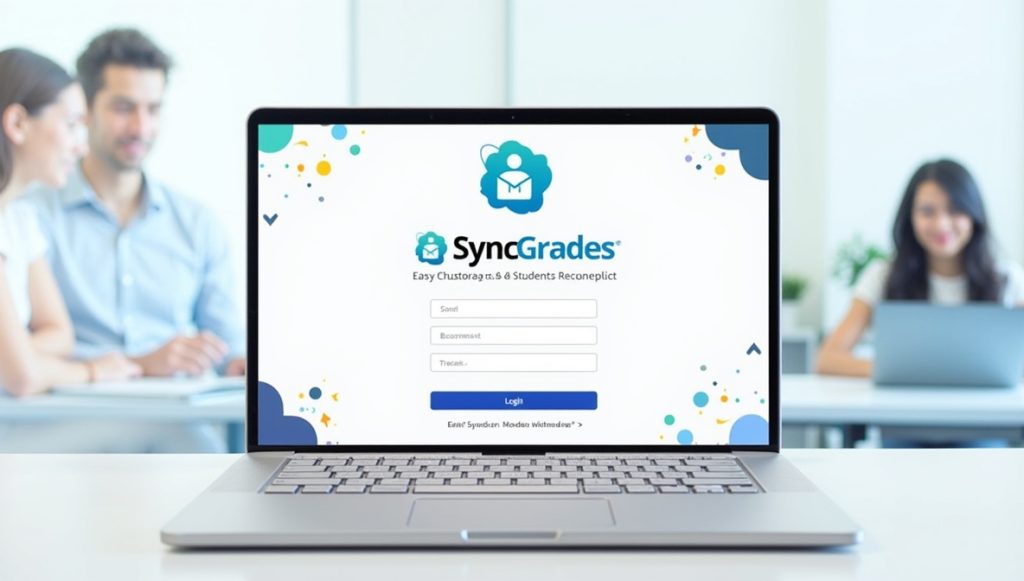
SyncGrades Future Upgrades
The platform is constantly evolving. Developers have been exploring ways to improve the integration of SyncGrades registration flows to make onboarding more seamless. We can also assume to see closer ties to mobile devices, like iPad apps, to make sure an app like SyncGrades on the go has a great user experience while maintaining functionality for the desktop. As schools seek more and more analytics, future updates could feature richer visualizations of student progress over time.
Conclusion
SyncGrades has become an essential App for today’s classroom, especially in NYC. Scaffolding between Google Classroom and official gradebooks, it saves time for teachers and clarifies things for parents.
Whether you are doing a SyncGrades student login to see how they did on a test or a parent setting up alerts, the system gives you control of their academic life. It will be important for you to check back often, try out the new features, and put this data to work in improving academic performance.
FAQs
Yes, there is a SyncGrades app available for mobile devices. You can find the SyncGrades app in the Apple App Store and Google Play Store to check grades on the go.
First, ensure you are using the correct portal (Student vs. Parent). If you are a student, make sure you are clicking “Sign in with Google” or “NYCDOE.” Parents should double-check their email and password or use the reset link.
Yes, SyncGrades login to Google Classroom integration is one of its primary features. It pulls grades and assignments directly from Google Classroom into the school’s gradebook.
If you cannot access the site, try clearing your browser cache or accessing it from a different device. If it persists, the platform may be undergoing maintenance; check with your school for updates.
Yes, the SyncGrades parent login and account usage are free for families. The school or district pays for the software license.