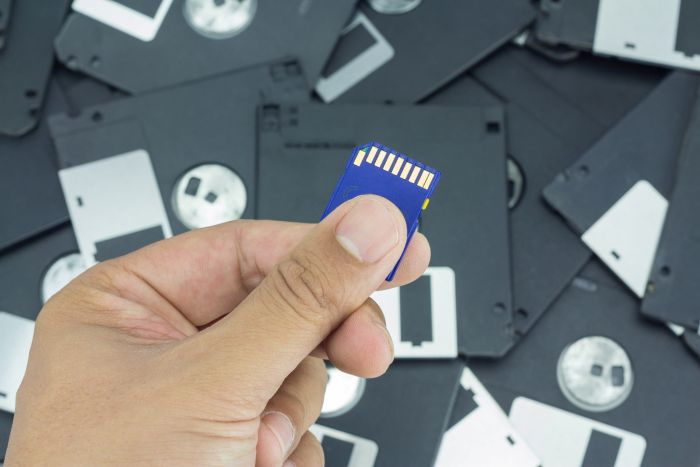
We’ve all been there, where you remove something from your SD card by accident. Maybe it’s a photo you loved, a file you needed for work, or a video you really wanted to keep. Now, you want it back. But the real question is, “Can deleted files be recovered from SD card?” In this guide, we’ll give you the answer to this query. Also, if there’s a possibility of recovery, you’ll learn how to recover deleted files from SD card under certain conditions!
Key Takeaways
- You can recover deleted files from SD cards if you act quickly and use the right method.
- Utilize recovery software like 4DDiG Data Recovery for better chances if files are permanently erased.
- For recovery without software, check your backups via cloud services or use the Trash folder in Android.
- To prevent file loss, handle SD cards carefully and perform regular checks to prevent corruption.
- If recovery attempts fail, consider consulting a professional data recovery lab for assistance.
Table of contents
Part 1: Can Deleted Files Be Recovered From SD Card?
If you’re contemplating whether can deleted files be recovered from SD card, the answer is yes. Yet it depends on how quickly you act and which recovery method you choose. If your files are not overwritten, you can employ a specialized tool to undelete SD card files.
But if you want to know how to recover deleted files from SD card without software, you can retrieve files from your phone’s Trash folder. Otherwise, you only have one chance at recovery without software, and that is if you possess a backup of your memory card.
Part 2: How to Recover Deleted Files From SD Card With Software?
Specialized memory card recovery software is an appropriate choice to undelete SD card files if they’re permanently gone and you don’t have a backup. For instance, a professional tool like 4DDiG Data Recovery can recover deleted files from SD card for free up to 2 GB for Windows users. It can extract files from a memory card without losing their quality, regardless of whether they were lost due to deletion by mistake, formatting, or corruption. Here’s more info about this tool’s features:
- The tool can precisely find missing, hidden files from the SD card with a high recovery rate.
- This software offers quick and deep scan modes to dig deeper for permanently erased SD card files.
- This app supports 2000+ file types, including but not limited to RAW files, footage, MS Office, Illustrator, Photoshop files, etc.
- The tool can extract data from numerous cards like SD, SDHC, SDXC, SDUC, etc.
- You can choose selective recovery and view the recovered memory card files.
- The tool supports both Windows and Mac systems.
Here’s how to recover deleted files from SD card with this tool:
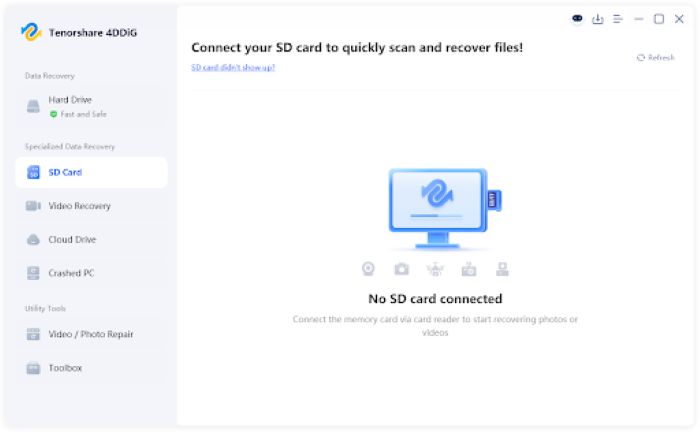
Step 1: Attach the problematic SD card to your computer. Then, execute the memory card retrieval tool on the same PC.
Step 2: Choose “SD Card” from the interface. Pick the file types. Then, hit “Scan.” Wait for the scan to finish or pause it once you find your desired files.
Step 3: View the recovered items on the left, beneath “Type” or “Path.” You can also employ the filter tags or input keywords in the search field to find the exact files.
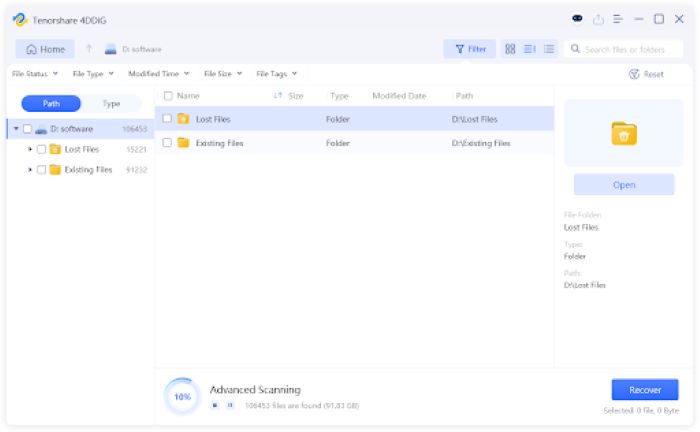
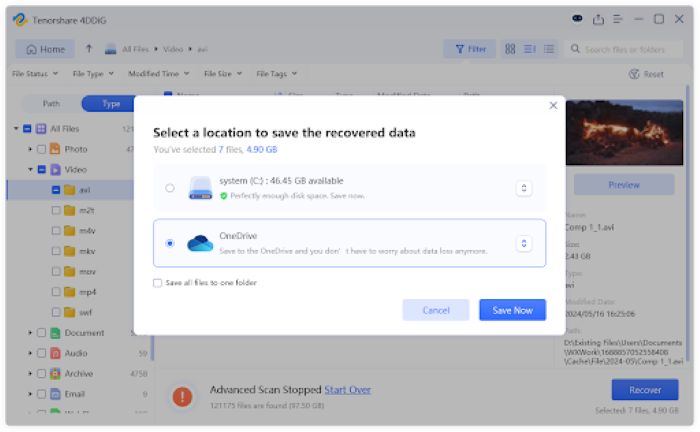
Step 4: Select what you want back. Next, hit “Recover” to export the recovered memory card files to your computer.
Part 3: How to Recover Deleted Files from SD Card Without Software?
If you possess a backup, here’s how to recover deleted files from SD card without software. Each method requires meeting certain conditions. So, pick one that suits your scenario:
Way 1: Check Your Cloud Backup
In case the device on which you used your memory card files was synced with a cloud service, you can undelete SD card files. But this method is only good if the device automatically backed up your SD card files to services like Google Drive, OneDrive, or Dropbox before they were erased.
Way 2: Use the Previous Versions Feature
If you have the Previous Version feature activated on your Windows computer and have also included the memory card files in the backup, you can retrieve them. The Previous Version feature, when enabled, saves copies of your files over time, so you can bring back older versions even after deletion. Here’s how to recover deleted files from SD card without software using this feature:
Step 1: Attach the problematic SD card to your computer. Open “File Explorer.” Then, head to the folder where the memory card files used to be.
Step 2: Right-click the folder. Then, choose “Restore previous versions.” Pick a version that contains the removed memory card files. Click “Restore” to put them back.
Way 3: Restore From the Trash Folder
In a situation where your SD card is in an Android phone, you may still be able to recover deleted files from SD card for free, like photos or videos. Built-in photo or video apps usually move removed files to a “Trash” or “Recently Deleted” folder in Android for 30 days instead of removing them right away. So, you can easily learn how to recover deleted files from SD card in Android.
However, if the SD card files were removed on a computer, camera, or file manager, they won’t show up in your Android. This method is only for when the SD card is used as your phone’s main storage. Here’s how to recover deleted files from SD card in Android Trash folder:
Step 1: Open your phone’s Gallery or Photos app. Head to “Albums” or “Library.”
Step 2: Find the “Recently Deleted” or “Trash” folder in your phone. Look through the erased memory card files. Pick what you want back.
Step 3: Hit “Restore.’ This will return the files to their original spot on the SD card.
Way 4: Utilize a Time Machine Backup
If Time Machine was turned on before the files were deleted and your SD card was included in the backup, you may be able to restore the files. Just note that Mac doesn’t back up external devices automatically. So, you must have added the files to the Time Machine backup in order to recover deleted files from SD card for free:
Step 1: Attach the problematic SD card to your computer. Tap the “Time Machine icon” in the menu bar. Then, choose “Browse Time Machine Backups.”
Step 2: Open the SD card’s folder. Next, use the arrows to go back in time. When you find the erased memory card files, select them. Hit “Restore.”
Way 5: Contact a Data Recovery Lab
Even after trying the above solutions, if you can’t retrieve files from your SD card, they might have been overwritten, or there could be another severe issue. In such a case, contact an SD card data recovery lab. Find a credible one near you and call them on their hotline. Tell them about your issue. If satisfied with their reply, ship the SD card or drop it off at their service center.
Part 4: How to Prevent File Loss on Your SD Card?
After you retrieve lost data from the SD card successfully, there’s no guarantee that something won’t happen again, and you won’t lose it in the future. However, you can minimize the chance of file loss. Here’s how:
- Handle SD cards carefully and avoid rough insertion or removal.
- Protect from water, extreme temperatures, dust, and static, and store in a protective case.
- Keep SD cards in a safe place to prevent loss or damage.
- Avoid using cards in high heat or humidity.
- Check regularly for corrupted files or errors.
- Always safely eject the SD card and avoid removing it during read/write operations.
- Don’t write data when the device battery is low or interrupt formatting.
- Make sure the SD card is compatible with your device’s file system and capacity.
Conclusion
If you were contemplating whether can deleted files be recovered from SD card, the answer depends on how immediately you react and which recovery method you choose. You can learn how to recover deleted files from SD card using a cloud, Windows’ Previous Versions, or a Time Machine backup, or your Android’s Trash.
If not, recovery software like 4DDiG Data Recovery is the best option. It offers high success rates, support for many file formats, and safe and selective recovery from different types of memory cards.
How to Recover Deleted Files from SD Card FAQs
Q1: How to recover deleted files from SD card using CMD?
CMD can’t retrieve completely erased files from a memory card. However, it can repair corrupted files or remove read-only attributes from the memory card, so you can access its files again. Here’s how to recover deleted files from SD card using CMD, which are actually hidden or corrupted:
Step 1: Attach the problematic card to your computer. Then, type “cmd” in the Windows search.
Step 2: Type the following commands one by one with some delay between both, allowing each process to complete. Hit “Enter” after each command:
- chkdsk [Here place the letter of your problematic SD card]: /f
- attrib -h -r -s /s /d [Here place the letter of your problematic SD card]:\*.*
Q2: Is SD card recovery always possible?
No, it’s not always viable. Especially if your SD card is overwritten, your files are permanently lost. However, you can contact a memory card recovery lab, and they might have a solution for you.
Q3: Is there a recycle bin on an SD card?
No, there’s no Recycle Bin on an SD card, unlike your computer. When you remove a file from a memory card, it’s permanently erased.