The 0x80070306 error can be frustrating, especially when it interrupts important Windows updates or system processes. Many users encounter this issue during updates, leaving their system incomplete or unstable.
If ignored, it can lead to performance issues or security risks. Fortunately, there are several effective ways to diagnose and fix this problem without reinstalling Windows.
Key Takeaways
- The 0x80070306 error interrupts Windows updates due to corrupted files or permission issues, potentially destabilizing the system.
- Common causes include corrupted system files, antivirus conflicts, and disk errors, making diagnosis essential for effective resolution.
- Fixing 0x80070306 can involve using built-in tools like Windows Troubleshooter, SFC, and DISM without needing to reinstall Windows.
- Users should avoid mistakes like forcing restarts during updates and skipping backups to prevent data loss during repairs.
- Maintaining disk health and using management tools like 4DDiG Partition Manager can help prevent future occurrences of the error.
Table of contents
What Is Error 0x80070306?
The error 0x80070306 Windows is commonly associated with system update failures or permission-related issues. In simple terms, it indicates that Windows is unable to properly access or process certain files required for completing an operation, most often during updates.
This error usually appears when Windows tries to install updates, but encounters corrupted system files or restricted access permissions. As a result, the update process stops midway, leaving your system partially updated. This can affect system stability and prevent important security patches from being installed.
You don’t need to be highly technical to understand this issue. Think of it as Windows being unable to “read” or “write” something it needs. The good news is that this problem is fixable using built-in tools and a few straightforward steps.
Why Does Error 0x80070306 Occur?
The Windows update error 0x80070306 can occur due to several underlying causes. Identifying the root issue helps you apply the right fix quickly.
Here are the most common reasons:
- Corrupted system files
Missing or damaged Windows files can prevent updates from installing properly, triggering this error.
- Windows update issues
Problems with update services, incomplete downloads, or broken update components can cause failures.
- Antivirus conflicts
Third-party antivirus programs may block system processes or updates, leading to access errors.
- Disk errors or bad sectors
If your hard drive has issues, Windows may fail to read/write the necessary update files.
- Permission or access restrictions
Certain system processes may not have the required permissions to complete operations.
Understanding these causes helps you choose the most effective solution instead of trying random fixes.
How to Fix Error 0x80070306?
Fixing error 0x80070306 does not always require advanced technical knowledge. In most cases, the issue can be resolved using built-in Windows tools or simple system adjustments. Below are five proven methods you can follow step by step. Start with the easiest solution and move to the next if the problem persists.
Method 1: Run Windows Troubleshooter
The Windows Update Troubleshooter is designed to automatically detect and fix common update-related problems. It is often the quickest and safest way to resolve issues like this without manually changing system settings.
This tool scans updating services, permissions, and temporary files to identify what is preventing updates from completing.
- Press “Windows + I” to open “Settings” and go to “System”, then “Troubleshoot” and then “Other troubleshooters”.
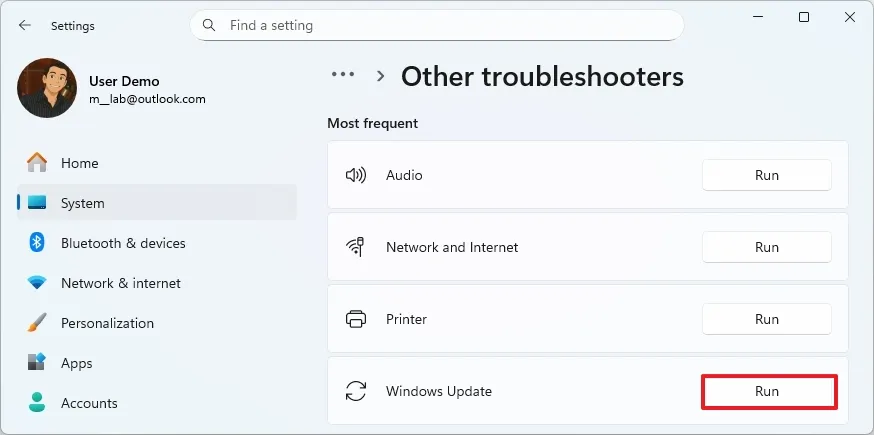
- Find “Windows Update” and click “Run”. Wait while Windows scans for issues and applies fixes.
- Restart your computer and try updating again
Method 2: Run SFC and DISM for error 0x80070306
Corrupted or missing system files are one of the most common reasons behind this error. Running System File Checker (SFC) and DISM repair Windows commands helps restore these files and repair the system image. These tools work by scanning your system for inconsistencies and replacing damaged files with clean versions from Windows components.
- Search for “Command Prompt”, right-click it, and select “Run as administrator.”
- Type the following command and press Enter: “sfc /scannow”. This command scans all protected system files and automatically replaces corrupted ones with cached copies.
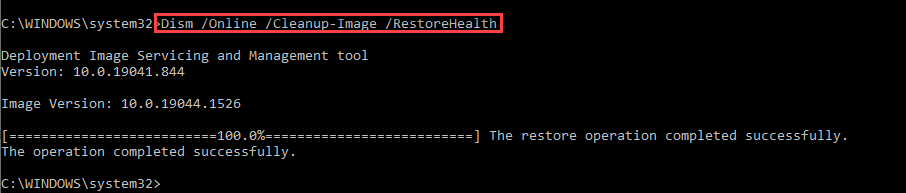
- After the scan completes, type: “DISM /Online /Cleanup-Image /RestoreHealth”. This command checks the Windows system image for corruption and downloads fresh files from Microsoft servers to repair it.
- Restart your computer after both scans finish
Method 3: Reset Windows Update Components
If Windows update services are stuck or corrupted, resetting them can resolve the issue. This process clears old update files and forces Windows to rebuild its update database. It is particularly effective when the 0x80070306 fix Windows 11 attempts fail due to incomplete or damaged update components.
- Open Command Prompt as administrator
- Stop update services by entering:
“net stop wuauserv”
“net stop bits”
“net stop cryptsvc”
“net stop msiserver”
These commands stop the Windows Update service and the Background Intelligent Transfer Service, which handle update downloads.
- Rename update folders with the following commands:
“ren C:\Windows\SoftwareDistribution SoftwareDistribution.old”
“ren C:\Windows\System32\catroot2 catroot2.old”
This step clears stored update files by renaming the folders, allowing Windows to create fresh ones.
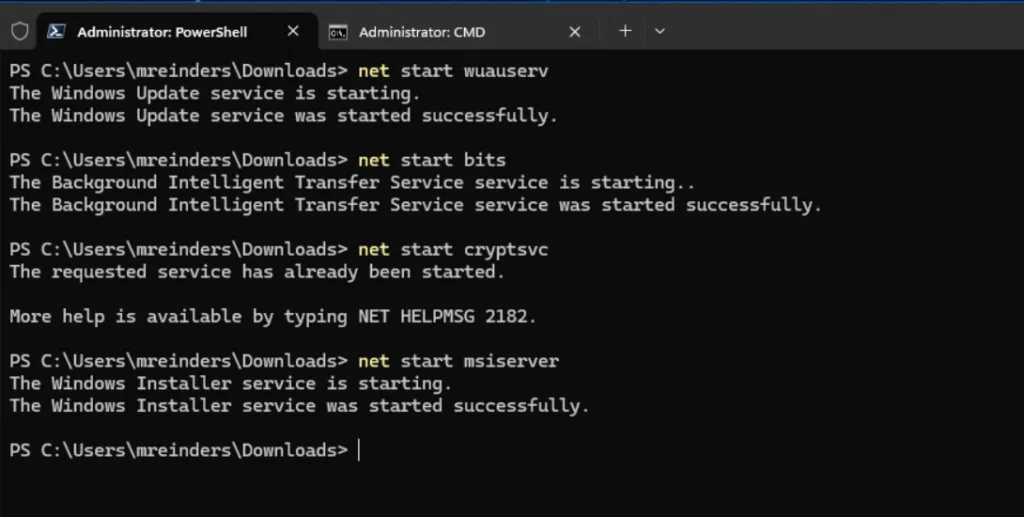
- Restart services:
“net start wuauserv”
“net start bits”
“net start cryptsvc”
“net start msiserver”
These commands restart the update services so Windows can function normally again.
- Restart your PC and try updating.
Method 4: Disable Antivirus Temporarily
Sometimes antivirus software mistakenly blocks Windows update processes, causing errors like 0x80070306. Temporarily disabling it can help determine whether it is the source of the problem. This method is safe as long as you re-enable protection immediately after testing.
- Open your antivirus software and locate “real-time protection” or “shield settings.”
- Disable protection temporarily (usually for 10–15 minutes) and run Windows Update again
- Re-enable antivirus after the update completes
Method 5: Check Disk for Errors
Disk errors or bad sectors can prevent Windows from reading or writing update files correctly. Running a disk check helps identify and repair these issues. This method is especially useful when the error is caused by storage-related problems rather than software conflicts.
- Open Command Prompt as administrator
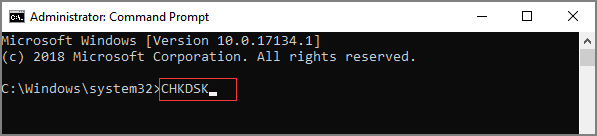
- Type the following command and press Enter: “chkdsk /f /r”
The /f parameter fixes file system errors, while /r scans for bad sectors and attempts to recover readable data.
- Press “Y” to schedule the scan if prompted.
- Restart your computer to begin the disk check.
By following these methods carefully, you can resolve most cases of error 0x80070306 Windows and restore your system’s update functionality.
Pro Tip Protect Your System
Fixing 0x80070306 is important, but preventing future issues is even better. System errors often come with hidden risks, including potential data loss during repairs or updates.
Many users rely on tools like 4DDiG Partition Manager to protect their system during such situations. It offers features like disk protection, partition management, and safer system updates. By organizing your storage and ensuring partitions are stable, you reduce the risk of update failures and system errors.
Using a reliable tool also helps you manage disks efficiently, avoid corruption, and maintain system health in the long run.
Common Mistakes to Avoid
When dealing with this error, users often make mistakes that worsen the situation.
- Forcing system restart during updates.
This can corrupt system files and make the problem harder to fix.
- Ignoring disk health issues.
Skipping disk checks may leave underlying problems unresolved.
- Skipping backups before fixes.
Repairs can sometimes lead to data loss if something goes wrong.
Always take a cautious approach and follow proper steps to avoid further complications.
FAQ Section
Q1: What does error 0x80070306 mean?
It means Windows cannot properly access or process required files, usually during updates. This often happens due to corrupted files or permission issues.
Q2: Can I fix it without reinstalling Windows?
Yes, most users can fix 0x80070306 using tools like SFC, DISM, or by resetting update components without reinstalling the system.
Q3: How to avoid data loss while fixing this error?
Always back up your data before making system changes. Tools like 4DDiG Partition Manager can help manage disks safely and reduce risks.
Q4: Why does the 0x80070306 error come back?
The error may return if the root cause is not fully resolved, such as persistent disk issues, outdated drivers, or recurring system corruption.
Conclusion
The 0x80070306 error may seem complex, but it is usually caused by common issues like corrupted files, update failures, or disk problems. By using tools like SFC, DISM, and resetting update components, you can fix it effectively without reinstalling Windows.
To prevent future issues, maintaining disk health and using reliable tools like 4DDiG Partition Manager can make a big difference in keeping your system stable and secure.