
Keeping your PC clean, fast, and clutter-free often depends on how effectively you uninstall unwanted software. Many users assume that using the default Windows uninstall option is enough, but that’s far from reality. Most programs leave behind hidden files, registry entries, startup items, and folders that gradually slow down your system. This is where IObit Uninstaller 15 becomes an essential tool. Designed as a powerful uninstaller, it ensures that every unwanted app is removed completely—without leaving even a trace behind.
In this guide, we’ll explore how IObit Uninstaller 15 works, why it is better than the built-in uninstallers, and how it helps maintain maximum system performance with zero leftovers.
Key Takeaways
- IObit Uninstaller 15 effectively removes unwanted software and hidden leftovers, ensuring peak system performance.
- The tool performs a deep scan for leftover files, registry entries, and supports batch uninstallation of multiple programs.
- It features real-time install monitoring, cleaning up stubborn applications and browser extensions efficiently.
- Using IObit Uninstaller 15 simplifies the uninstallation process, making it accessible even for beginners.
- Overall, IObit Uninstaller 15 not only uninstalls but also enhances system speed and security.
Table of Contents
Why Default Uninstallation Isn’t Enough
When you click “Uninstall” in Windows, the system simply runs the program’s own uninstaller. Most software companies do not include deep cleaning scripts because they focus only on removing the main files needed for the app to stop functioning. Everything else—registry data, logs, configuration files, and temporary caches—usually stays in different corners of your system.
Over time, these leftovers:
- Eat up storage
- Slow down system performance
- Create invalid registry entries
- Cause program conflicts
- Lead to update or reinstall errors
This is why tech users prefer a professional uninstaller that performs a full and deep clean.
What Makes IObit Uninstaller 15 Special?
IObit Uninstaller 15 is one of the most advanced free tools for completely removing software, browser plugins, Windows apps, and stubborn programs. It focuses on complete removal, not just basic uninstalling.
Here’s what sets it apart:
1. Deep Scan for Leftovers
Once a program is uninstalled, IObit Uninstaller 15 performs an automatic scan. This scan detects: Hidden files, Registry entries, Program folders, Startup elements, Temporary data. This ensures nothing remains on your PC.
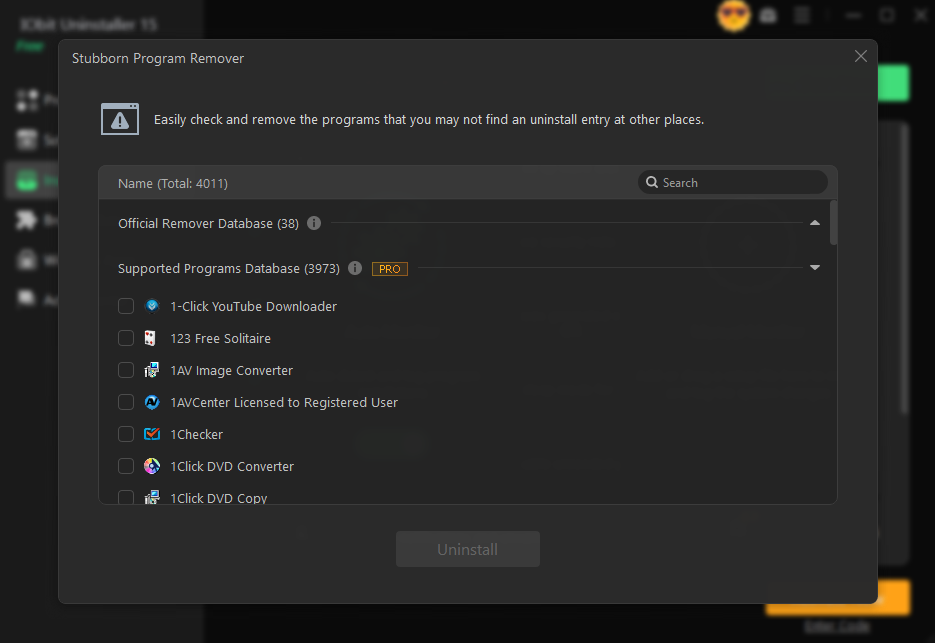
2. Removes Stubborn and Bundleware Apps
Some applications simply refuse to uninstall because they run background services or include protection modules. IObit Uninstaller 15 is designed to forcefully remove stubborn apps and hidden bundleware that comes packed with other installations.
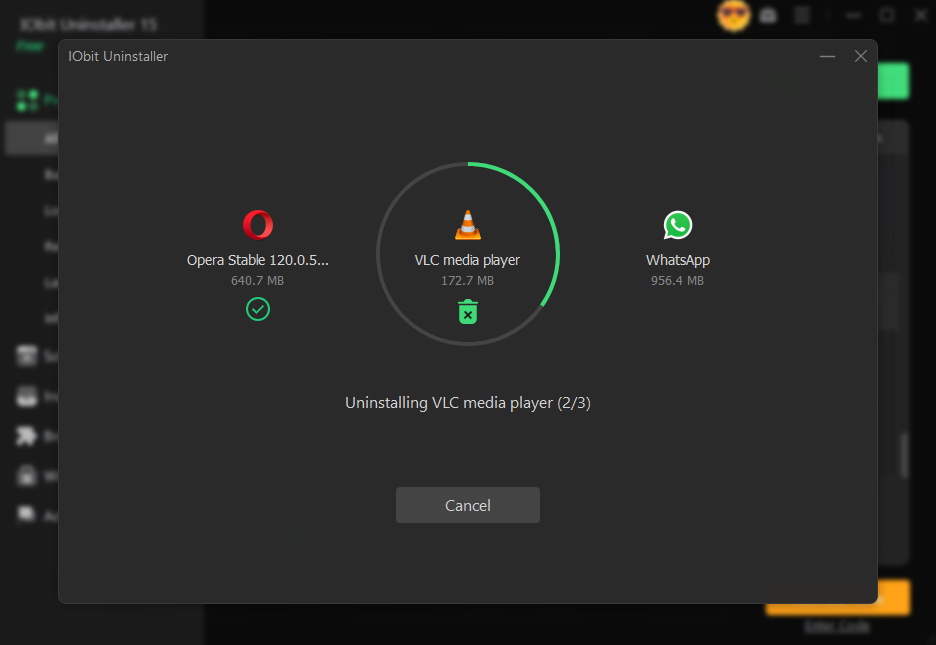
3. Batch Uninstall Feature
If you want to clean your PC quickly, batch uninstall helps you remove multiple programs at once. This saves time and ensures deep cleaning is done for all selected applications.
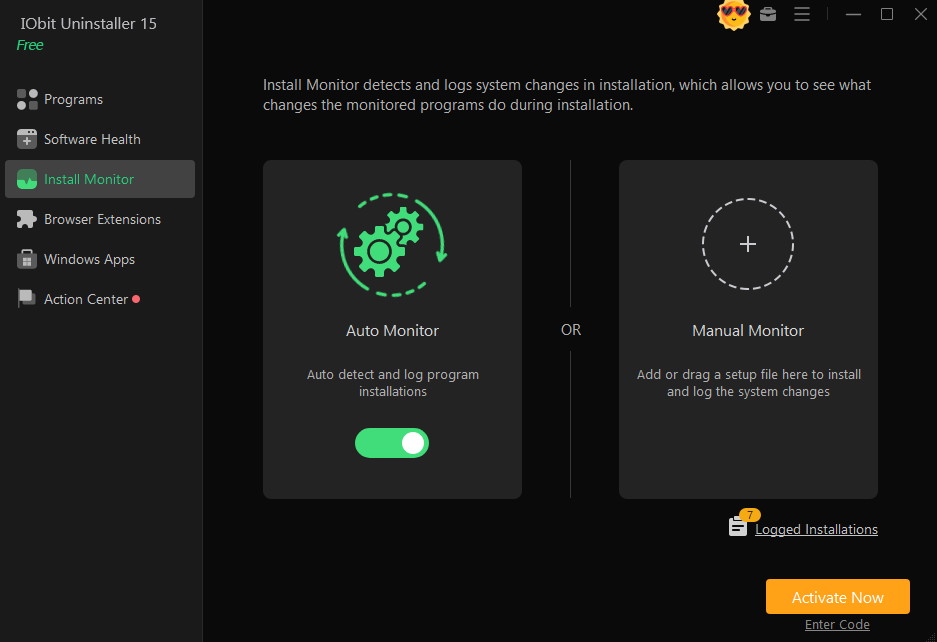
4. Real-Time Install Monitoring
One of the standout features is install monitoring. When you install a new program, IObit Uninstaller tracks all the files, changes, and registry entries it creates. Later, when you remove that program, the tool knows exactly what to delete.
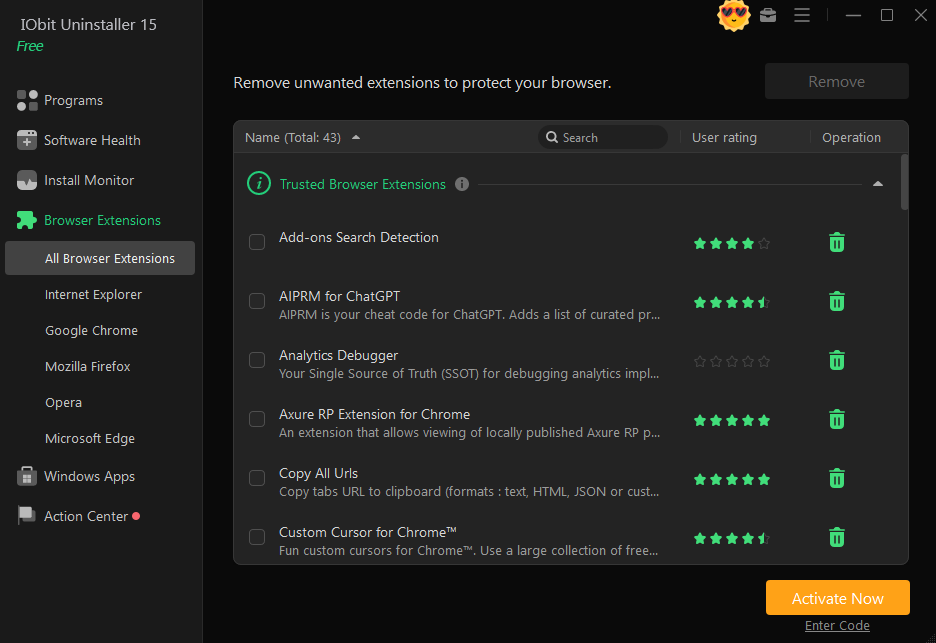
5. Removes Browser Extensions and Toolbars
Many toolbars, search extensions, and plugins slow down browsers or redirect your searches. IObit Uninstaller 15 safely removes these unwanted extensions from: Chrome, Firefox, Edge, Other Chromium-based browsers.
6. Cleans Up Windows Updates and UWP Apps
Unused or broken Windows updates can eat up gigabytes of space. IObit Uninstaller helps remove failed or unnecessary updates along with built-in Windows apps that cannot be removed through standard options.
How to Completely Uninstall Any Program Using IObit Uninstaller 15
Using the program is very simple, even for beginners. Here is a quick step-by-step method:
Step 1: Launch IObit Uninstaller 15
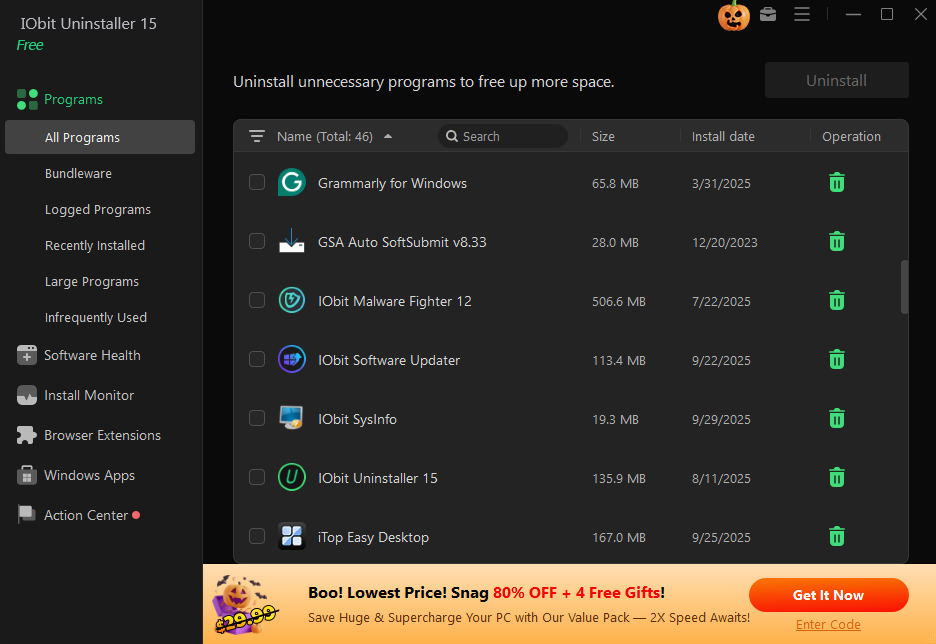
After opening the tool, you’ll see a clean dashboard showing installed apps, large programs, recently installed software, and browser plugins.
Step 2: Choose the Program You Want to Remove
You can sort apps by size, installation date, category, or simply search for the program by name. Select the unwanted software.
Step 3: Click on “Uninstall”
The tool will first perform the regular uninstall process. Once that completes, IObit Uninstaller automatically triggers a deep scan.
Step 4: Run the Deep Scan
This is where the program shines. It will show leftover files, registry entries, and folders. Click “Delete” to remove all leftovers permanently.
Step 5: Restart If Needed
Some programs may require a system restart to fully clean background services. IObit Uninstaller 15 will notify you if a reboot is necessary.
Benefits of Using a Professional Uninstaller
Using a dedicated solution like IObit Uninstaller ensures several long-term advantages:
- Better performance: Removing leftovers frees up RAM and system resources.
- More storage space: Hidden junk and large unused files get deleted.
- No installation errors: Clean system means smoother future installs.
- Improved startup speed: Apps with startup entries are removed fully.
- Enhanced security: Harmful toolbars and adware are eliminated.
Perfect Tool for PC Users of All Levels
Whether you use your PC for work, gaming, browsing, or content creation, keeping your system clean is essential. IObit Uninstaller 15 is simple enough for beginners yet powerful enough for advanced users who want complete control over software removal.
It doesn’t just uninstall—it ensures programs disappear entirely, leaving your system fresh, fast, and optimized.
Final Thoughts
If you are tired of cluttered software, slow performance, and stubborn apps that refuse to go away, IObit Uninstaller 15 is the solution you need. As a powerful uninstaller, it guarantees complete removal of any program with no leftovers. With features like deep scan, batch uninstall, extension cleanup, and install monitoring, it keeps your PC running smoothly and efficiently.