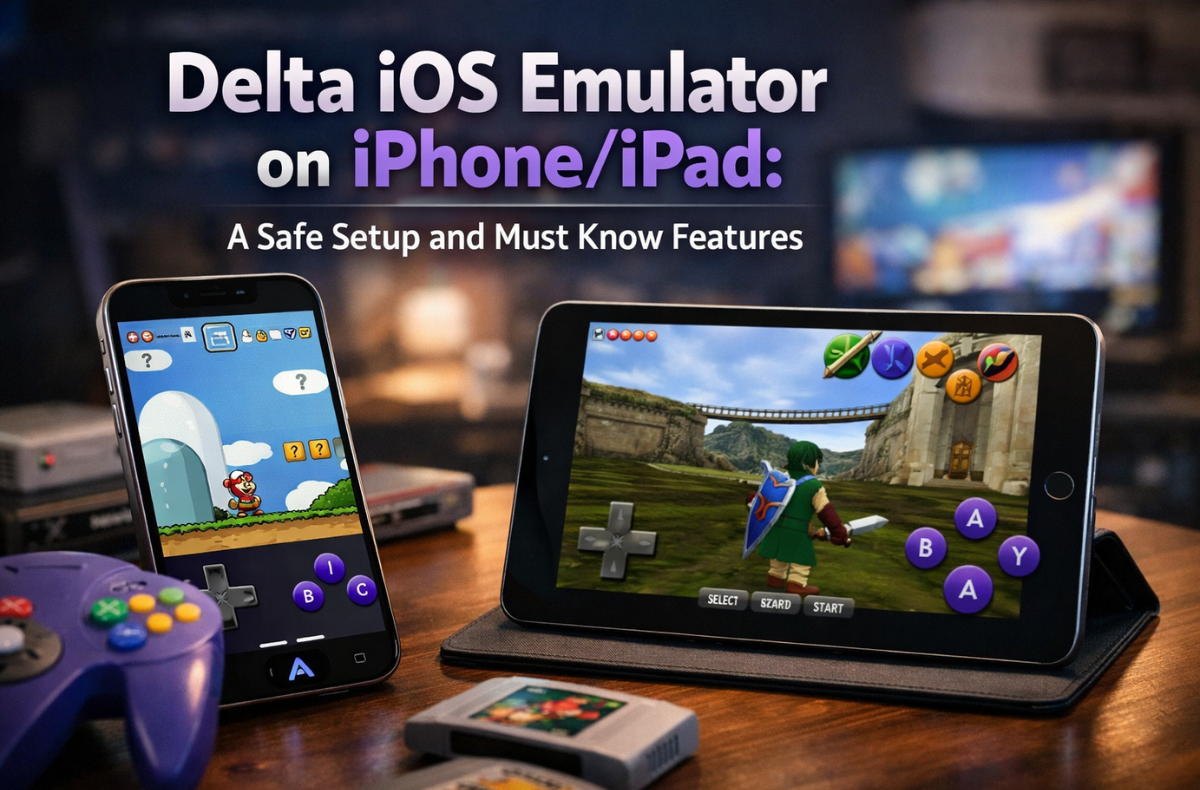
Delta Emulator transforms your iPhone into a handheld retro gaming system, letting you easily play classic Nintendo games like Pokémon, Mario, and Zelda. No jailbreak or complex system is needed, so anyone can join within a few minutes. Delta iOS has been rapidly becoming one of the most-demanded iOS apps among gamers who need Retro in their pockets. It helps to run everything smoothly, from installation to gameplay, even for beginners.
Whether you’re reliving childhood favorites or discovering retro games for the first time, Delta makes it simple on iPhone and iPad. This blog covers everything from the Delta Emulator iOS download guide to performance tips, supported devices, and how to correctly install Delta Emulator on an iPhone. You’ll also learn the safest way to set it up without risking your device or data. By the end, you’ll be ready to start playing within minutes.
Key Takeaways
- Delta iOS transforms your iPhone into a retro gaming system, allowing you to easily play Nintendo classics like Pokémon and Mario.
- No jailbreak is needed, and installation is straightforward, making it accessible for beginners.
- You can install Delta from the App Store or via AltStore if it’s not available in your region.
- With features like iCloud sync, save states, and controller support, Delta iOS enhances your gaming experience on handheld devices.
- The app is safe and legal when sourced from official channels, but always use ROMs from games you own to avoid legal issues.
Table of Contents
- What Is Delta and Why Does It Matter?
- Delta iOS Supported Devices and Compatibility
- How to Get Delta on iOS: Step-by-Step Installation
- Delta iOS Without Computer: Adding ROMs and Building Your Library
- Delta Emulator iOS Features and Performance
- Delta Force iOS Controller Support
- Best Settings for Delta Emulator iOS Performance
- How to Use the Delta Emulator on an iPad
- How to Update the Delta iOS Emulator
- Delta Emulator vs Other iOS Emulators
- Conclusion
- FAQs
What Is Delta and Why Does It Matter?
Delta is a Linux-based, open-source game emulator created by Riley Testut. It works with several standard Nintendo systems, such as NES, SNES, Game Boy, Game Boy Color, Game Boy Advance, Nintendo 64, and Nintendo DS. It stands out among other iOS emulators for its clean interface, good performance, and its current official availability in the App Store across many regions.
For years, users had to rely on AltStore or third-party methods to install the delta emulator iOS IPA. Today, the Delta iOS app store availability has improved significantly, making it far more accessible to regular users who do not want to jump through technical hoops.
Delta iOS Supported Devices and Compatibility
Before diving into setup, it helps to know whether your device is ready. Here is everything about delta ios supported devices and compatibility:
- iPhone 6s and later run Delta without issues
- iPad Air 2 and newer models are fully supported
- iOS 14 or higher is required for the latest features
- iPadOS users get an expanded layout with better controller mapping
- Older devices may experience lag, specifically on Nintendo 64 or DS titles
If your device runs the delta iOS v2 build, you are almost certainly good to go. The app is well optimized to the point that even mid-range devices can run GBA and SNES games at full speed with no frame drops.
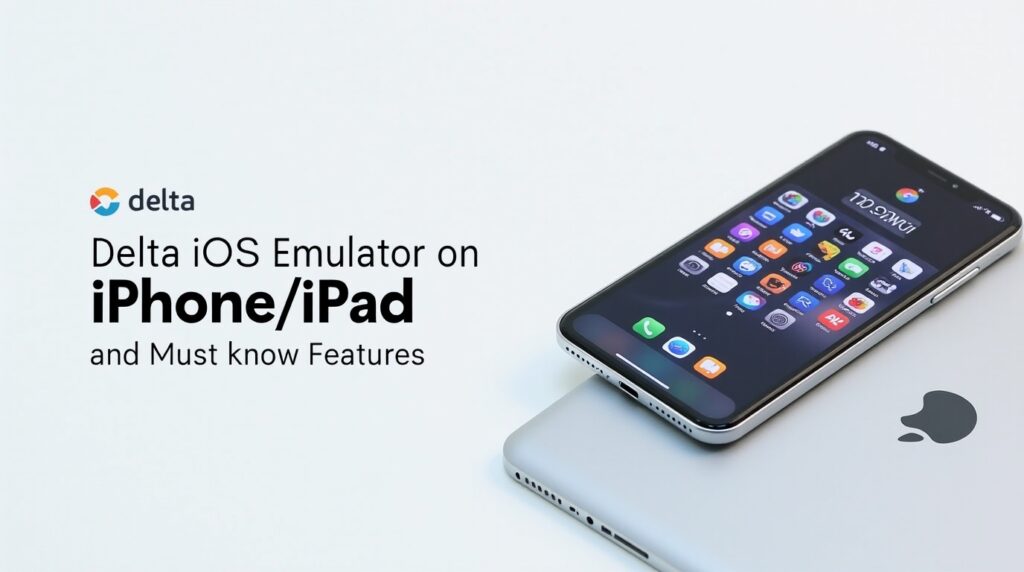
How to Get Delta on iOS: Step-by-Step Installation
This Delta iOS beginner guide, step by step, covers both installation methods, so you can pick the one that fits your situation.
1. Method One: App Store Installation (Recommended)
This is the cleanest approach and the best option for the Delta iOS setup without a computer:
- Open the App Store on your iPhone or iPad
- Search for “Delta Emulator” by Riley Testut
- Tap Get and authenticate with Face ID or Touch ID
- Wait for the download to finish
- Open Delta and grant the necessary permissions
You require no PC, no sideloading tools, and no technical knowledge for this method. Also, it is the safest way to ensure you have the legitimate, unmodified version of the app.
2. Method Two: Delta Emulator iOS IPA Installation via AltStore
If the Delta iOS App Store availability is restricted in your region, or you want a specific build straight from GitHub, the Delta Emulator iOS IPA installation through AltStore still works:
- Get AltStore on your PC or Mac
- Connect your iPhone via USB
- Install AltStore on your device
- Download the Delta IPA file from the official GitHub
- Open AltStore and install the IPA file
- Refresh every 7 days to keep the app active
Stick with Method 1 unless you have a specific reason to go this route.
Delta iOS Without Computer: Adding ROMs and Building Your Library
Once Delta is running, you need game files (ROMs) to actually play anything. Here’s the workflow for Delta iOS without a computer involved at any step:
- Transfer ROM files to iCloud Drive or Google Drive on your phone
- Open Delta and tap the + icon in the top corner
- Navigate to your file and tap to import
- The game appears in your library instantly
When it comes to the best ROMs for Delta iOS, GBA titles run with near-perfect accuracy. Pokémon ROMs for Delta iOS are among the most searched for for good reason. FireRed and Emerald load and save flawlessly, and HeartGold via DS emulation works well on any modern device. ROM hacks generally load cleanly without extra configuration, too.
A word on legality: emulators are legal in most countries. ROMs are legally unclear. Getting games you don’t own is technically copyright infringement, regardless of how old they are. The safest approach is to use only ROMs dumped from physical cartridges you personally own.
Delta Emulator iOS Features and Performance
As the Delta emulator iOS features and performance go well beyond what you’d expect from a basic emulator:
- Save States save and resume at any point in a game, not just at designated save spots. Essential for difficult sections or long sessions.
- Fast-forward speed gameplay up to 4x. Ideal for grinding or repetitive sequences. Keep it at 2–3x, though; 4x causes audio distortion on most hardware.
- Cheat Codes built-in GameShark and Action Replay support. Works exactly as you’d remember.
- Controller Skins customize your on-screen button layout with community-made designs. The Delta community has produced some genuinely excellent options.
- iCloud Sync saves files that sync automatically across all your Apple devices. Enable this on day one and never lose progress again.
- AirPlay mirror gameplay to your TV wirelessly. Pair with a Bluetooth controller, and it genuinely rivals a dedicated console setup.
Delta Force iOS Controller Support
One of the best aspects of Delta IOS is how seamlessly it handles physical controllers. Delta Force iOS controller support covers:
- MFi-certified controllers
- Xbox Series X/S controllers via Bluetooth
- PlayStation DualSense and DualShock 4 controllers
- Nintendo Switch Pro Controller
When you add a controller, Delta IOS automatically maps the buttons to the correct layout depending on each system, and it feels so natural.
Best Settings for Delta Emulator iOS Performance
Having the settings correct will make a difference in your experience. The following are the optimal delta emulator iOS settings:
| Setting | Recommended Value | Why It Matters |
|---|---|---|
| Fast Forward Speed | 2x or 3x | Avoids audio distortion at higher speeds |
| Controller Opacity | 50 to 70% | Balances visibility and screen real estate |
| Background Blur | Enabled | Looks cleaner during gameplay |
| Haptic Feedback | Enabled | Adds tactile feel to button presses |
| Gyroscope Support | Game Dependent | Only enable for titles that need it |
| iCloud Sync | Always On | Protects your save files across resets |
For N64 titles specifically, lowering resolution scaling slightly improves frame consistency on older devices.
How to Use the Delta Emulator on an iPad
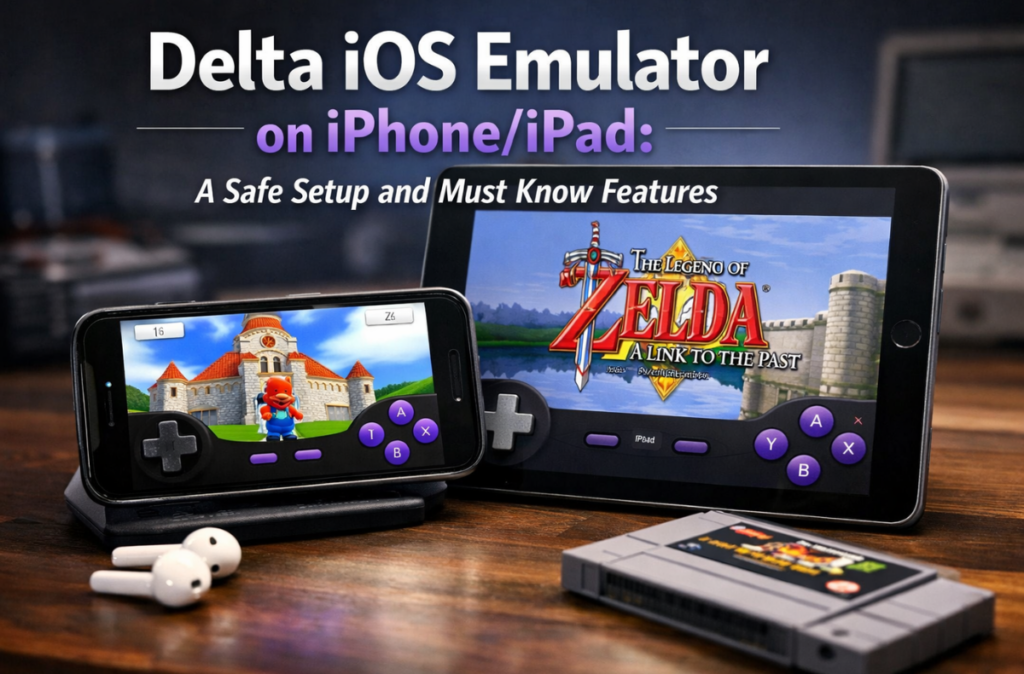
Using the Delta emulator on an iPad gives you a noticeably larger and more immersive screen. The iPad layout also adds a sidebar that displays your game library while you play.
A few iPad-specific tips worth knowing:
- Use Split View to keep Delta on one side and a guide or wiki on the other
- Pair an external controller for a true handheld console feel
- Enable AirPlay to send gameplay to an Apple TV for a proper big-screen session
- iPad Pro models with M-series chips handle DS emulation at flawless speeds
How to Update the Delta iOS Emulator
Keeping the Delta IOS up to date is important for bug fixes and iOS compatibility. Here’s how to update the Delta iOS emulator depending on how you installed it:
- App Store users: Go to App Store, tap your profile icon, find the emulator under Updates, and tap Update
- AltStore users: Open AltStore, navigate to My Apps, and tap the refresh button next to the app
Always make sure iCloud sync is enabled before updating. Your saves are stored in iCloud and survive the process, but it’s worth confirming before you start.
Delta Emulator vs Other iOS Emulators
Understanding where Delta stands among the competition helps you make the right choice for your library. Here is how it compares in the delta emulator vs other iOS emulators landscape:
| Emulator | Systems Supported | Ease of Use | Controller Support | App Store Available | Best For |
|---|---|---|---|---|---|
| Delta | NES, SNES, GBA, N64, DS | Very Easy | Excellent | Yes | Nintendo classics, beginners |
| Provenance | Multi-system (Atari, Sega, Sony) | Moderate | Good | Limited | Broad retro library |
| RetroArch | Massive multi-system | Complex | Excellent | No | Power users, full control |
| GBA4iOS | Game Boy only | Easy | Basic | No | Legacy GBA use |
| PPSSPP | PSP only | Moderate | Good | Yes | PSP gaming specifically |
| Dolphin | GameCube, Wii | Hard | Excellent | Limited | High-end device users |
Delta IOS Emulator wins for Nintendo games on every practical metric. If you also want Sega or Sony titles, Provenance sits alongside Delta nicely, with no overlap. Moreover, RetroArch is the right choice only if maximum flexibility matters more than ease of use.
Delta iOS Troubleshooting and Fixes
Even a polished app runs into occasional issues. Here’s a complete Delta iOS troubleshooting and fixes reference:
- Games showing a black screen after import: Re-download the ROM and check the file extension. GBA games need .gba, DS games need .nds. A mismatch is almost always the culprit.
- Audio stuttering during fast-forward: Lower the fast-forward speed to 2x or 3x. The audio engine can’t keep pace at 4x on most devices.
- Controller buttons not responding correctly after reconnecting: Go to Settings → Controller Skins → reset mappings to default, then redo them manually.
- iCloud saves not appearing on another device: Go to iPhone Settings → Apple ID → iCloud and confirm Delta is toggled on. Signing out and back in usually forces a sync refresh.
- App crashes immediately after a major iOS update: Delete and reinstall from the App Store. As long as iCloud sync was enabled before the crash, your saves remain intact after the reinstall.
Delta Emulator iOS Legal and Safety Considerations
Understanding the delta emulator iOS legal and safety considerations matters before you start building a library:
- Emulators themselves are legal in most countries, including the United States
- Getting ROMs for games you do not own exists in a legal gray area and is technically copyright infringement
- Games that are abandonware or out of print still technically carry copyright protections
- The safest approach is to only use ROMs dumped from physical cartridges you personally own
Delta as software is not doing anything illegal. How you source your ROMs is where you need to exercise judgment.
Delta iOS Emulator vs Delta iOS Executor vs Delta Roblox iOS
Search results sometimes mix up the Delta Emulator with tools called Delta iOS Executor, Delta Roblox iOS, or Delta Roblox Executor iOS. These have nothing to do with the Delta Emulator beyond sharing part of a name.
People searching for how to get Delta Executor on iOS, Delta Executor mobile iOS, Delta iOS script tools, Delta Executor for iOS, or iOS Delta executor variants are looking at a different category of software: Roblox script injection tools distributed by unknown third parties through unofficial websites.
Here’s the full picture:
| Feature | Delta iOS Emulator | Delta iOS Executor / Delta IOS Roblox |
|---|---|---|
| Purpose | Play classic Nintendo games | Inject scripts into Roblox |
| Developer | Riley Testut (verified) | Unknown third parties |
| App Store | Yes, officially available | No |
| Safety | Completely safe | High malware risk |
| Legal status | Legal | Violates Roblox Terms of Service |
| Account ban risk | None | High |
The Delta iOS key system you’ll see referenced in those tools is an ad-revenue mechanism used by anonymous developers, not a security or licensing feature. It has zero connection to the legitimate Delta Emulator and offers no legitimacy to the tools it’s attached to.
If a site claiming to offer Delta asks for a key or routes you through ad pages: leave. The real Delta, from Riley Testut, requires no key and costs nothing.
Conclusion
Delta IOS has genuinely changed what people expect from mobile gaming by proving that a phone can be a serious retro gaming machine. It is free, open source, regularly updated, and now easier to install than ever. Whether you are reliving Pokémon Emerald, finally finishing Metroid Fusion, or exploring the SNES library for the first time, Delta IOS delivers that experience with real polish.
The trick to maximizing its usefulness is to install it properly initially: pair a Bluetooth controller, one should enable iCloud sync, and source his ROMs ethically. When it is all dialed in, Delta iOS ceases to be an application and instead becomes the best handheld console that you never needed to purchase.
FAQs
Yes, Delta Emulator is safe when downloaded from the official App Store or a verified AltStore source, as it’s open-source and regularly audited. Avoid unofficial IPA downloads from random sites, as those may contain malware or modified code.
The app is actively maintained and fully compatible with the latest iPhone models and iOS releases. However, updates typically follow major iOS launches closely to ensure continued stability, so you rarely face compatibility gaps after system updates.
Files stored in iCloud are completely safe during updates and reinstallations. Just make sure iCloud sync is enabled in the app settings before performing any updates or reinstallations to ensure your progress stays protected.
The emulator does not currently natively support wireless multiplayer between two separate devices. Some users work around this by using same-device multiplayer, in which both players share a single screen with a split-controller setup on an iPad.
Yes, installing directly from the App Store requires absolutely no computer. You can download the app, import ROMs via iCloud or Google Drive, and start playing entirely on your iPhone or iPad within minutes.