By 2026, Customer Relationship Management (CRM) tools have become an essential asset in any business seeking to simplify customer interactions and sales. eLeads CRM is one of the tools that enable the management and nurturing of customer relationships. Whether you use eLeads to manage leads or offer customer support to clients, it is important to get your CRM login process straight so your work moves in the right direction.
In this step-by-step guide, we will explain everything you need to know about eLeads login, troubleshoot the most frequent issues, and cover functionality, including eLeads Single Sign On (SSO), mobile access, and more.
Key Takeaways
- eLeads is a CRM tool designed to streamline customer management and sales processes, especially in the automotive industry.
- Key features of eLeads include lead management, sales process automation, mobile access, and marketing campaign support.
- Users can log in via a web browser or mobile app, with options for Single Sign-On (SSO) to simplify access.
- Common login issues include incorrect username/password, account locking, and browser compatibility; solutions are provided for each.
- eLeads customer support is available through phone, email, and live chat for assistance with any CRM-related problems.
Table of Contents
What is eLeads CRM?
The eLeads CRM is a customer relationship management software that offers an efficient suite of tools to manage leads, sales and customer details for companies. It integrates numerous processes and allows companies to map out interaction with clients, sales, and improve customer communications, which has made the system especially popular in the car industry, and dealerships actually use it to handle customer interaction data and follow up on leads.
CDK CRM eLeads and Ford CRM eLeads are car-specific versions with specialised features to support car sales, inventory, and customer relationship management. Moreover, the system also features a mobile social platform, so users can manage their CRM anytime.
eLeads CRM Features to Enhance Your Experience
eLeads CRM offers many tools that automatically market businesses to manage leads and improve sales processes. Here are some key features:
- Lead management: Leads are easily handled, starting with initial inquiry, going all the way to final sale, handled by the right people and easily tracked in real time.
- Sales Process Automation: Automate follow-ups, create reminders and quotes, and assist sales teams to solve customer needs at all times with no involvement of people.
- Connection with Ford Direct: For Ford dealerships, combine data from multiple sources and follow up and reach customers through the Ford CRM eLeads system.
- Mobile Access: The mobile application of CRM provides Salespersons with the flexibility and convenience of accessing useful information on leads, anywhere.
- Marketing / Email Campaigns: Develop automated email marketing campaigns based on customer behaviour to nurture potential buyers and move them into the sales cycle.
- Customer Support & Helpdesk: Access to an enormous array of resources and a special team of service to address questions or technical issues in the CRM system.
- eLeads Expert Charge on Debit Card: For those needing advanced support or customisation, eLeads offers premium expert services, which include training, troubleshooting, and consultation. These services are charged to your debit card.
eLeads CRM Usage and Success Metrics
Some of the main metrics that reflect the impact of eLeads CRM on the performance of dealerships are as follows:
| Metric | Statistic | Details |
|---|---|---|
| Number of Dealerships | Over 4,000 | Pre-acquisition usage in automotive dealerships. |
| Average User Rating | 4.3/5 | Based on reviews for features like lead management and integrations. |
| Sales Cycle Reduction | 25-40% shorter | Through improved lead-to-close processes in dealerships. |
| Conversion Rate Improvement | 20-30% within 6 months | Better follow-ups and personalisation boost sales conversions. |
| Email Open Rate Increase | 30% | From targeted campaigns using customer data. |
| Service Appointments | 25% more | Booked via automated emails and segmentation. |
| ROI Timeline | Positive within 6-12 months | Via efficiency gains and higher retention. |
| Multi-Channel Engagement | 166% higher | When outreach uses two or more channels |
How to Access Your eLeads CRM
Accessing your eLeads CRM login is simple if you follow the correct steps. Here’s how to do it:
1. eLeads CRM Login
Step 1: Open Your Browser
To log into the platform, use a supported web browser (Google Chrome, Firefox, or Safari) to open the CRM login page. The page URL will vary depending on the version you are using: eLeads CDK, eLeads Ford or eLeads Unify.
- For CDK users: Visit www.cdkglobal.com and click on the CDK login option.
- To Ford dealerships: Go to www.forddirectcrm.com to access Ford Direct’s CRM system
- For general access: Simply visit www.eleadcrm.com.
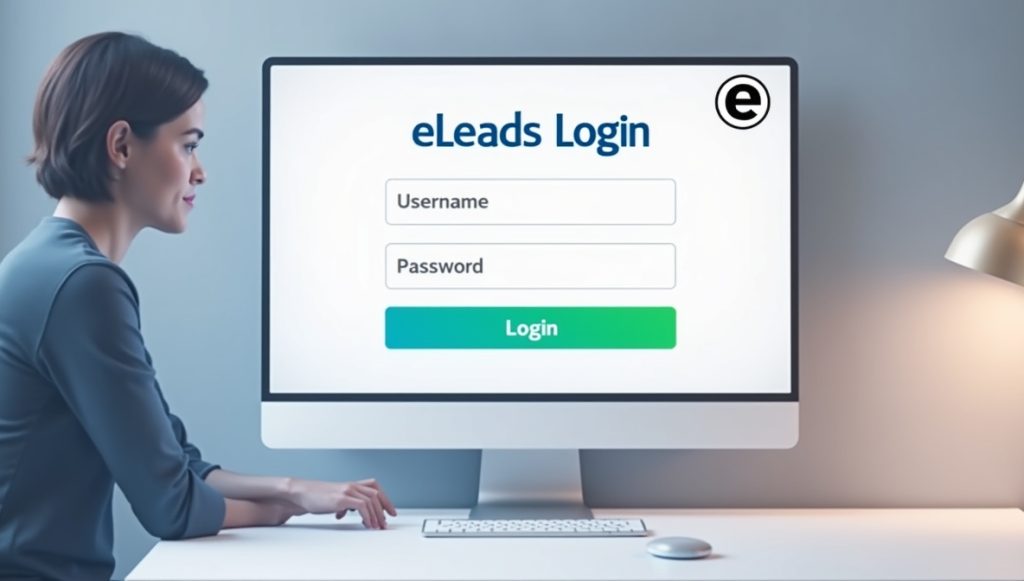
Step 2: Enter Your Credentials
After you are at the login page, enter your username and password. This detail was available to you when you created your account. In case you do not know your login details, call your administrator or eLeads customer services.
Step 3: Use eLeads Single Sign On (SSO)
If your company has Eleads SSO, you can enter with your enterprise login details. This enables you to connect to different systems, such as CDK eLeads, and to use the built-in software in those systems without having to remember multiple usernames and passwords. Simply click the SSO option, and you are automatically redirected to your company’s SSO portal for authentication.
Step 4: Access Your CRM Dashboard
Once you log in successfully, you will be redirected to your dashboard. Here, you can store customer data, track follow-ups, and communicate with your team. Depending on the system version you’re using, you can find different tabs, such as Leads, Sales, Marketing, and more.
2. Logging into eLeads CRM on Mobile
The eLeads CRM mobile app enables users to handle their customer relations and sales simultaneously. The mobile app provides you with the full features via your smartphone or tablet, whether you are at the dealership or out on the road.
For mobile access:
- Install the app: Open the App Store (iOS) or the Google Play Store (Android) and search for the CRM app. Download and install the Eleads app on your device.
- Locate the App: Click the app, then enter the CRM username and password.
- Browse the app’s capabilities: Once logged in, the same capabilities as in the desktop version are available in the mobile version.
Key eLeads Login Issues & How to Solve Them
The system login process is usually simple, but it sometimes experiences errors. Below are some common issues and troubleshooting tips.
1. Incorrect Username/Password
Incorrect usernames or passwords are causing many users to have difficulty logging into the site. It may occur due to incorrect credentials or a forgotten username and password.
Solution: Make sure that your username and password do not have any spelling errors in their characters. In case of loss of credentials, you can change your password by clicking Forgot Password button on the Sign-in page.
2. Account Locked
CRM can lock your account after multiple unsuccessful login attempts to avoid unauthorised access. It is a security system that helps filter the attempts of hacking.
Solution: When your account is locked, wait for minutes or hours; the system will unlock it. Otherwise, call customer support; they can unlock your account. After unlocking it, you can log in again.
3. Browser Compatibility
Sometimes the login screen will not load or display due to outdated browsers, cache buildup, or browser cookies.
Solution: Clear the browser history and cookies, and refresh the page. If that does not fix the problem, use another browser or upgrade the existing one so as to make it compatible with the system.
4. Page Not Loading
You may also experience a situation where the login page fails to load due to an internet connection issue, server issues, or a momentary maintenance window.
Solution: Check the internet connection to determine whether it is stable. In case you have not found anything wrong on your side, visit the status page or wait a few minutes whether the server issue clears itself up.
5. SSO Problems
If you cannot log in to the CRM mobile application, it may be because the app is outdated or because an issue is preventing it from loading.
Solution: Check how your IT department is configured to ensure your SSO is set up correctly. If any issues persist, log out of all connected accounts and try logging in again. You can also contact your IT support team or eLeads support to get help.
6. Mobile App Login Issues
If your device cannot log into the CRM mobile app, it might be because you have an older version of the app, or it might not load because of technical issues.
Solution: Check that the mobile app is current by updating to the latest version in your app store. If this fails, restarting the app or removing and reinstalling the app can solve any app-related problems.
7. DMS Integration Errors
Most companies use CRM alongside dealer management systems (DMS) such as CDK CRM eLeads. As long as the integration is problematic, it may deny the synchronisation of data and cause origin issues.
Solution: Ensure that integration settings between the CRM system and your DMS are accurate. If the sync is not working, attempt a manual sync inside the CRM. In case this fails, reach out to customer support.
8. Error Messages
Your access may be blocked by error messages such as Server Error or Access Denied. These errors are usually an indication of a technical problem, e.g., your account has server or access restrictions.
Solution: Wait a few minutes and restart the server if it is experiencing an error. Once you receive an Access Denied, check your account permissions to make sure that you have the appropriate level of access. If the problem persists, contact support for troubleshooting.
How to Get Support for eLeads Login Issues
If you continue to experience issues with login or accessing your system, the next step is to reach out for support.
1. eLeads Customer Support
The eLeads CRM support team is your best place for any CRM-related problems, whether it comes to login issues or any system errors. Support can be reached in the following ways:
- Phone: Call the Eleads customer service phone number (866-668-5394) provided on their website.
- Email: Send an email to the support address listed on the eLeads com website.
- Live Chat: Many platforms offer a live chat option where you can chat directly with an expert.
2. Additional Support for Ford and Hendrick eLeads
If you are specifically using Ford direct CRM or Hendrick eLeads, these platforms may offer specialised support channels. Reach out to your Ford CRM representative or Hendrick support team for assistance.
3. Expert Assistance
If the issue persists, you can contact an eLeads expert to do further troubleshooting. These experts can assist you in resolving login problems, adding new functionalities, or giving tailored solutions to your business CRMs.
eLeads CRM Review: What Users Are Saying
Users of eLeads CRM, an element of CDK Global, appreciate its extensive Lead management and automotive dealership integration features, though complaints about support and usability are noted.
For Example,
- Jeffrey B. compliments its versatility for daily operations but warns of the steep learning curve that requires extensive training.
- Cory R. says it is his favourite tool for work, such as invoicing and reports, and proposes that it should be easier to navigate.
- Brenda C. commends excellent multi-location handling but complains about bad customer service and downtime.
Overall, the system is considered a very good tool due to its functionality and integration with third-party apps. Users suggest that usability, customer care, and improved functionality of certain mechanisms could significantly enhance the experience of automotive dealerships.
Conclusion
In your lead management and sales, it is imperative to access your CRM platform. By following the right steps, you can resolve any login issues, use SSO to log in much more easily, and even conveniently explore the mobile app. Whenever issues persist, eLeads customer support is always there to help.
Remember that when signing either CDK or Ford CRM eLeads, unify eleads or any other product, you must be linked to the platform to support effective workflows and strengthened customer relations. So, you can refer to this manual if you encounter any login issues, and you’ll be up and running in no time.
FAQs
To reset your password, press the ” Forgot Password button on the logout page. You can enter your registered email address and get the instructions about changing your password in your email.
eLeads Single Sign-On (SSO) lets you log into multiple systems using one set of credentials. Simply click the SSO login option and enter your credentials to access eLeads CRM and other connected platforms.
Yes, you can use the CRM system on mobile by downloading the app from Google Play or the App Store. Once installed, log in with your usual CRM credentials to manage leads on the go.
To contact customer support, visit their website and use the phone number, email address, or live chat option provided. You can reach out for assistance with any CRM-related issues or inquiries.
To update your profile, log in to the system, go to your profile settings, and make the necessary changes to your personal or company information. Save the updates to apply the changes.