In professional communication, we cannot afford critical communication gaps; relying on generic setup instructions is inefficient and unprofessional. Setting a perfect automated reply should take seconds, not minutes. Yet, navigating Outlook’s hidden settings often wastes precious time, risking an incomplete or insufficient Out of Office Message.
This step-by-step tutorial precisely details the non-intuitive path to the Automatic Replies settings. Here, I provided ready-to-use templates for an appreciative message, including the distinction between internal and external senders. Furthermore, I will explain the exact setting needed to prevent awkward reply loops and guarantee the correct start and end date range configuration, all proven to take less than 120 seconds. This is the fundamental, rapid blueprint for mastering professional communication and confidently stepping away from your inbox.
Key Takeaways
- Setting an effective Out of Office message takes just 120 seconds with the right steps and templates.
- Users should navigate to the Automatic Replies feature in Outlook efficiently to avoid wasting time.
- Customize messages for internal and external audiences to maintain professionalism and manage expectations.
- Utilize a clear template for your replies and ensure to check for the one-reply rule to avoid reply loops.
- Follow a final checklist to confirm your Out of Office message setup is flawless before stepping away.
Table of Contents
- Step-by-Step Guide to Setting Up an Out of Office Message in Outlook
- How to Write the Perfect Out of Office Message?
- Which Out of Office (OOO) Message Style Works Best For Me
- How to Avoid Technical Failures and Reply Loops
- Why Is My Automatic Replies Button Missing?
- Advanced Strategies for Next-Level Out of Office Messages
- Final Checklist for a Flawless Out of Office Messages
- Conclusion
- FAQs
Step-by-Step Guide to Setting Up an Out of Office Message in Outlook
The quickest setup for your Out of Office message in Outlook begins right now. Forget complex menus. We focus only on the immediate, actionable path. This is the core of the two-minute promise.
Finding the Automatic Replies Button
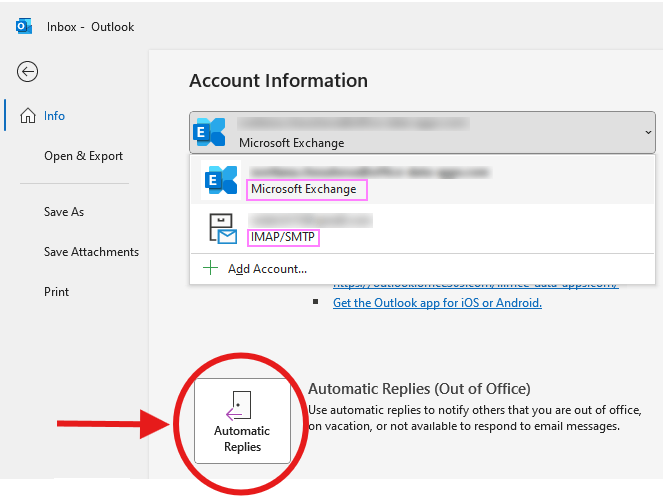
Most users waste time trying to access this feature through the Options menu. That’s inefficient. You only need two clicks. This is the fastest method for setting out of office (OOO) messages in Outlook on your desktop application.
- Launch Outlook: Open the desktop application.
- Go to File: Click the File tab located in the top-left corner. This opens the Account Information screen.
- Click Automatic Replies: Locate and select the Automatic Replies (Out of Office) button. This is typically visible near the top of the menu, next to Account Settings.
If you are following the steps precisely, you should be in the setup window in under 30 seconds. This confirms the quickest route and is the first step to set an out of office (OOO) message or email in Outlook.
Enabling and Scheduling the Automatic Reply
Setting the date range is critical. If you skip this, your reply stays active indefinitely. You risk having your professional out of office (OOO) messages running long after you return. This looks careless.
- Select Automatic Replies: In the dialogue box, ensure you choose Send automatic replies.
- Check Time Range: Immediately check the option: Only send during this time range. This is the key to automation.
- Define Start and End Time: Precisely input the date and time your leave starts, and the exact moment you are scheduled to be back at your desk. Remember, the system uses your local system time.
This automated scheduling ensures the system switches off your reply the moment you return. You do not need to worry about manually disabling the Outlook (OOO) message later.
Internal Versus External Audiences
A professional auto-reply requires audience segmentation. Outlook allows you to craft two entirely different (OOO) message versions. You must utilize both.
- Inside My Organization: This message is for colleagues. It should contain specific details about internal handoffs, direct project links, and backup extensions. This allows the workflow to continue smoothly.
- Outside My Organization: This message is for clients or vendors. It must be highly formal. It should offer minimal internal details and provide only general, public-facing contacts. This distinction maintains corporate security and professional boundaries.
This step is vital for correctly configuring the out-of-office (OOO) message in Outlook because it manages different expectations effectively.
How to Write the Perfect Out of Office Message?
The content of your reply needs to manage two things: setting the return date and providing an actionable alternative contact. Do not waste time writing a lengthy narrative. Use a sample Out of Office message and fill in the blanks. This rapid approach is central to the two-minute goal.
Copy-Paste Ready Template for External Contacts
External communication is about professionalism and urgency. Your message must be polite, clear, and focused on resolving the issue. This template for Out of Office messages on Outlook achieves that perfectly.
Subject: Out of Office Until \

Dear sender,

Thank you for your email. I am currently unavailable and will return on ****. I have limited access to my emails until then.
For urgent matters requiring immediate attention, please contact [Colleague Name] at [Colleague Email].

Otherwise, I will respond to your message promptly upon my return.

Best regards,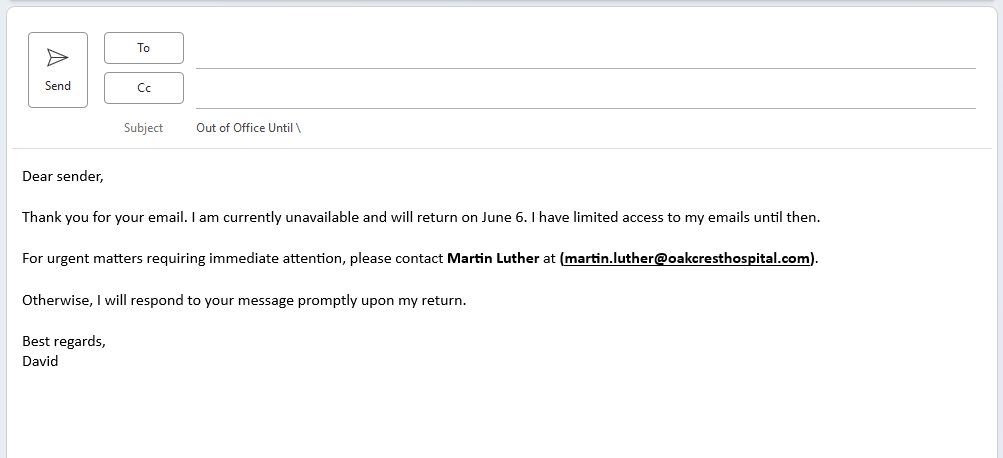
The Simple Out of Office Message for Colleagues
For colleagues, efficiency is the priority. We use a simple out-of-office message style that directs traffic, not just informs.
Subject: OOO Until: All Projects Handoff

Hi Team,

I am away from the office from **** to ****.

For Project Files: All current project documentation is located in ****.
For Urgent Coverage: Please direct time-sensitive requests to [Colleague Name] at [Colleague Email/Extension]. They are covering my inbox and tasks.

See you soon,
Using Specialized Templates for Specific Absences
Sometimes you need more than a generic reply. A truly good Out of Office message adapts to the reason for your absence. For example, the holiday out of office (OOO) message can be warmer and slightly less urgent, while a short absence message needs specific timing.
When using a professional out of office (OOO) message template, ensure you specify the exact nature of the backup contact. Simply saying, “contact my manager,” is vague. Providing the manager’s name, title, and email is professional and actionable. This attention to detail is what elevates your auto-reply.
Which Out of Office (OOO) Message Style Works Best For Me
The choice of auto-reply tone affects how clients and colleagues perceive your company. Not every environment allows for funny Out of Office messages. You must match the tone of your out of the office (OOO) message examples to your industry. This comparison table offers strategic guidance based on context.
Here is a strategic Out of Office (OOO) message styles comparison.
| Message Type | Tone & Purpose | Key Content Advice | Best Time to Use |
|---|---|---|---|
| Professional Standard | Formal, Clear, Business-Focused | Return date, two clear alternative contacts (name/email). | Standard business travel, annual leave, or high-security environments. A clear OOO message Outlook example solution. |
| Holiday out of office message | Warm, Friendly, Scheduled | Specific mention of the Christmas out-of-office message or season, extended return date, and friendly closing. | Major calendar holidays or planned seasonal office closures. This is the correct OOO message for the holidays. |
| Short-Term/Urgent | Direct, Actionable, Time-Bound | Specific time range (e.g., “Back at 2 PM”), single urgent contact (e.g., Team Lead). | Appointments, short sick leave, or quick errands during the workday. This provides an effective office out of office message sample. |
| Humorous/Creative | Engaging, Culture-Dependent | Must align with company culture; avoid humor externally unless fully approved. | Creative agencies, startups, or internal communication where humorous Out of Office messages are appropriate. |
A well-chosen best out of office message style prevents miscommunication. For external clients, always default to the professional out of office (OOO) message.
How to Avoid Technical Failures and Reply Loops
A common fear when setting up an Outlook set out of office message is creating an infinite email loop. This is where your auto-reply battles another system’s auto-reply. The good news is that Outlook’s standard Automatic Replies feature is designed to prevent this issue entirely.
The One-Reply Rule Explained
The standard OOF feature is a server-side rule. This means your email server, not your desktop client, is managing the replies. This server-side function enforces a strict policy: only one Out of Office reply will be sent to any single sender during the duration of your leave.
For instance, if a vendor emails you five times over three days, they will only receive your automated reply once. The server keeps a history of who has already received your Out of Office message and blocks subsequent replies. This core technical safeguard makes the standard Outlook Out of Office (OOO) message setup highly reliable. This mechanism addresses the risk of excessive Out of Office messages.
The Quick Test to Confirm Your Setup
Before you officially log off, perform this crucial two-step test. It takes less than 20 seconds and confirms your set out of office (OOO) message in Outlook is flawless.
- First Send: From a non-work email address (like a personal Gmail), send a test email to your work address. You should immediately receive the external automatic reply.
- Second Send (The Loop Test): Wait about two minutes, then send a second email from the same personal address.
If you receive the reply to the first email, but do not receive a reply to the second, your setup is perfect. It confirms the one-reply rule is active and you have successfully avoided a reply loop. This ensures your Out of Office reply is working as intended.
Why Is My Automatic Replies Button Missing?
You followed the quick instructions, but the Automatic Replies (Out of Office) button is nowhere to be found. This is a common problem with a definitive technical answer.
Understanding Exchange Versus POP/IMAP Accounts
The most frequent reason for the missing button relates to your account type. The standard Automatic Replies feature is a powerful, server-side function. It relies on a Microsoft Exchange or Microsoft 365 account to function.
If your email account uses POP3 or IMAP protocols, typically used for personal services, your email server cannot manage the automatic reply when Outlook is closed. These accounts lack the necessary server-side commands for a proper OOO message in Outlook setup.
Manual Rule Workarounds When the Button Is Gone
If you find yourself using a POP or IMAP account, you still need to know how to add an Out of Office message in Outlook. The solution involves creating a manual client-side rule instead.
- Go to File and select Manage Rules & Alerts.
- Click New Rule.
- Choose Apply rule on messages I receive.
- Select the action: Rply using a specific template.
Crucial Caveat: This manual rule creates a client-side rule. This means the rule only works if your Outlook desktop application remains open and running. If you shut down your PC for vacation, the reply stops. You must be transparent with your backup contact if you rely on this method.
Advanced Strategies for Next-Level Out of Office Messages
Going beyond the basics is what separates a good professional from a great one. We move past the simple settings to strategic communication. This involves refining the why and how of your auto-reply content.
Using the Out of Office (OOO) Message Template Strategically
The default template is a starting point. Think of your out of office (OOO) message template as an information delivery tool. If you are a sales professional, use the external reply to link to your company’s latest product brochure or a helpful white paper. This turns a simple notification into a soft lead generator.
The goal is to provide maximum value while you are away. This is a truly unique value not found in generic guides. We call this leveraging Out of Office message examples to deliver content.
Refining Your Message for Maximum Clarity
When crafting your Out of Office message examples, pay close attention to the designated contact. Never give more than one or two alternative names. Too many options create confusion, which defeats the purpose of the auto-reply. The point is to direct the sender efficiently, not make them guess who to contact.
This discipline ensures your outlook out of office reply is a tool for continuity, not a barrier.
Final Checklist for a Flawless Out of Office Messages
You have completed the out of office (OOO) message Outlook examples setup. The final step is a 60-second review to guarantee everything is perfect before you leave your desk. This confirms your Outlook Out of Office message setup is complete.
- Time Check: Did you set the End Time accurately? Is the time zone correct?
- Message Check: Is the alternative contact information free of typos? This is where many people fail.
- Audience Check: Did you use the external message for the Outside My Organization tab?
- Test Confirmation: Did the double-send test confirm the one-reply rule is active?
Mastering the quick setup for your Out of Office message is a critical professional skill. It respects the time of your colleagues and clients. By quickly and accurately deploying a scheduled, strategic reply, you ensure smooth operational continuity. This prevents communication gaps. It maintains the professional image your career requires. The knowledge of setting out of office messages in Outlook correctly frees you to truly disconnect.
Conclusion
The ability to quickly and correctly manage your digital communications is a professional necessity. By following this ultra-fast, two-minute blueprint, you have gone beyond a generic “how-to.” You have mastered the technical nuances required for a flawless setup. You now know how to manage server-side rules, use the correct time range, and deploy strategic examples of Out of Office messages. This expertise allows you to step away from your inbox confidently, knowing your professional duties are covered until your scheduled return. The detailed knowledge of how to set an Outlook Out of Office message correctly frees you to truly disconnect and enjoy your time away.
FAQs
In the Outlook desktop app, go to the File tab. Select Automatic Replies (Out of Office). Check Send automatic replies. Set your specific time range using the scheduling option. Finally, compose and save separate messages for internal and external senders.
A good reply must be concise and clear. State your return date and confirm limited or zero email access. Crucially, provide a named alternative contact (with their email or phone number) for truly urgent matters. Use a professional Out of Office message template to ensure professionalism.
This usually means you are using a POP or IMAP account, which does not support the server-side Automatic Replies feature. This feature requires a Microsoft Exchange or Microsoft 365 account. If the button is missing, you must create a manual auto-reply rule under Manage Rules & Alerts.
Yes, you can. When enabling the feature in the Automatic Replies box, ensure you check the option Only send during this time range. This lets you set the precise start and end dates and times, guaranteeing the system automatically disables the OOO message when you return to the office.
The steps are similar across mobile platforms. Tap the Menu icon (top left). Select Settings (gear icon). Choose your specific Mail Account. Select Automatic Replies and turn the toggle on. You can choose to reply to everyone or only your organization, and then input the message.