
With its compact and portable design, the Micro SD card has become a popular storage solution in today’s world. However, sometimes data on your micro SD card may be accidentally deleted or lost. Fret not! In this post, we will delve into the world of Micro SD card file recovery and share 5 effective methods to recover data from Micro SD card. Whether you are a Windows or Mac user, we’ve got you covered. Plus, we will provide some practical tips to prevent data loss in the future. Let’s get started, shall we?
Table of contents
Common Data Loss Scenarios on Micro SD Card
You may lose files stored on your Micro SD card due to various reasons, including:
- Accidental deletion (the most common cause of data loss)
- Formatting
- System crash
- Bad sectors
- File system corruption
- Virus infection
- Physical damage
- Other unexpected issues
Precautions like backups can indeed lower the risk of data loss, but it’s impossible to completely eliminate this possibility. So, let’s look at how to recover files from a Micro SD card.
Preparation Before Recovering Data from Micro SD Card
Before delving into the solutions to recover data on Micro SD card, it’s necessary to perform some basic checks:
- Check for physical damage: Check if the Micro SD card has any physical damage, such as cracks or scratches. If your Micro SD card is broken, the computer is likely to be unable to recognize it.
- Create a backup: Make sure to create a backup of all important files on the Micro SD card to avoid further data loss.
- Repair disk errors: Sometimes, the file system on your Micro SD card may become corrupted. Use the built-in tools in your operating system to check and repair disk errors. For Windows, you can use the chkdsk command; for macOS, use the Disk Utility.
How to Recover Data from Micro SD Card for Free?
Recover data on Micro SD card using 4DDiG
If you’re not a tech-savvy user, we highly recommend using reliable Micro SD card recovery software like 4DDiG. This powerful software is not only suitable for all data recovery scenarios but also supports recovery for over 2000 types of storage devices. With its user-friendly interface and high success rate, Tenorshare 4DDiG has become one of the most highly praised recovery tools in the industry. Furthermore, this program is available for free trial, allowing you to easily recover all deleted or lost files from your Micro SD card.
Download its free version and follow the steps below to recover data on Micro SD card:
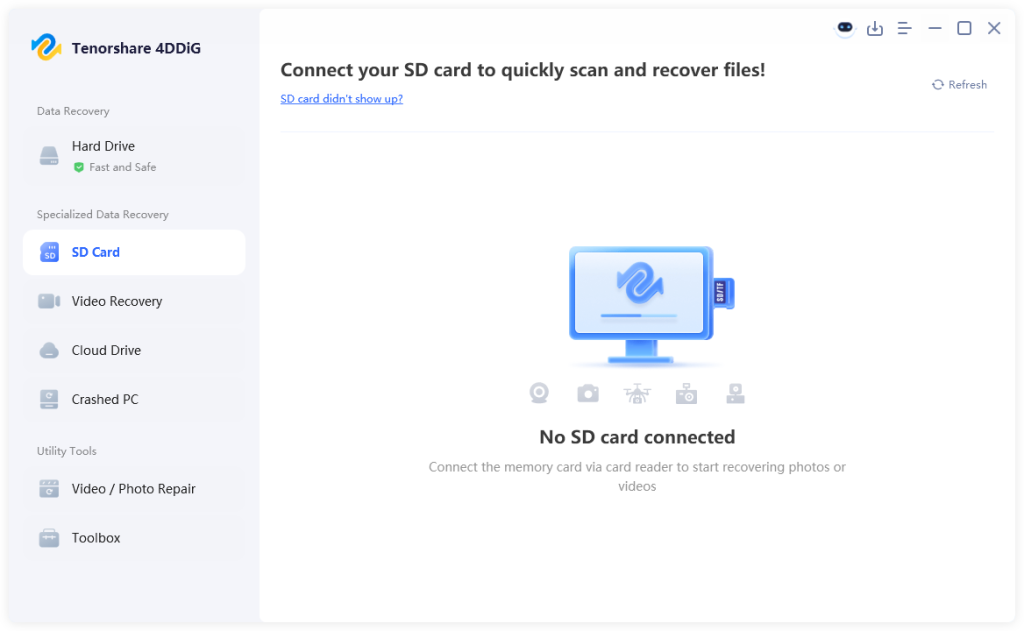
Step 1: Launch the 4DDiG Data Recovery tool on your Windows or Mac. Then, in the home interface, select the Micro SD card where the lost files are located for scanning.
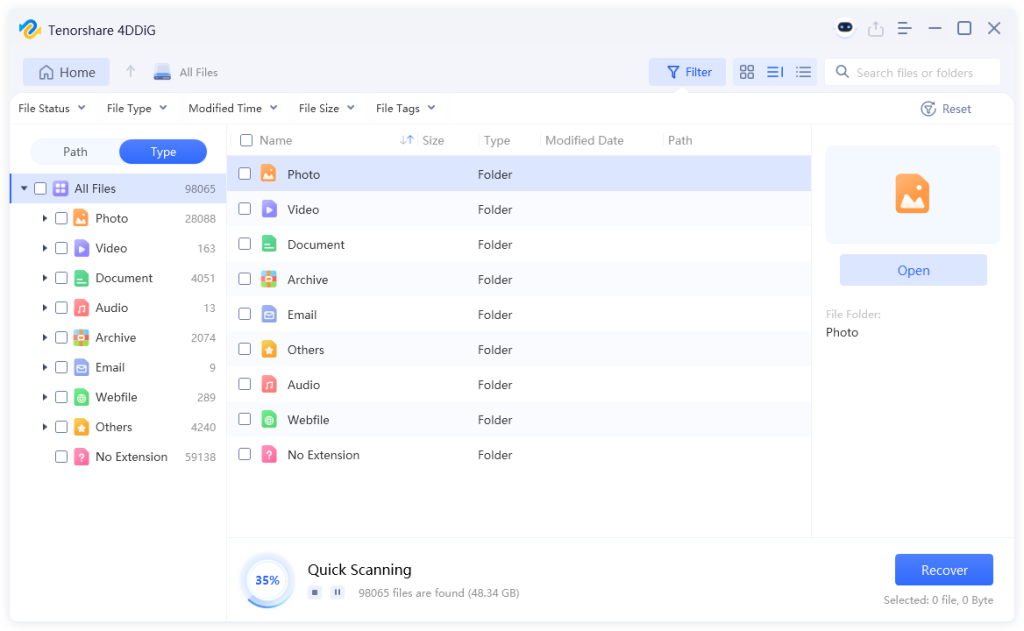
Step 2: Tenorshare 4DDiG may find hundreds or even thousands of recoverable files, including those you don’t need. In such a case, you can quickly locate the target files by switching to type view or path view. You can also use the search box in the upper right corner for more accurate results.
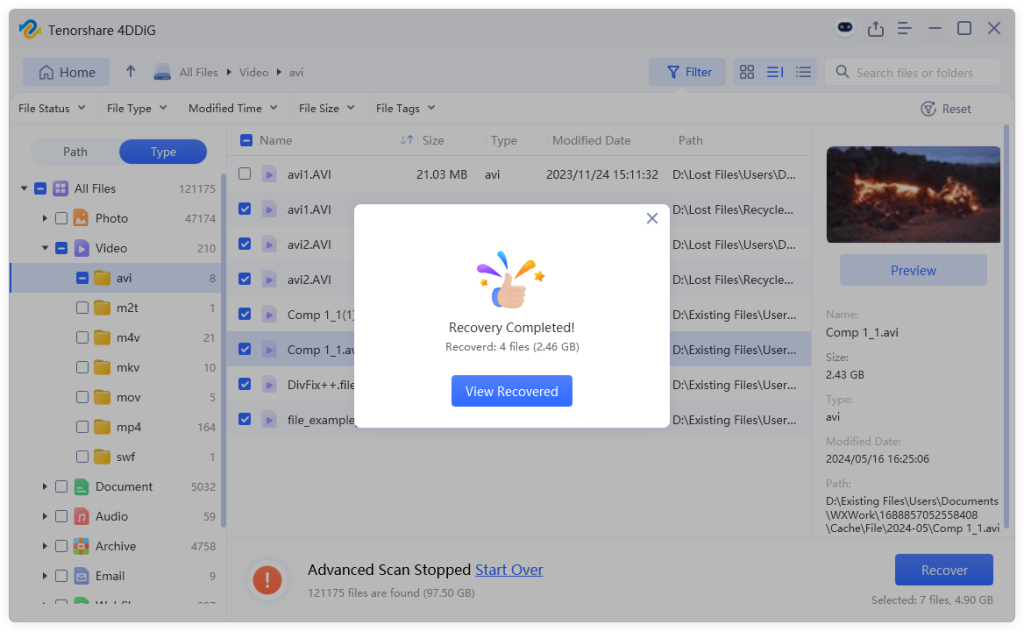
Step 3: Select the desired files and simply hit the “Recovery” button. The program will prompt you to choose a location to save the recovered files.
Recover deleted Micro SD card files from Recycle Bin/Trash
You might wonder where the files deleted from a Micro SD card go. If you delete files from a Micro SD card on your computer, they are not immediately gone but rather moved to the Recycle Bin/Trash. In other words, you are able to recover data on Micro SD card through the Recycle Bin before emptying. Here is how:
For Windows:
Step 1: Open the Recycle Bin and look for the files you want to recover.
Step 2: Right-click on the target file(s) and Opt for “Restore” from the menu.
Step 3: If you have already emptied the Recycle Bin, the files are permanently deleted. In this case, consider using Micro SD card recovery software.
For Mac:
Step 1: Open the Trash by clicking on its icon in the Dock. Then, look for the lost file(s).
Step 2: Perform a right-click on the file(s) you want to restore and select “Put Back”.
Recover files from Micro SD card via backup tools
Both Windows and Mac operating systems come with built-in backup tools. If you have ever enabled them, then you have the opportunity to restore data from a Micro SD card. In fact, users just need to regularly connect an external storage device and let the backup tool run automatically to ensure that data is effectively protected at all times.
For Windows:
Step 1: Connect the Micro SD card to your PC using a card reader. Then, press Win+ E and go to the folder where the lost files were originally stored.
Step 2: Right-click on the folder and select “Restore previous versions” from the context menu.
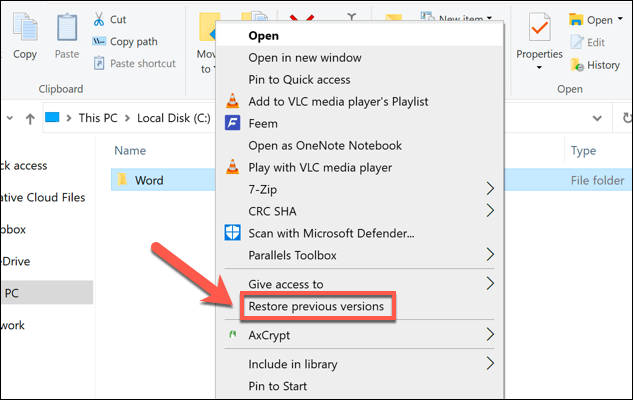
Step 3: You’ll see a list of previous versions if you’ve turned on File History before. Choose the desired version and click “Restore.”
For Mac:
Step 1: Insert your Micro SD card into the card reader on your Mac.
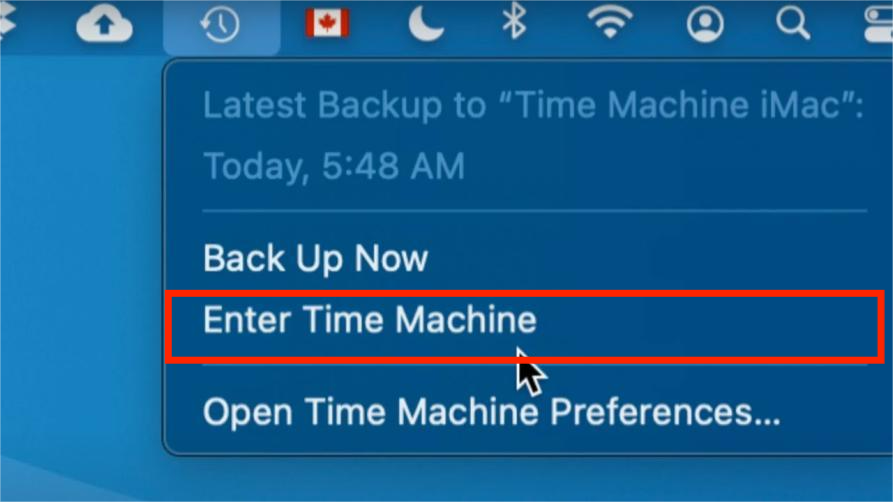
Step 2: Click on the Time Machine icon located in the menu bar at the top-right corner of the screen.
Step 3: Use the timeline to navigate to the point in time when the lost files were still present.
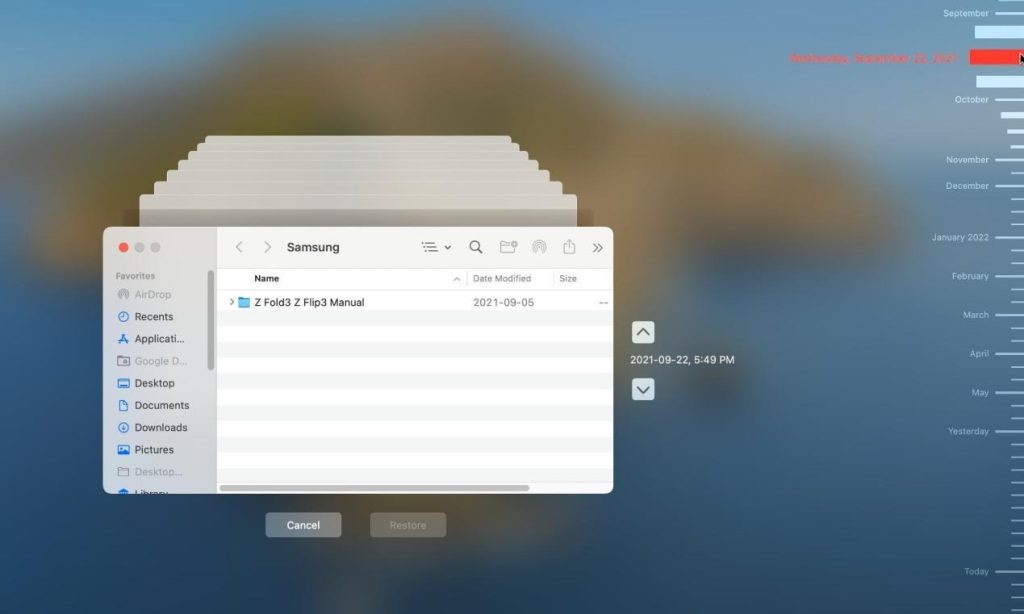
Step 4: Select and Preview the files you want to restore. If everything is ok, simply click the “Restore” button.
Precautions After Micro SD card Recovery
While there are various methods available to recover data on Micro SD card, they are not foolproof. When old data has been overwritten, even professional data recovery services may be unable to help. Therefore, we have compiled some preventive measures for your reference:
- Regular backups: Don’t put all your eggs in one basket. perform regular backups of your Micro SD card data to another storage device and cloud service.
- Handle with care: Treat your Micro SD card with care, avoiding any physical damage.
- Eject safely: Always eject the Micro SD card properly from the computer to avoid data corruption.
- Avoid overfilling: Don’t fill the Micro SD card to its maximum capacity. Leaving some space allows the card to function more efficiently and reduces the risk of file corruption.
- Antivirus software: Keep your computer and antivirus software up to date, and regularly run a virus scan on the Micro SD card.
FAQ about Micro SD Card File Recovery
Q1: How do I recover a corrupted Micro SD card?
If your Micro SD card is logically damaged due to file system errors or interrupted write operations, you can use tools like CHKDSK (Windows) or Disk Utility (Mac) for repair. However, physical damage requires professional services and equipment for recovery, as standard software tools are ineffective in such cases.
Q2: Why is my Micro SD card suddenly unreadable?
First of all, check the MicroSD card’s connection to the computer for any issues. If the connection is fine but the card still can’t be read, it may have a damaged file system. Also, outdated or corrupted disk drivers could be a culprit.
Wrap Up
Now, you can say goodbye to any worries about Micro SD card file recovery. Losing important files can be a nightmare, but the good news is that it’s often possible to recover data from a Micro SD card. In addition to available backups, professional Micro SD card recovery software is also a simple and effective solution. To minimize the losses caused by data loss, we strongly recommend that you take preventive measures in advance.