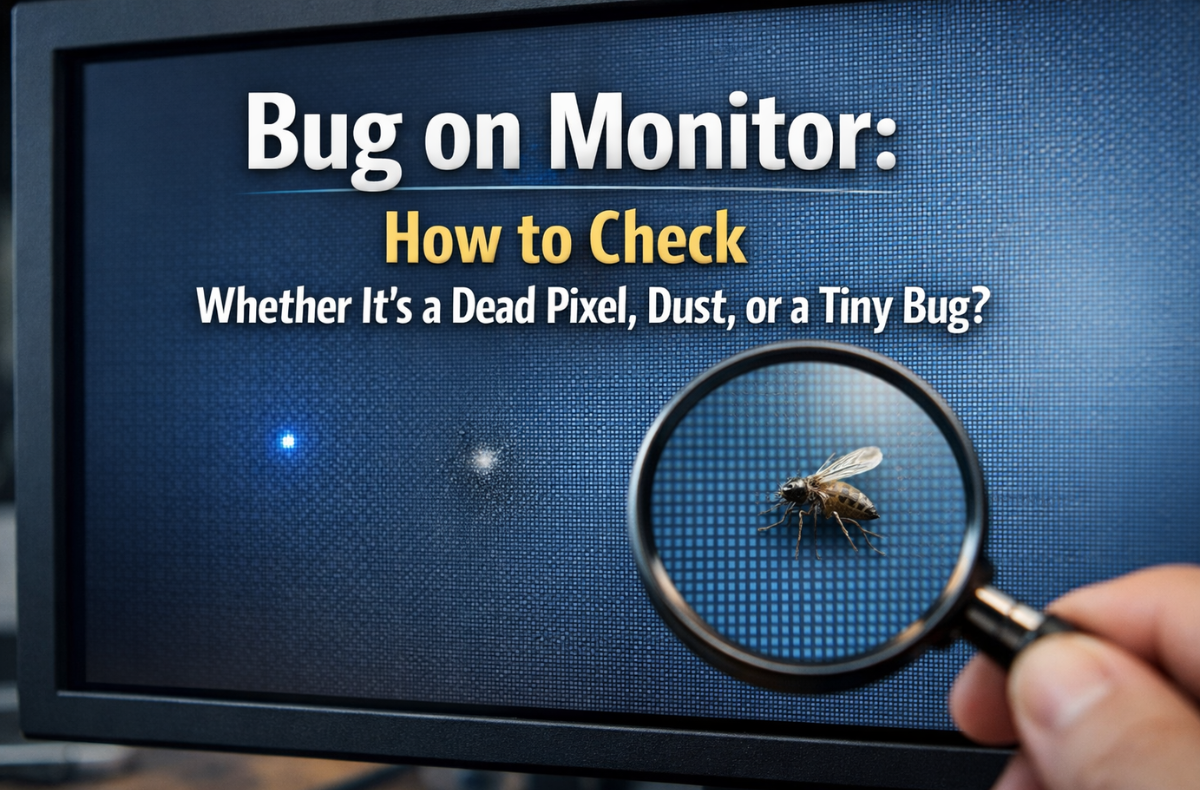
You sit down to work, turn on your computer, and suddenly spot it. A bug on monitor screens is a highly frustrating distraction. At first glance, you might think you have a dead pixel or a speck of trapped dirt. But then, the tiny moving dot on screen shifts direction.
Finding a bug on monitor panels is a surprisingly common issue. Displays emit heat and light, creating the perfect environment for tiny insects. You need to quickly figure out what you are looking at to avoid causing permanent damage to hardware.
Before you tap, press, or panic, you need the facts. This guide breaks down exactly how to perform monitor screen defect identification. You will know the difference between dead pixel and dust, and find out what to do when bug lands on monitor displays.
Key Takeaways
- A bug on a monitor can resemble a dead pixel or dust, so visually identify the issue using solid color tests and macro photography.
- Understanding your monitor’s anatomy helps explain how bugs get trapped between layers due to heat and light attraction.
- To lure out a live bug on a monitor, use light by turning off the display and placing a flashlight next to ventilation gaps.
- If a bug dies inside the monitor, gently tap the bezel after waiting for it to dry out completely to help it fall out of view.
- Prevent bugs on monitors by turning off displays at night and maintaining clean workspaces.
Table of Contents
- Visual Identification: Tiny Bug, Dead Pixel, or Just Dust?
- The Anatomy of Your Screen: LCD Panel Layers and the Backlight Unit (BLU)
- Why a Tiny Bug on the Monitor Happens: Heat, Light, and Ventilation Gaps
- The “Don’ts” of Dealing with an Insect Trapped in a Monitor
- Proven Methods to Lure Out a Tiny Bug on My Monitor
- What to Do When a Bug Lands on a Monitor and Dies Inside
- When to Seek Professional Help for a Small Bug Inside the Monitor Screen
- Preventative Measures: Keeping Very Tiny Bugs on Monitor Away
- Summary of Statistical Impact on Screen Longevity
- Conclusion
- FAQs
Visual Identification: Tiny Bug, Dead Pixel, or Just Dust?
If you see a black dot on the monitor screen panels, identifying the culprit is your first step. You need to perform a dead pixel on monitor test to rule out hardware faults.
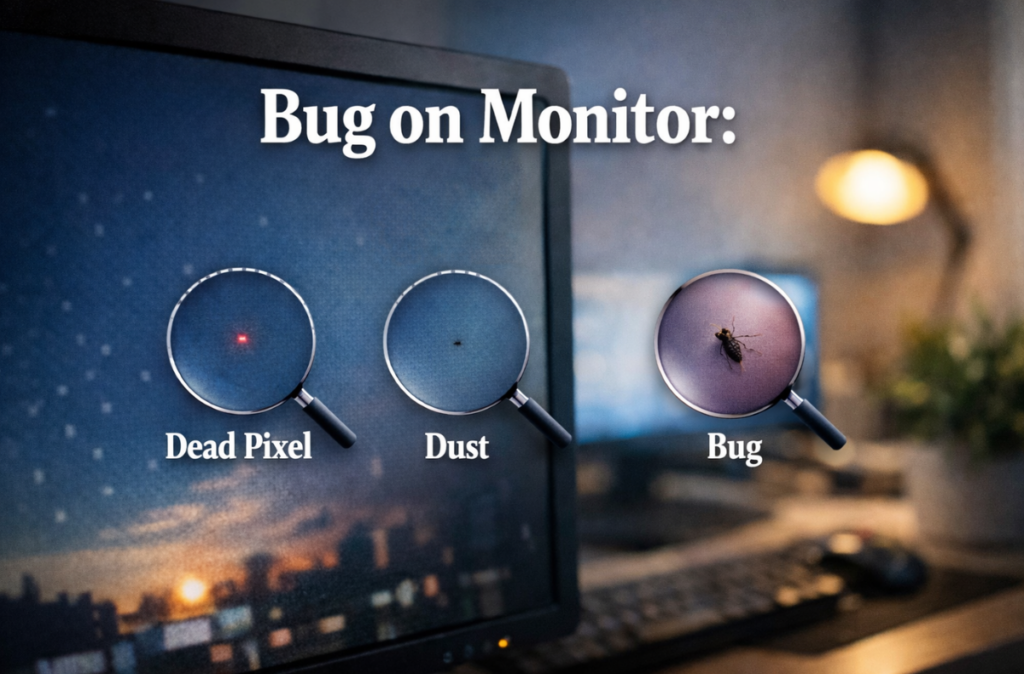
Use Solid Color Test Patterns (full-screen white, black, red, green, and blue) to reveal the issue. You can also use Macro Photography Diagnosis by taking a zoomed-in photo with your smartphone. Here is how to tell them apart:
| Feature | Bug on Monitor | Dead/Stuck Pixel | Dust Inside Monitor Screen |
|---|---|---|---|
| Shape | Irregular, casts a soft shadow | Perfect square, aligns with pixel grid | Irregular, stationary, soft edges |
| Movement | May crawl or shift slightly over time | Completely static | Fixed in one location |
| Color Response | Blocks backlight; stays dark across colors | Black (dead) or single fixed color (stuck) | Appears as a faint dark spot |
| Size | Often spans multiple pixels | Exactly one pixel or sub-pixel | Varies, usually very small |
When comparing a dead pixel vs bug on screen, remember that a true dead pixel is caused by Transistor Failure: the pixel receives no power. If you see a single color (red, green, or blue), you are looking at a Sub-pixel Defect. This is a stuck pixel vs dead pixel scenario. Run a Pixel Stress Test (rapidly flashing colors) to try and unstick it.
The Anatomy of Your Screen: LCD Panel Layers and the Backlight Unit (BLU)
To understand how a bug inside the monitor happens, you need to know how screens are built. Your monitor is not a single piece of solid glass. It consists of multiple LCD Panel Layers sandwiched together.
The front features the outer glass with an Anti-glare Coating. Behind that sits the polarizer, the color filter, the liquid crystal layer, and the TFT glass. Behind all of this is the Backlight Unit (BLU), which includes diffuser plates and prism sheets to spread light evenly.
A bug inside LCD screen panels usually crawls into the tiny gaps between the diffuser sheets and the LCD glass. Because the actual liquid crystal panel is sealed, the bug on the monitor is usually stuck in the optical film layers.

Why a Tiny Bug on the Monitor Happens: Heat, Light, and Ventilation Gaps
Why do bugs on the monitor at night appear so often? Insects are naturally drawn to the warmth and the blue LED wavelengths emitted by the Backlight Unit.
The most common culprits are Thrips (Thunderflies). These are extremely slender insects that slip through Monitor Ventilation Gaps. Because displays require these gaps to release heat, sub-millimeter openings exist along the bezels. This creates an easy path for Internal Ingress, resulting in an insect trapped in the monitor layers.
The “Don’ts” of Dealing with an Insect Trapped in a Monitor
Handling a bug on a monitor incorrectly leads to expensive mistakes.
Here are the actions you must avoid during monitor display spot troubleshooting.
If you see a tiny bug on the monitor display, do not press on the screen. Squishing a bug under the monitor screen panels is the fastest way to ruin your display.
- Permanent stains: Squishing the bug spreads its remains across the internal optical sheets. You cannot clean this without Professional Disassembly.
- Hardware damage: Applying pressure to an LCD screen creates a high Physical Screen Damage Risk. You can crush the delicate liquid crystals, causing permanent dead pixels or exacerbating IPS Glow vs. Backlight Bleed issues.
Proven Methods to Lure Out a Tiny Bug on My Monitor
If you have a live bug inside a laptop screen or a desktop monitor, act quickly but gently. Use the Light Luring Technique to guide it out.
The Flashlight Trick: Using Light as a Beacon
When dealing with very tiny bugs on monitor displays, use their attraction to light against them.
- Turn off your monitor and all room lights.
- Place a bright flashlight or desk lamp right next to the side vents of the monitor.
- Wait. The bugs are drawn to the new light source and will often crawl out of the bezel.
The Cooling Method: Powering Down to Remove Warmth
Insects love the heat of your display. Turn off the monitor and leave it unplugged overnight. As the screen cools down, the bug on the monitor loses its heat source and will likely leave to find a warmer spot.
What to Do When a Bug Lands on a Monitor and Dies Inside
Sometimes, a tiny insect inside the display panels dies before it can escape. A dead bug on a monitor screen looks exactly like a large dead pixel.
The Gentle Tapping Technique
If the bug is dead, you can use gravity. Turn off the monitor. Place a soft cloth over your finger and gently tap the bezel or the top of the monitor. Do not tap the glass directly. The subtle vibrations can cause the dried bug to fall to the bottom of the screen housing, safely out of view.
Gravity and Drying Out
Do not try the Suction Cup Method. Pulling on the screen with suction cups can delaminate the display layers. If the bug on your monitor screen just died, wait a few days. It needs time to completely dry out before tapping will work.
When to Seek Professional Help for a Small Bug Inside the Monitor Screen
If you cannot remove the bug on the monitor or if you accidentally squished it, you need expert help. Opening a modern monitor requires specialized tools and a dust-free environment.
Review your manufacturer’s Dead Policy. Most standard warranties do not cover an LCD screen bug problem, viewing it as an “act of nature.” However, check how to check dead pixels on monitor policies for your specific brand. ISO 9241-307 Class II standards allow up to 3 bright or 5 dark defects per million pixels. If your monitor screen black spot issue is actually a cluster of dead pixels exceeding this limit, you qualify for a replacement.
Preventative Measures: Keeping Very Tiny Bugs on Monitor Away
Stop the tiny bugs on my monitor from returning with a few simple steps.
- Turn off displays: Power down your screens at night to remove the heat and light that attract really tiny bugs on my monitor.
- Clean properly: Use a Microfiber Cloth. Safety standards. Wipe the exterior gently. Maintain a safe Isopropyl Alcohol Concentration (70% or less, applied to the cloth, never directly to the screen) to avoid stripping the anti-glare coating.
- Close windows: Keep window screens shut during humid, warm months when thunderflies swarm.
Summary of Statistical Impact on Screen Longevity
Understanding your monitor’s defect tolerance helps you know when to claim a warranty. Here is the industry standard data for pixel defects (ISO 9241-307 Class II), which helps you distinguish an acceptable pixel flaw from a bug on the monitor.
| Resolution | Total Pixels | Max Allowed Bright Dots | Max Allowed Dark Dots | Max Allowed Sub-pixel Defects |
|---|---|---|---|---|
| 1080p (FHD) | ~2 Million | 6 | 10 | 10 |
| 1440p (QHD) | ~3.6 Million | 10 | 18 | 18 |
| 2160p (4K) | ~8.2 Million | 24 | 41 | 41 |
Note: A single bug on a monitor usually mimics a cluster of 4 to 8 dark dots. If you have a static dark spot larger than these limits, and it is a confirmed pixel failure, contact the manufacturer.
Conclusion
A bug on monitor panels is an irritating distraction, but it is rarely a death sentence for your display. By accurately identifying whether you have a dead pixel, trapped dust, or a thunderfly, you can apply the right fix. Remember to use the flashlight trick for live bugs, rely on gentle taps for dead ones, and never, ever press down on the glass. Keep your workspace clean and cool to ensure your screen remains flawless.
FAQs
Turn off the monitor immediately to remove its heat and light. Place a bright flashlight next to the monitor’s side ventilation gaps to lure the bug out naturally.
Wait a few days for the bug to dry out completely. Turn off the screen, hold it upright, and gently tap the top plastic bezel to make the carcass fall to the bottom edge.
No. Bugs typically get trapped between the outer optical film layers and the glass. They do not interact with the sensitive circuit boards or liquid crystals unless you squish them.
Use a magnifying glass or a macro phone photo. A dead pixel is a perfect square aligned with the screen grid. A bug on the monitor will have irregular edges and cast a slight shadow.
Usually, no. Most manufacturers classify insect ingress as environmental damage. However, if the bug causes a total panel failure, or if you actually have a cluster of dead pixels, check your brand’s specific warranty policy.