
How to Recover Data from a Formatted USB Drive? Here’s the Real Fix!
Have you ever accidentally formatted your pen drive? Can you recover a formatted USB drive? Formatting is one of the most common reasons for sudden data loss. Maybe you clicked the wrong button, tried to fix a logically corrupted USB, or simply didn’t realize you were erasing everything until it was too late.
The good news is that it’s often possible to recover data from a formatted USB drive. In fact, the growing focus on data recovery reflects how widespread data loss has become. Gartner predicts that by 2028, 75% of enterprises will prioritize backup and recovery of critical data as a core requirement due to rising data-loss risks. This highlights the importance of understanding how data recovery works even for everyday storage devices like USB drives.
This guide will walk you through how USB drive formatting works, whether recovery is possible, how to improve your chances, and the methods that actually work. Let’s get going!
Table of contents
Part 1: Can You Recover a Formatted USB Drive?
Yes, you can recover data from a formatted USB drive, but there are some conditions. A quick format, which is the default option on most computers, only removes the file table that tells your system where your files are stored. The data itself remains untouched. However, if you continue using the USB stick after formatting, new files can overwrite the old ones, which is irreversible.
A full format, on the other hand, wipes everything completely and may even check the drive for errors, making recovery more difficult. Physical damage, malware, or long-term storage issues can also make it harder to recover your files.
Part 2: Tips to Boost the Chances of Formatted USB Drive Recovery
Data loss remains a widespread challenge, even for experienced professionals. According to Gartner, only 14% of security leaders feel they successfully balance protecting data while enabling business needs, highlighting how easily data can be lost due to human error or inadequate safeguards. This reality makes careful handling during recovery especially important both for individuals and organizations.
Many people often ask questions like “How to recover data from a USB flash drive after formatting?” on tech forums and help sites. Once you realize your USB drive has been formatted, every action you take can affect the chances of recovery. The most important rule is simple: stop using the drive immediately. Don’t copy new files, install software, or run any programs on the pen drive.
For advanced users, there’s an extra precaution you can take: creating a complete image of the formatted USB drive before attempting recovery. All recovery attempts are then performed on this copy rather than the original, which keeps the original data safe in case something goes wrong during the recovery process.
Time also matters. The sooner you attempt recovery after formatting, the better your chances. Now, let’s take a closer look at how to recover files from a formatted USB drive!
Part 3: Methods to Recover Data from a Formatted USB Drive
Method 1: Recover Formatted USB Drive With 4DDiG
For most users, the easiest and safest way to recover files from a formatted USB drive is by using data recovery software. Not all programs are equally reliable, and some might even harm your files further. Our top recommendation is Tenorshare 4DDiG Data Recovery, which excels at retrieving formatted files from various storage devices. It can recognize more than 2,000 data types, including photos, videos, audio files, documents, and more. Here are more details about this tool:
- Performs well in different data loss scenarios, including accidental formatting, corruption, or system errors.
- Allows you to work from a USB image instead of the original drive.
- Displays a preview of recoverable files, making it easy to select exactly what you need.
- Offers a free version for Windows users, so you can try it without immediate cost.
- User-friendly interface that doesn’t require technical expertise to get started.
Here’s a step-by-step guide on how to recover a formatted USB drive for free with the aid of 4DDiG:
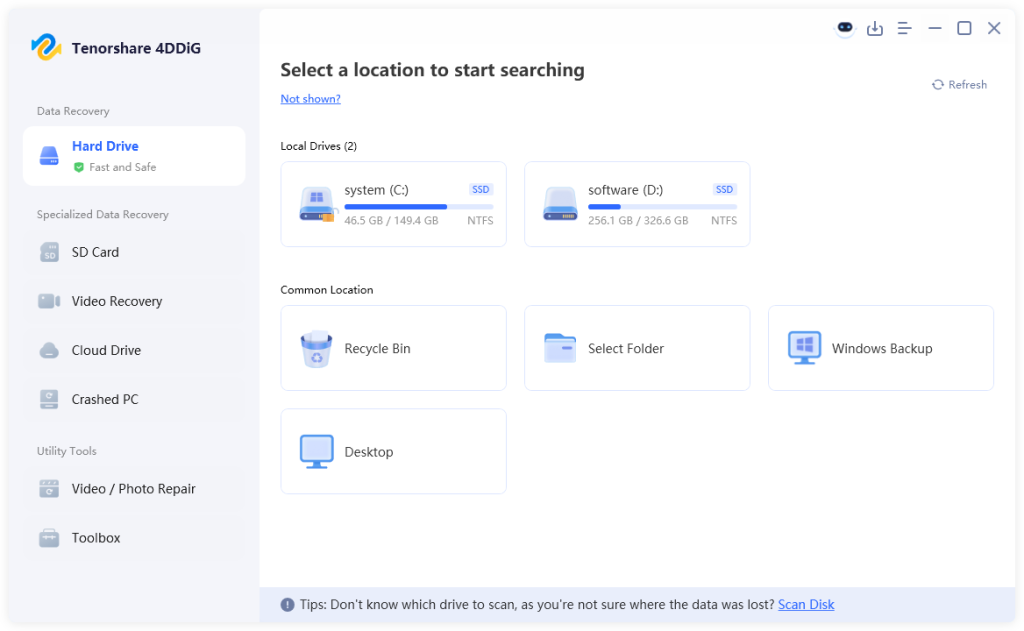
Step 1: To begin, install and launch the 4DDiG Data Recovery tool on Windows or Mac. Once you open it, you’ll see the main interface, where you can select the formatted drive that contains your lost files. After selecting the disk, simply hit the “Scan” button to proceed.
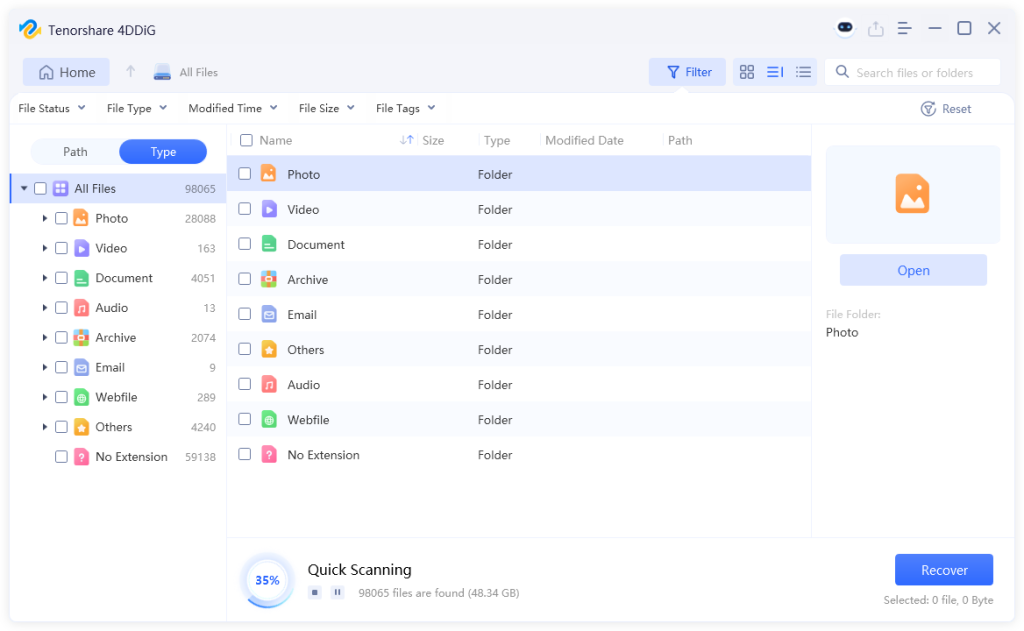
Step 2: The tool will quickly scan the USB stick for any recoverable files. To make the process easier, you can switch between Path View or Type View, which allows you to narrow down your search based on folder structure or file type.
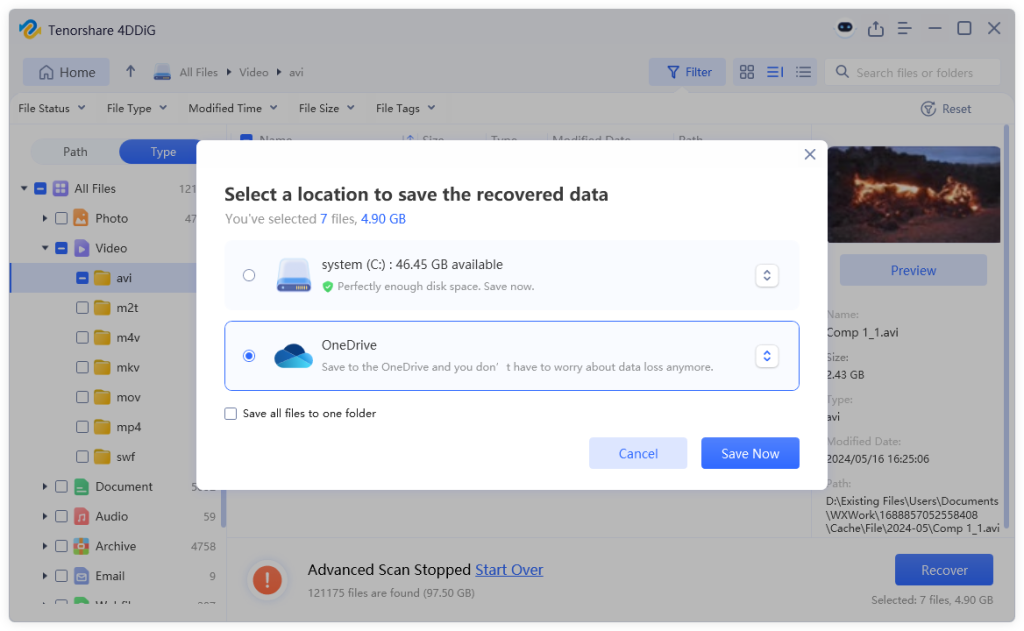
Step 3: When the scan finds the file you need, you can pause or stop the scanning process and preview the file. If everything looks good, click the “Recover” button and save the file to a different location on your computer.
Method 2: Recover Formatted USB Drive via Built-In Tools
Still wondering how to recover data from a USB flash drive after formatting? You don’t need to install any extra software; your computer’s automated backup can often get the job done quickly and safely. Here’s how :
For Windows:
- Step 1: Start by right-clicking the folder where your files were stored. Then, pick the “Restore previous versions” option from the menu.
- Step 2: Browse the list of available versions to find the one containing your lost files.
- Step 3: Select the desired version, and then hit “Restore.”
For Mac:
- Step 1: First, connect your USB stick to the Mac and make sure Time Machine is set up with regular backups. Click the Time Machine icon in the menu bar, followed by selecting “Enter Time Machine.”
- Step 2: Navigate to a backup before the USB was formatted.
- Step 3: Once you find the right date, browse the backup to locate your lost files.
- Step 4: Select the files you need and click “Restore.”
Method 3: Recover Formatted USB Drive by CMD
In most cases, you cannot recover files from a formatted USB drive via the Command Prompt app. However, you can use commands like CHKDSK to try extracting hidden or corrupted files that may still remain on the drive. Here’s how to recover formatted files from a USB using CMD:
- Step 1: Connect your USB stick to the computer. Press Win + S, write “cmd,” right-click “Command Prompt,” and choose “Run as administrator.”
- Step 2: Input the chkdsk X: /f /r command and press Enter. Replace X with the letter of your USB drive.
- Step 3: After that, type and run theattrib -h -r -s /s /d X:\*.* command.
Method 4: Seek Professional Data Recovery Services
Have you tried all the methods above and still haven’t had any luck? If so, it may be time to turn your USB drive over to a professional data recovery service. These companies have specialized equipment and extensive experience, allowing them to retrieve data from drives that seem impossible to recover.
While professional data recovery can be costly, it’s usually worth the investment if the data is truly important to you. Before sending your USB stick, make sure to choose a reputable company with good reviews and transparent pricing.
So, that’s everything you need to know about recovering a formatted USB flash drive for free.
Final Thoughts
We have provided answers to your queries: “Can you recover a formatted USB drive, and if so, how?” From using reliable data recovery software to exploring built-in tools, there are multiple ways to recover data from a formatted USB drive. The key is to act quickly, avoid overwriting the drive, and choose the right recovery method for your situation. And once your files are safely recovered, we highly recommend taking simple preventive steps to avoid future data loss.