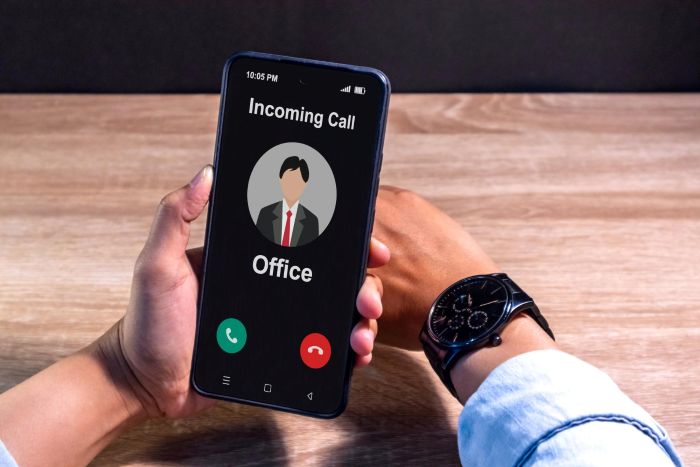
Most people think caller ID features are just a name and number when someone calls. You glance at your screen, decide whether to answer, and move on. Simple enough, right?
Actually, caller ID has become far more powerful than that basic function. Your phone packs features that can block spam, identify unknown callers, protect your privacy, and give you control over who reaches you. The problem? Most of these caller ID features stay hidden in settings menus, never getting used.
Time to change that. When you know what your phone can really do, those unknown calls stop feeling so mysterious and threatening. You gain back the control that spam callers and robocalls have been stealing from you.
Key Takeaways
- Caller ID features extend beyond basic name and number display, offering tools to block spam and manage unknown calls.
- Activate features like silencing unknown callers to avoid interruptions without blocking them.
- Set custom ringtones and vibrations for important contacts to identify calls without looking at your phone.
- Utilize advanced spam detection features to gather information about unknown callers before answering.
- Combine these caller ID features to regain control over your incoming calls and enhance your phone experience.
Table of contents
- Caller ID Features You Should Know
- Silence Unknown Callers Without Blocking Them
- Custom Ringtones and Vibrations for Different Contacts
- Caller ID Announcements for Hands-Free Identification
- Advanced Spam Detection and Caller Identification
- Block by Category Instead of Individual Numbers
- Make Your Own Number Anonymous When Calling Out
- Create VIP Lists for Priority Contacts
- Visual Voicemail with Transcription
- Taking Control of Your Incoming Calls
Caller ID Features You Should Know
Your device comes loaded with tools that most people never discover. These caller ID features do not require special apps or monthly subscriptions. They just need to be turned on and configured to match how you actually use your phone. Each one solves a specific problem that makes phone calls stressful or annoying.
Silence Unknown Callers Without Blocking Them
One of the most useful features of caller ID sits buried in your phone settings, doing nothing until you activate it. Both iPhones and Android devices can automatically silence calls from numbers not in your contacts, sending them straight to voicemail without ever ringing.
This differs from blocking. Blocked numbers get a busy signal or immediate voicemail. Silenced unknown callers can still leave messages, but they cannot interrupt your day. You check voicemail when convenient, call back if needed, and ignore the rest.
- Why this matters: You stop jumping every time your phone buzzes. That constant low-level anxiety about missing important calls versus answering spam? Gone. Your contacts ring through normally. Everyone else waits quietly.
- The catch: Legitimate calls from new numbers also get silenced. Doctor’s offices calling from different lines, delivery drivers trying to find your address, or callbacks from businesses you contacted might not ring through. You need to check voicemail more regularly or temporarily disable the feature when expecting specific calls.
For most people, this tradeoff is worth it. The peace of mind from eliminating random interruptions outweighs the minor inconvenience of checking voicemail more often.
Custom Ringtones and Vibrations for Different Contacts
Your phone can announce who’s calling before you even look at the screen. Assign unique ringtones to important contacts, and you’ll know immediately whether to grab your phone or let it wait.

This caller ID feature transforms how you interact with your device. Your boss gets one ringtone. Your spouse gets another. Your best friend gets a third. Unknown numbers? A completely different sound that signals “probably not urgent.”
Setting this up:
- On iPhone: Go to Contacts, select a person, tap Edit, then Ringtone
- On Android: Open Contacts, select a person, tap the three dots, select Set ringtone
Take it further with custom vibration patterns. Your phone can literally tap out Morse code that tells you who’s calling while sitting in your pocket. Some people set up completely silent vibrations for work contacts during personal time, or vice versa.
This might sound excessive, but it gives you instant context without touching your phone. During meetings, you know whether to excuse yourself or let it go to voicemail. While driving, you can decide if using hands-free is worth it for that particular caller. The small effort of setup pays dividends in daily convenience.
Caller ID Announcements for Hands-Free Identification
Modern phones can speak caller names out loud, announcing who’s calling while you cook, drive, or have your hands full. This voice announcement caller ID feature is especially valuable for anyone who uses headphones frequently or needs accessibility features.
How to enable:
- iPhone: Settings > Phone > Announce Calls, then choose when you want announcements (Always, Headphones Only, Car, or Never)
- Android: Varies by manufacturer, but usually in Phone app settings under Caller ID announcement or similar
The phone uses its text-to-speech engine to say the caller’s name or number. If the caller is in your contacts, you hear their name. Unknown numbers get announced as “Unknown Caller” or the actual number gets read aloud.
Some people find this annoying at first, but grow to depend on it. No more digging your phone out of a bag to check who’s calling. You hear “Mom” and answer. You hear “Unknown Caller” and ignore it. Simple, effective, and completely hands-free.
Advanced Spam Detection and Caller Identification
Basic caller ID features show names for contacts and maybe “Spam Likely” for obvious junk. But enhanced caller ID features go much deeper, providing detailed information about unknown callers before you answer.
Many carriers now offer premium caller ID services that use massive databases to identify callers. When someone calls, your phone queries these databases in real-time, showing not just a name but additional context like:
- Business names and types
- Spam likelihood ratings
- Previous user reports about this number
- Location information
- Whether the number has been flagged for scams
Third-party apps take this even further. Services specializing in caller ID lookup can identify numbers that carriers miss, drawing from community-reported data, business directories, and public records. When an unknown number calls, these tools search multiple sources simultaneously to tell you exactly who’s trying to reach you.
The best caller ID lookup tools update constantly. New spam operations get identified and flagged within hours of starting their campaigns. That mystery number calling you? Someone else already got the same call, reported it as spam, and now you benefit from their experience.
Popular options include:
- Carrier-provided caller ID services (usually $3-5/month)
- Truecaller, which crowdsources caller information
- Hiya, focusing on spam identification
- Apps that combine caller ID lookup with call blocking
These services are not perfect. They sometimes misidentify legitimate callers or miss new spam operations. But they catch enough to make a real difference in how confidently you can answer or ignore unknown calls.
Block by Category Instead of Individual Numbers
Manually blocking spam numbers one at a time feels like fighting a losing battle. Spammers use different numbers constantly, making individual blocks nearly useless. But some caller ID features let you block entire categories of calls automatically.
Categories you can block:
- All unknown numbers
- Private or hidden numbers
- International calls
- Numbers identified as telemarketers
- Suspected spam or fraud
- Specific area codes or prefixes
This caller ID feature shifts from defensive to proactive. Instead of waiting for spam to hit you, then blocking, you preemptively shut out entire classes of unwanted calls. Most legitimate callers do not hide their numbers or call from overseas. Blocking these categories stops most spam while rarely affecting real communications.
The settings vary by phone and carrier:
- Native iPhone and Android features offer basic category blocking
- Carrier apps like Verizon Call Filter or AT&T Call Protect provide more options
- Third-party apps give the most granular control
Start conservative with your blocking rules. Enable a category, see how it affects your calls for a week, then adjust. You might find that blocking all international calls is too aggressive if you have family overseas, but blocking hidden numbers catches spam without issues.
Make Your Own Number Anonymous When Calling Out
Caller ID works both ways. Just as you can see who’s calling you, people you call see your information. But sometimes you want to make a call without revealing your number.
Temporary number hiding:
- iPhone: Go to Settings > Phone > Show My Caller ID and toggle it off
- Android: Phone app settings > Calls > Additional settings > Caller ID > Hide number
- Universal method: Dial *67 before any number to hide your caller ID for that specific call
When this helps:
- Calling businesses you do not want to have your number
- Reaching out to Craigslist sellers or other strangers
- Calling someone who might not answer if they recognize your number
- Testing whether a number is active without revealing yourself
The receiving end sees “Private Number,” “Blocked,” or “Unknown Caller” instead of your information. They can still answer and talk to you normally, but they cannot see or save your number.
Some businesses and individuals block all anonymous calls, so this tactic has limits. Emergency services can still see your real number even when you hide it from regular callers. And obviously, do not use this caller ID feature for harassment or anything sketchy.
Create VIP Lists for Priority Contacts
Not all calls are equally important. Your phone knows this and can treat different callers differently. VIP or priority contact features let specific people bypass all your blocking and silence rules.
Set your phone to silence all unknown callers and most contacts during work hours, but let calls from your kids’ school, elderly parents, or your boss always ring through. During personal time, flip it around.
Setting up priority contacts:
- iPhone: Add contacts to Favorites, then allow calls from Favorites during Do Not Disturb
- Android: Star important contacts, then set starred contacts to bypass Do Not Disturb
Combined with other caller ID features, this creates sophisticated call management. Spam gets blocked automatically. Regular contacts get silenced during busy times. Priority contacts always reach you immediately. You stay accessible to people who matter while protecting yourself from interruptions.
This is particularly valuable for parents, caregivers, or anyone on-call for emergencies. You can safely ignore your phone most of the time, confident that truly urgent calls will still get through.
Visual Voicemail with Transcription
Traditional voicemail means calling a number, entering a password, listening to messages sequentially, and deleting or saving them one by one. Visual voicemail, now a standard caller ID feature on most phones, changes everything.
Your voicemails appear as a list. Tap one to listen, skip around, delete without listening, or save important ones. Better yet, many phones automatically transcribe voicemails to text, letting you read messages instead of listening.
Why this transforms how you handle calls:
- Quickly scan multiple voicemails for importance
- Read messages in quiet environments where playing audio is awkward
- Search voicemail text for specific information
- Save time by identifying spam voicemails before listening
The transcription accuracy varies. Simple messages come through perfectly. Heavy accents, background noise, or technical terms might get mangled. But even imperfect transcripts give you the gist of a message without playing it.
Most carriers include visual voicemail for free now. If yours does not, third-party apps can add this functionality. Once you get used to reading voicemails at a glance, going back to traditional voicemail feels like using a rotary phone.
Taking Control of Your Incoming Calls
These caller ID features exist right now in your phone, waiting to be activated. Most people never explore settings menus deeply enough to find them. But spending 15 minutes configuring these options can eliminate months of phone-related frustration.
Start with one or two features that address your biggest pain points. Getting too many spam calls? Enable unknown caller silencing and spam detection. Missing important calls because everything goes to voicemail? Set up custom ringtones and priority contacts. Frustrated checking voicemail? Turn on transcription.
Layer these features together and something interesting happens. Your phone becomes useful again instead of annoying. Calls you want come through clearly. Calls you do not want get filtered out quietly. And those mystery calls that fall in between? You have tools to identify them before deciding whether to answer.
Your phone should work for you, not against you. These caller ID features give you that control back. Use them.